
How to Set Up IPTV on Android TV
Setting up a media player on Android TV is usually straightforward. This guide walks you through installing a compatible app, adding your authorised access details and checking playback.
The instructions also cover Google TV devices and compatible streaming boxes, with practical advice for common setup problems.
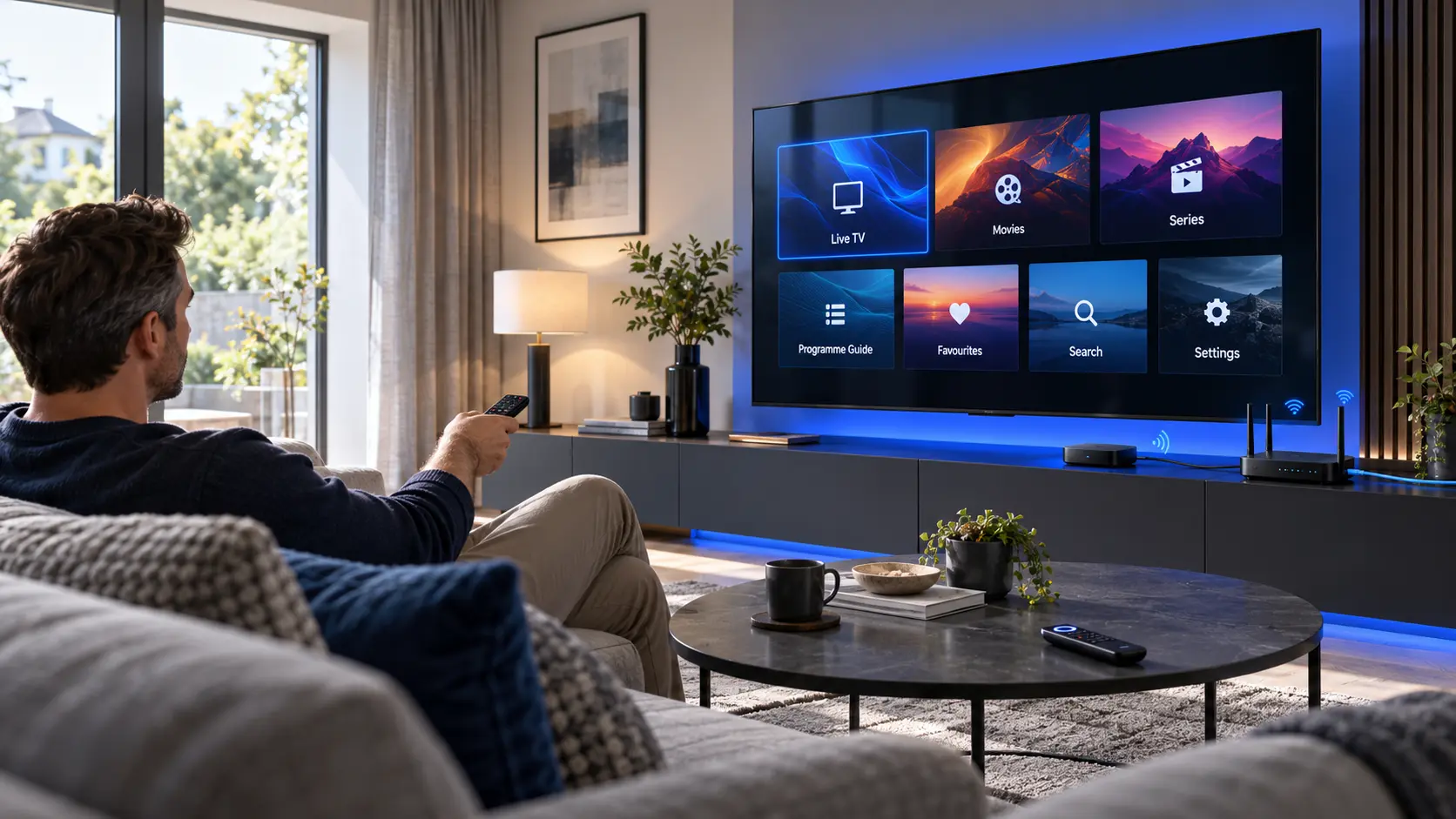
What Is IPTV on Android TV?
IPTV stands for Internet Protocol Television. It describes television content delivered over an internet connection rather than through a traditional broadcast signal.
Android TV provides a platform for installing compatible streaming applications. These apps can play media from supported services and sources.
Some media players also support user-provided playlists. For example, a compatible player may allow you to add an M3U playlist or account details supplied by your authorised television provider.
Android TV vs Google TV
Android TV and Google TV have related app ecosystems, but their home screens and navigation can look different.
On Android TV, you will commonly find the Play Store through the Apps area. Google TV devices generally provide an Apps tab or a search function.
The setup process is similar, although exact menu names depend on the device.
What Do You Need Before Setup?
A few checks before installation can save time later. Make sure your device, network and login information are ready.
Compatible Android TV Device
Use a television with Android TV or Google TV built in, or a compatible external streaming box.
The device should support the media player you intend to install.
Working Internet Connection
Connect your television or streaming box to your home network.
Wi-Fi can work well, while Ethernet may provide a steadier connection where supported.
Compatible Media Player
Choose an application designed for television navigation.
Check its supported login methods, developer information and device compatibility.
Authorised Access Details
Have your M3U playlist or supported account credentials ready.
Keep passwords and private playlist links secure.
Updated Device Software
Check for available system updates before starting.
Updates can resolve compatibility issues and improve stability.
A Few Minutes for Testing
Allow time for the player to load the media library.
Test more than one stream before deciding that setup is complete.
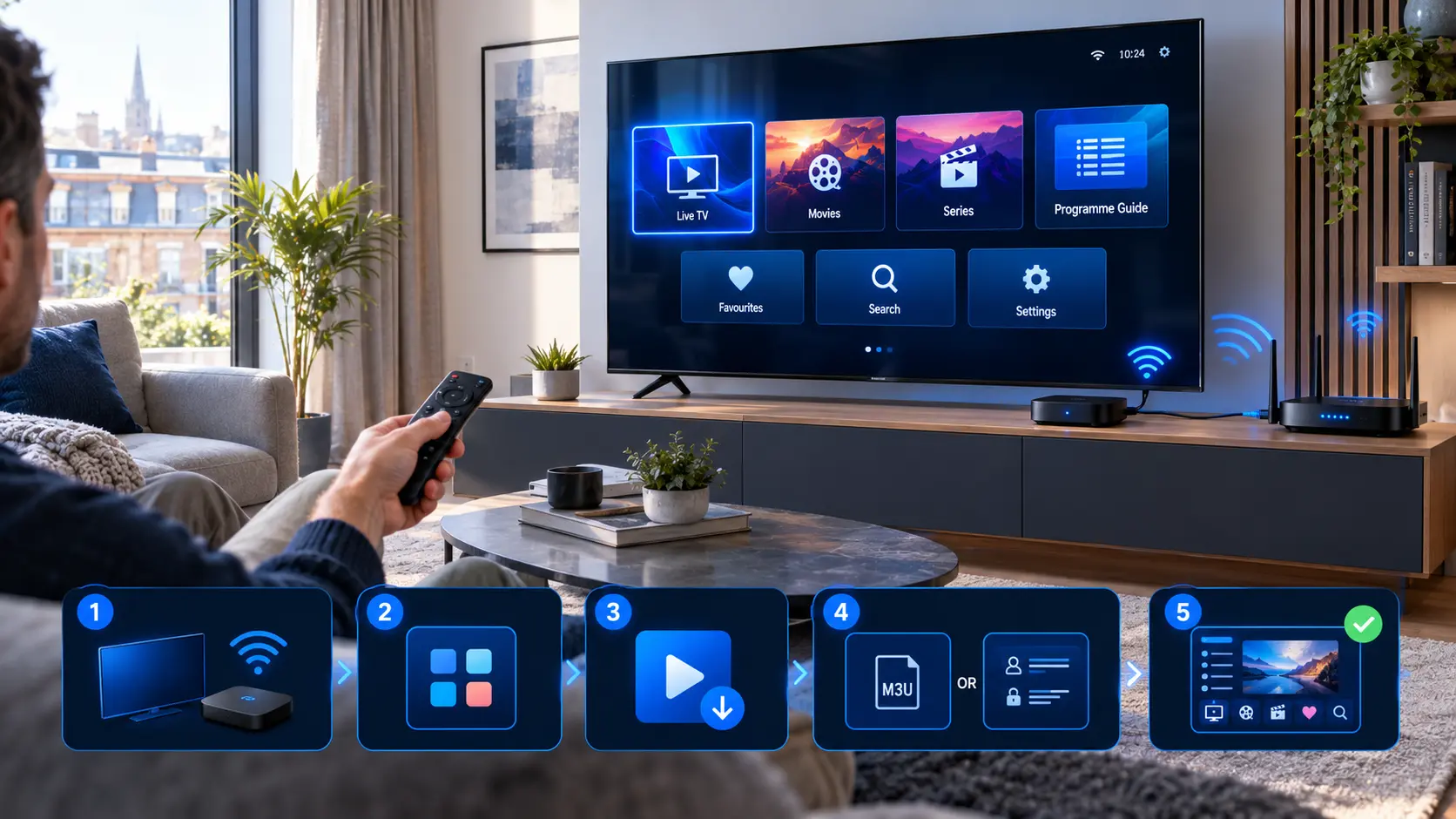
How the Android TV Setup Works
The process starts with an internet connection and a compatible media player. Once the app is installed, you can add the access details supplied by your authorised provider.
Most compatible players follow a similar pattern, even when their menus look different.
- Connect your device to the internet.
- Find a suitable media player.
- Install and open the application.
- Add your authorised access details.
- Load the library and test playback.
How to Install IPTV on Android TV
Follow these steps to install a compatible media player and configure your authorised television access.
Connect Your Android TV to the Internet
Turn on your television or streaming box and open its network settings.
Connect to your home Wi-Fi network. If your device supports Ethernet, you can use a wired connection instead.
Check the connection
Open an existing internet-based app to confirm that your device is online before continuing.
Open the App Store
On Android TV, open the Apps section and look for the Google Play Store.
On Google TV, use the Apps tab or search function to find compatible applications.
Menu layouts can vary between manufacturers and software versions.
Find a Compatible IPTV Media Player
Search for a media player that supports your device and the login format supplied by your provider.
Before installing, check the app's description, developer and compatibility information.
You can explore common player features in our IPTV Apps guide .
Install and Launch the App
Select the application and follow the on-screen installation instructions.
Once installed, open it from your device's app list.
Some players display a welcome screen. Others ask you to choose a login method immediately.
Choose Your Login Method
Depending on the media player, you may be able to add an M3U playlist or use account-style credentials.
Select the option that matches the information supplied by your authorised service provider.
M3U playlist
Enter the complete playlist URL in the appropriate field.
Xtream Codes-style login
Enter the server address, username and password if the player supports this method.
Load Your Media Library
Save the details and allow the application to connect.
Depending on the player and source, you may see live television categories, on-demand sections or programme-guide information.
Larger libraries can take longer to load during the first setup.
Test Playback and Navigation
Open an authorised stream and check picture and sound.
Test another item to confirm that playback is consistent.
Finally, check whether the remote works correctly with search, favourites and the programme guide.
M3U vs Xtream Codes on Android TV
Both methods can connect a compatible media player to an authorised source. The available options depend on the app.
M3U Playlist
An M3U playlist is commonly supplied as a URL or playlist file.
If your player supports M3U, add the authorised playlist using its playlist settings.
When is it useful?
It can be convenient when your provider supplies a ready-made playlist link.
What should you check?
Make sure the URL is complete and has not been altered. Private playlist links should be treated like passwords.
Xtream Codes-Style Login
Some players allow you to enter separate connection fields.
These commonly include a server address, username and password.
When is it useful?
Separate fields can be easier to check than one long URL, especially when using a TV remote.
What should you check?
Confirm that the player supports this login format. Enter your credentials exactly as supplied.
Which IPTV App Works on Android TV?
There is no single player that is best for every Android TV device.
A good choice depends on your television, preferred interface and supported connection method.
Some well-known players include TiviMate, IPTV Smarters Pro and other applications designed for compatible television devices.
Availability and features can change, so check the official app listing before installing.
Features worth checking
- Compatibility with your device.
- M3U or supported account login.
- Easy remote-control navigation.
- Programme-guide support.
- Favourites and category management.
- Developer updates and privacy details.
Improve Streaming Stability on Android TV
A reliable internet connection matters more than simply choosing a popular media player.
Use a Stable Wi-Fi Connection
If your television is far from the router, walls and interference may affect signal quality.
A 5 GHz connection can work well when the router is nearby. A 2.4 GHz connection may provide better range in some homes.
Consider Ethernet
If your device supports a wired connection, Ethernet may help reduce problems caused by weak or congested Wi-Fi.
Common Android TV IPTV Problems
If something does not work, start with the simplest checks. The issue may involve the app, connection, device or media source.
The App Is Not Available
Check whether the player supports your Android TV or Google TV device. App availability can vary by region and software version.
Login Details Are Rejected
Recheck the server address, username and password. Confirm that your account is active and that you selected the correct login method.
The Playlist Does Not Load
Check the playlist address and your internet connection. Restart the player before changing more advanced settings.
Video Keeps Buffering
Test another stream and another internet-based app. This helps determine whether the problem affects your network or only a particular source.
Live TV Works but VOD Does Not
Test several on-demand items. Refresh the library if your player supports it. The issue may affect the source or the media format.
The Player Freezes or Crashes
Restart the application. Check for updates and available device storage. If the problem continues, restart the television or box.
Keep Your Android TV Setup Secure
Your playlist link and account credentials may contain private access information.
Avoid posting them publicly or sending screenshots that reveal passwords and server details.
Use trusted application sources and review app permissions before entering sensitive information.
Use Authorised Content
A media player is a playback tool. It does not establish whether a particular television stream is licensed for viewing.
Make sure you have appropriate permission to access the content you add to your player.
Continue With Our IPTV Setup Guides
Need instructions for another device, help choosing a media player or advice about playback problems? These guides can help.
IPTV on Android TV: Common Questions
Short answers to common questions about installation, compatibility and playback.
Can I install IPTV on Android TV?
Yes. Android TV supports compatible media-player applications. You can install a suitable player and add the access details supplied by your authorised provider.
Does IPTV work on Google TV?
Compatible media players can also work on Google TV devices. However, app availability and navigation may differ. Check the app's device support before installing.
Which IPTV app should I use on Android TV?
Choose an app that supports your device and login method. Look for clear remote navigation, useful playback features, developer updates and transparent privacy information.
Can I use an M3U playlist on Android TV?
Yes, if your chosen media player supports M3U playlists. Enter the complete authorised playlist URL in the appropriate settings.
Can I use Xtream Codes on Android TV?
Some compatible players support Xtream Codes-style login details, including a server address, username and password. Availability depends on the app.
Why does IPTV buffer on Android TV?
Buffering can be caused by network congestion, weak Wi-Fi, device performance or the source stream. Test another stream and another internet-based app to narrow down the cause.
Is Ethernet better than Wi-Fi?
Ethernet can provide a more consistent connection in homes with weak or congested Wi-Fi. However, a stable Wi-Fi connection can also work well.
Does installing an IPTV player include channels?
No. Installing a media player does not automatically provide television channels or a content subscription. Access normally comes separately from an authorised service.
Need Help Setting Up IPTV on Android TV?
If you need help understanding the installation process, our support team can guide you through the relevant steps.
Tell us whether you use Android TV, Google TV or a compatible streaming box, along with the media player you are trying to configure.