
How to Set Up IPTV on iPhone & iPad
Setting up IPTV on an iPhone or iPad is straightforward once you have a compatible media player and valid access details from your TV service provider. This guide explains the process from installing an app to adding your playlist and fixing common playback problems.
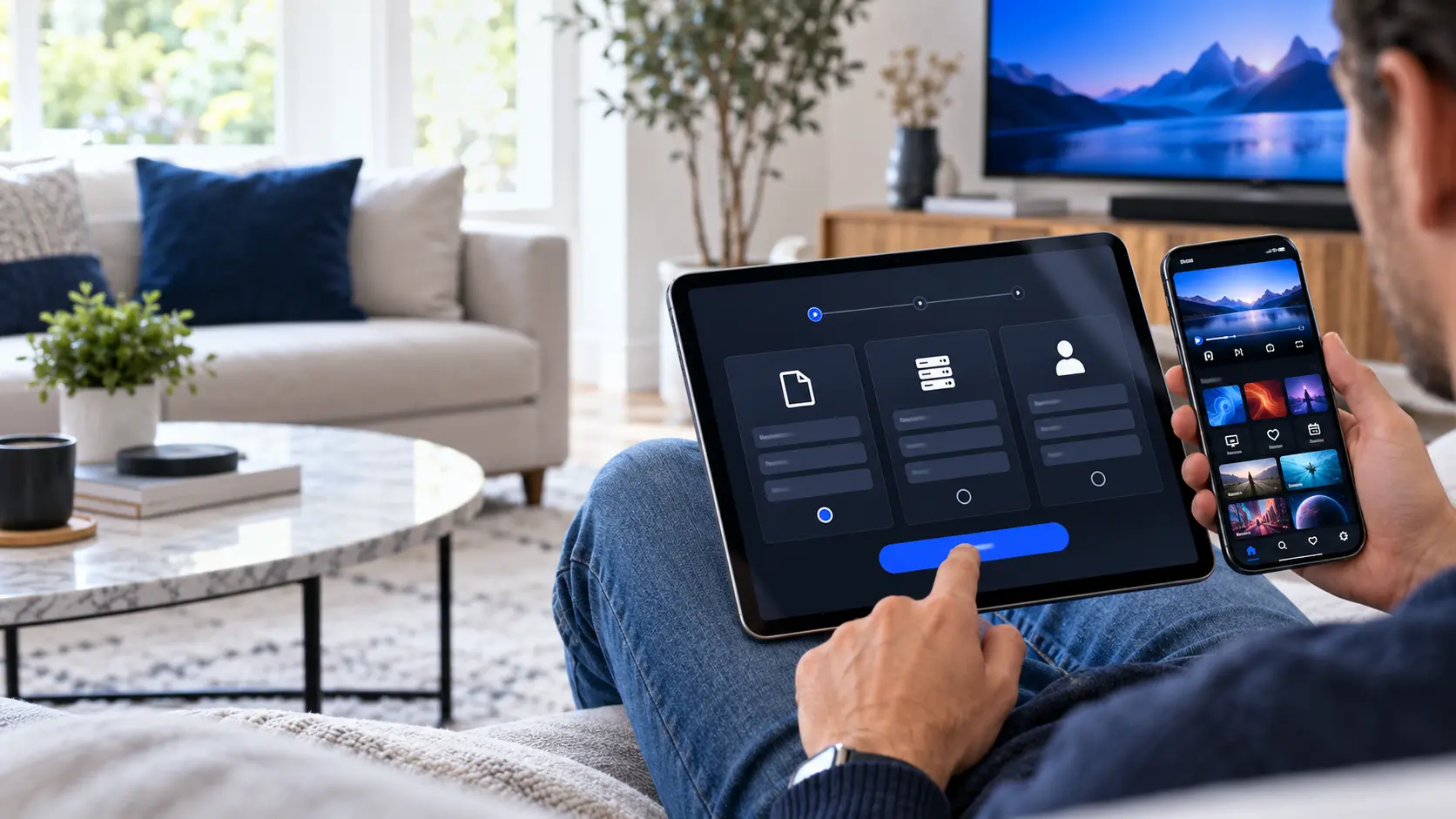
What Do You Need to Watch IPTV on iPhone or iPad?
You do not need complicated hardware. In most cases, the setup only requires your device, an internet connection, a compatible media-player app and authorised access details supplied by your provider.
A Compatible Device
Use an iPhone or iPad that can run a suitable media-player app. Keeping iOS or iPadOS updated can also help with compatibility and security.
A Media Player
IPTV credentials normally need a compatible player to organise playlists, programme information and playback. Check the app's features before installing it.
Your Login Details
Depending on your provider, you may receive an M3U playlist or Xtream Codes-style login details. Keep these credentials private.
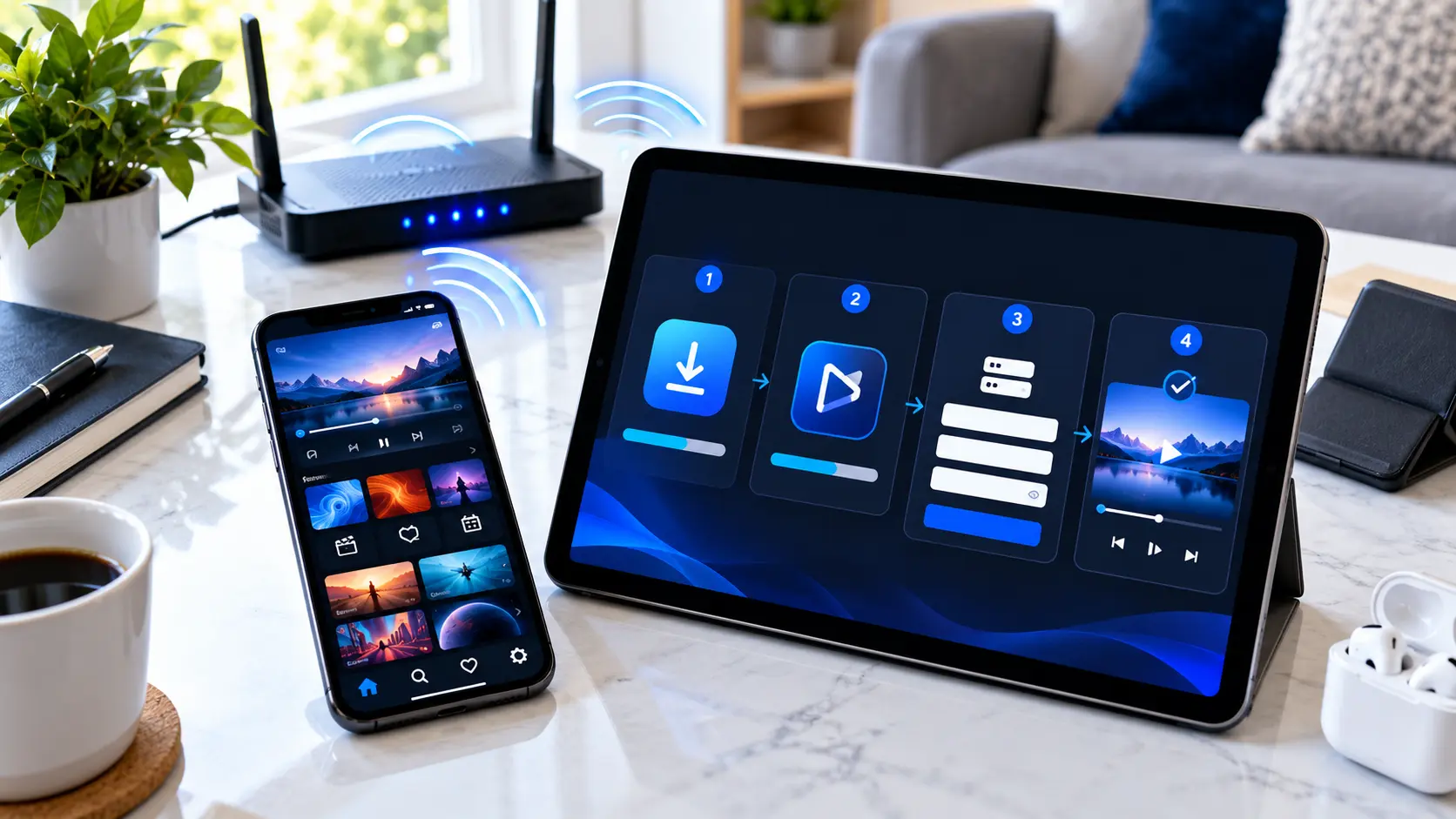
Choose a Suitable IPTV Player
The player is the application that reads the access details provided by your TV service. It does not automatically mean that the app itself supplies television channels.
Before downloading an app, check whether it supports the login method you have received. Also review its developer details, privacy information, compatibility and recent user feedback.
- Check iPhone or iPad compatibility.
- Confirm support for your login method.
- Review privacy information before entering credentials.
- Download apps from trusted sources such as the App Store.
How to Install IPTV on iPhone & iPad
The exact menu names vary between media players, but the general installation process is usually similar.
Open the App Store
Open the App Store on your iPhone or iPad and search for the media player you want to use. Check the developer and compatibility information before downloading it.
Install and Open the Player
Download the selected app and open it. Some players may ask you to accept their privacy policy or choose how you want to add your television service.
Select Your Login Method
Choose the method that matches the information supplied by your provider. Common options include an M3U playlist or Xtream Codes-style credentials.
Enter the Details Carefully
Enter the server address, username and password exactly as supplied. If you use an M3U playlist, paste the full authorised playlist address into the appropriate field.
Allow the Playlist to Load
The first synchronisation can take a little time, particularly when the account contains a large channel or on-demand library. Keep the app open until loading is complete.
Test Playback
Open a channel or authorised on-demand item and test playback. If the stream loads correctly, you can then organise favourites and adjust player settings.
M3U vs Xtream Codes on iPhone & iPad
These methods can provide access to the same authorised service, but the information you enter into the player is organised differently.
M3U Playlist
An M3U playlist is normally provided as a URL. A compatible player reads that address and loads the available media entries. Paste the complete URL without changing its characters.
Xtream Codes Login
This method typically separates the connection information into a server address, username and password. Many users find the separated fields easier to check when diagnosing a login problem.
How to Get a Better Streaming Experience
A correctly configured player is only part of the setup. Network quality, device resources and the source stream can all affect playback.
Use a Stable Wi-Fi Connection
If possible, stay close to your router and avoid areas with a weak wireless signal. A stable connection is often more important than a very high advertised internet speed.
Close Unneeded Apps
If your device feels slow, close resource-heavy apps that you are not using and restart the media player.
Keep the Device Updated
Current system and app updates can include security, stability and compatibility improvements.
Before blaming the stream
- Test another channel or video.
- Check whether other apps have internet access.
- Move closer to the Wi-Fi router.
- Restart the media player.
- Restart the iPhone or iPad if needed.
- Check your login details for typing errors.
Can You Watch from iPhone or iPad on a TV?
If your media app supports AirPlay, compatible content may be sent from an iPhone or iPad to an Apple TV, AirPlay-compatible television or supported Mac.
In a typical home setup, the sending device and the receiving device should be connected to the same Wi-Fi network.
AirPlay availability can also depend on the media app and the receiving device.
Basic AirPlay Check
- Connect both devices to the same Wi-Fi.
- Start playback in a compatible app.
- Look for the AirPlay control.
- Select the compatible TV or receiving device.
Common IPTV Problems on iPhone & iPad
When something stops working, identifying whether the problem comes from the app, login details, network or service can save a lot of time.
The Playlist Will Not Load
Recheck the server address, username, password or M3U URL. Remove accidental spaces and make sure the credentials are still active.
Video Keeps Buffering
Test your Wi-Fi connection and try another stream. If only one item is affected, the issue may not be your iPhone or iPad.
Channels Load but VOD Does Not
Restart the app and refresh the playlist if your player offers that option. If the problem affects the whole on-demand library, check with your service provider.
The App Closes or Freezes
Update the app, restart your device and check available storage. If the issue continues, consider testing another compatible player.
Keep Your IPTV Login Details Private
Treat IPTV credentials in the same way you would treat other account login information. Avoid posting screenshots that expose usernames, passwords, playlist URLs or server details.
Download media players from trusted sources and review an app's privacy information before providing account details.
Responsible Viewing
A media player is only a playback tool. Users should make sure they have permission to access the television or video content they add to the app.
Content availability and viewing rights can vary by provider, subscription and location.
More IPTV Setup Help
Need help with another device, choosing a player or fixing a playback problem? Continue with one of our related guides.
IPTV on iPhone & iPad: Frequently Asked Questions
Can I use IPTV on an iPhone?
Yes. An iPhone can use compatible media-player apps to access an authorised IPTV service. You normally need login information such as an M3U playlist or supported account credentials from your provider.
Can I use IPTV on an iPad?
Yes. The setup is broadly similar to an iPhone. Install a compatible player, add the access details supplied by your provider and allow the playlist to load.
Which IPTV app should I use on iPhone or iPad?
Choose an app that is compatible with your device and the login format supplied by your provider. Check developer information, recent reviews, privacy details and supported features before installing it.
Why is IPTV buffering on my iPhone?
Buffering can have several causes, including weak Wi-Fi, network congestion, device performance or a problem with the source stream. Test another stream and another internet connection before assuming the device is at fault.
Can I use AirPlay with IPTV?
Some compatible media apps can use AirPlay to send video to a supported television, Apple TV or Mac. Support depends on the app and receiving device, and the devices will normally need to be on the same Wi-Fi network.
Do IPTV apps include channels?
A media-player app and a television service are not necessarily the same thing. Many players simply provide the software needed to load authorised playlists or login details supplied separately.
Need Help Setting Up IPTV on Your iPhone or iPad?
If you already have compatible access details and need help understanding the setup process, contact our team on WhatsApp. Tell us which device and media player you are using so we can point you in the right direction.