
How to Set Up IPTV on Mac
Want to watch an authorised IPTV service on your Mac? This practical guide explains how to choose a compatible media player, add your access details, test playback and fix common streaming problems on macOS.
What Do You Need for IPTV on Mac?
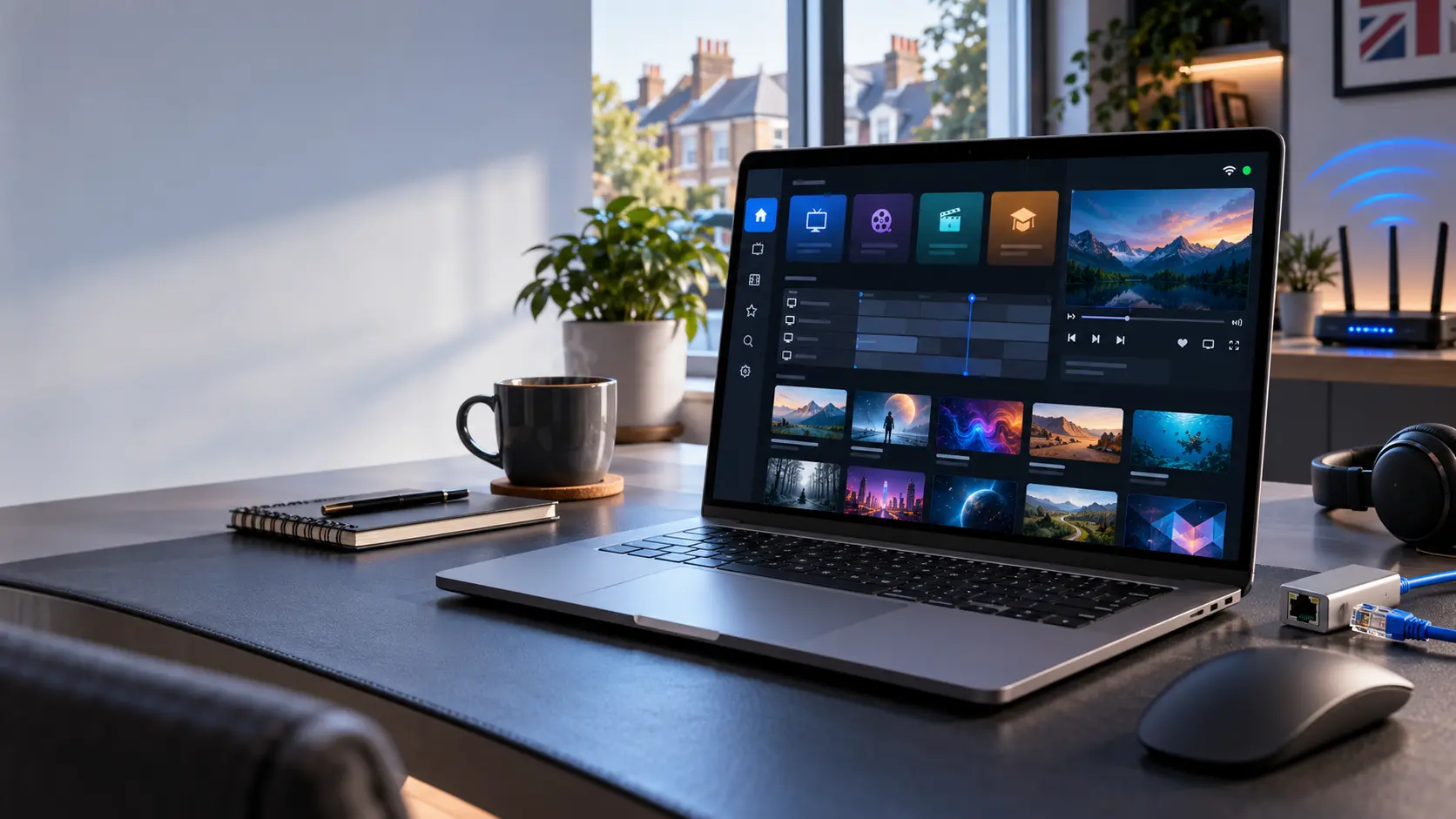
You do not need a complicated setup. In most cases, you need a Mac with a stable internet connection, a compatible media player and valid access details for the television service you are authorised to use.
A Compatible Mac
A MacBook, iMac or another supported Mac can be used as long as the media player you choose is compatible with your macOS version and hardware.
A Media Player
Choose software that supports the access format supplied by your provider. Check compatibility and the developer source before installing an unfamiliar application.
Authorised Access Details
Depending on the player, you may need an M3U playlist or account details such as a server address, username and password.
Understand the Player Before You Install It
The media player and your television service are separate parts of the setup. A player provides the interface used to organise and play compatible media sources.
Installing a media player does not automatically include live channels, films or a subscription. Your authorised service normally provides the access information separately.
Before installing a Mac player
- Check that it supports your version of macOS.
- Check whether it supports your required login method.
- Use the App Store or a trusted developer source.
- Review privacy and permission requests before signing in.
- Keep your private playlist and credentials secure.
How to Install IPTV on Mac
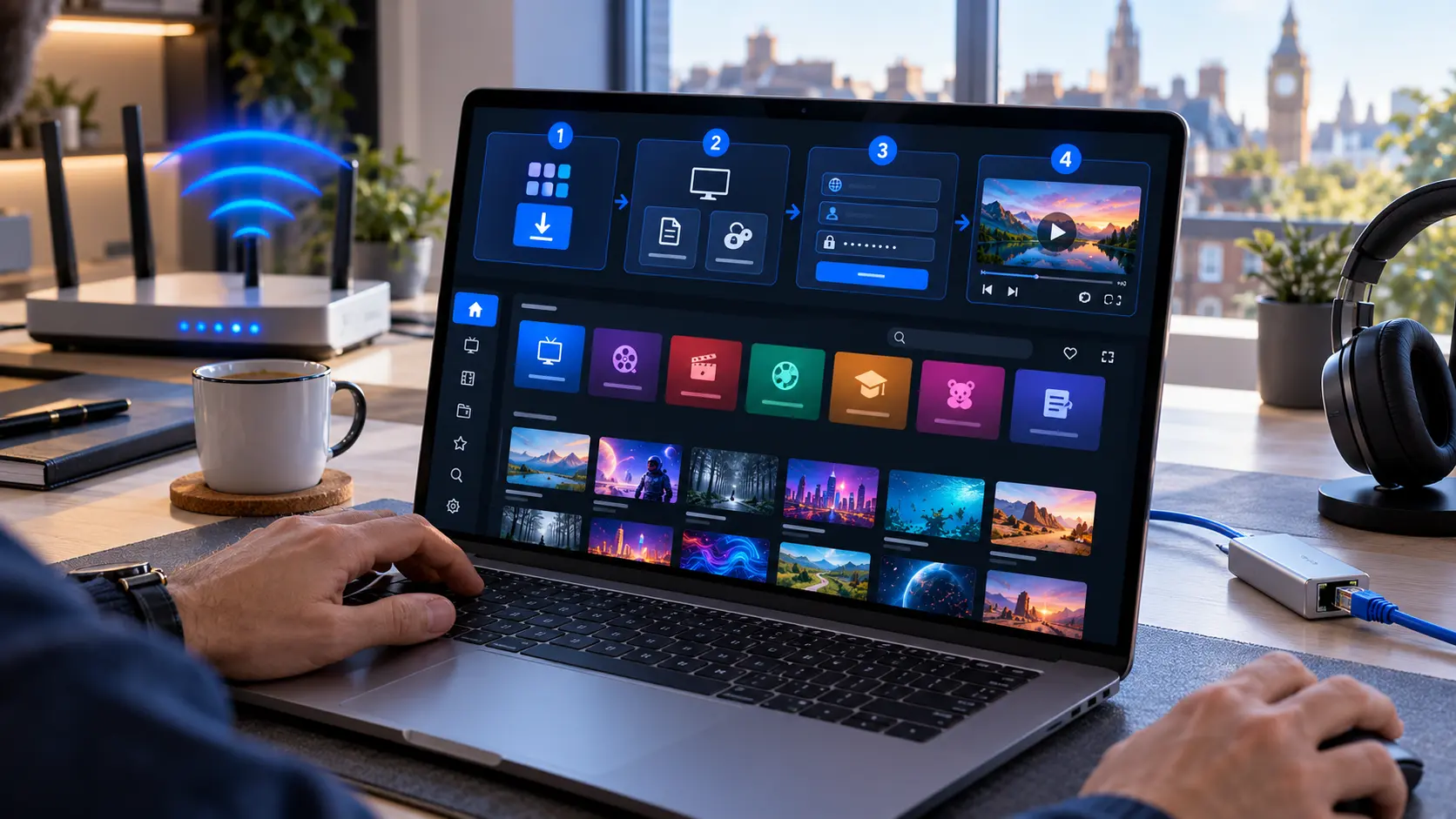
The exact menus depend on the player you choose, but most Mac setups follow the same basic process.
Check Your Internet Connection
Make sure your Mac is connected to a stable network before installing or configuring a player. This makes it easier to separate network problems from application problems.
Choose a Compatible Media Player
Look for a player that supports macOS and the login format supplied by your authorised service. Avoid downloading software from unknown or misleading websites.
Install the Player
If the player is available through the Mac App Store, follow the normal installation process. If the developer distributes it directly, verify that you are using the developer's legitimate website before downloading the installer.
Open the App and Choose a Login Method
Launch the player. Look for an option to add a playlist or account. The available choices depend on the application rather than on macOS itself.
Add Your Access Details
Enter the information supplied by your authorised service. This may be an M3U playlist or separate server, username and password fields.
Allow the Library to Load
A large playlist may take a little time to synchronise on the first launch. Avoid repeatedly closing the application while the initial library is loading.
Test Playback
Start with one authorised live stream or on-demand item. Then test another item. This helps confirm whether the connection and player are working correctly.
Organise the Player
Once playback works, you can set favourites, organise categories and configure available programme-guide or playback preferences.
M3U vs Xtream Codes on Mac
These are two common ways a compatible media player can receive authorised access information. Your player must support the method you have been given.
M3U Playlist
An M3U setup normally uses a playlist address. Copy the authorised URL into the relevant field in your compatible player and allow it to load the available library.
Why Mac can be convenient
Copying and pasting a long playlist address with a keyboard is generally easier than entering the same information with a television remote.
Xtream Codes-Style Login
Some players offer separate fields for a server address, username and password. Enter each value exactly as it was supplied by your authorised service.
Keep it private
Do not post screenshots that expose these fields. Login information and private playlist URLs should be treated as account credentials.
How to Choose an IPTV Player for Mac
Do not choose a player only because it appears first in a search result. Start by checking whether it works with your macOS version and supports the connection method you need.
A good desktop player should also be straightforward to navigate with a mouse or trackpad and should make playlist management easy to understand.
Useful features to compare
- M3U or compatible account login support.
- Clear live TV and VOD navigation.
- Electronic programme guide support.
- Search and favourites.
- Full-screen playback.
- Regular software updates.
Wi-Fi or Ethernet for Streaming on Mac?
A stable connection matters more than the connection type itself. Good Wi-Fi can work well, while Ethernet can be useful when wireless performance is inconsistent.
Using Wi-Fi
Keep your Mac within a reliable range of the router. Walls, distance, interference and a busy home network can affect wireless performance.
Using Ethernet
If you want a wired connection, some Mac models may require a compatible Ethernet adapter. A wired connection can be useful when you are diagnosing unstable Wi-Fi.
Quick network check
- Test another website or streaming app.
- Try more than one authorised stream.
- Check your Wi-Fi signal.
- Restart the player.
- Restart the Mac if necessary.
- Restart the router when appropriate.
- Test Ethernet if Wi-Fi is unreliable.
Common IPTV Problems on Mac
Start with simple checks. Changing several settings at the same time can make the original problem harder to identify.
The Playlist Will Not Load
Check the playlist address or login details for typing errors. Confirm that your access is still active before reinstalling the application.
The Player Will Not Open
Check whether the software supports your current macOS version and Mac hardware. Also check whether an updated version of the player is available.
Playback Keeps Buffering
Test another stream and another internet service. If several services are slow, your local connection may be the better place to start troubleshooting.
Live TV Works but VOD Does Not
Test several on-demand items rather than one. Refresh the library if your player offers that option, then restart the application.
Picture but No Sound
Check the Mac's output device and volume first. Then test another item to determine whether the issue affects the player generally or only one source.
The App Freezes
Close and reopen the application. If the problem continues, check for player and macOS updates and test whether the issue happens with multiple items.
Keep Your IPTV Login Details Private
Treat playlist URLs, usernames, passwords and server details as private account information. Avoid posting them in public forums, reviews or screenshots.
When installing a new player, check its source and review any permissions it requests. An IPTV player should not require unrelated personal information simply to load a compatible playlist.
More IPTV Setup Help
Explore the main installation hub, compare compatible media players or work through a playback problem with our related guides.
IPTV on Mac: Frequently Asked Questions
Can I use IPTV on a Mac?
Yes. A compatible Mac media player can load an authorised IPTV service when the application supports the access format supplied by your provider.
Can I use an M3U playlist on Mac?
Yes, if your chosen media player supports M3U playlists. Add the authorised playlist URL to the appropriate field and allow the player to load the available library.
Can I use Xtream Codes on Mac?
Some Mac-compatible players support account-style login details commonly described as Xtream Codes. Check the player's supported login methods before installing it.
Which IPTV player is best for Mac?
There is no single best option for every user. Choose a player based on macOS compatibility, supported login methods, navigation, programme-guide features, updates and the reliability of its developer.
Why is IPTV buffering on my Mac?
Buffering can have several causes, including Wi-Fi conditions, local network congestion, the source stream or the player. Test another stream and another internet service before deciding where the problem is.
Can I connect my Mac with Ethernet?
Yes. Macs that do not have a built-in Ethernet port can use a compatible adapter. A wired connection can be useful when Wi-Fi is unstable or when you are diagnosing a network issue.
Does an IPTV player include channels?
Not necessarily. A media player is software used to organise and play compatible sources. Television or video access is normally provided separately by the service you are authorised to use.
Is IPTV legal to use on a Mac in the UK?
The device or media player itself does not determine whether content is authorised. Users should make sure the service and content they access are properly licensed or that they have permission to view them.
Need Help Setting Up IPTV on Your Mac?
If you already have compatible access details but are unsure how to configure your Mac player, contact our support team. Tell us which Mac and media player you are using so we can point you towards the relevant setup steps.