
How to Set Up IPTV on Google TV
Want to use an IPTV media player on Google TV? This guide explains how to install a compatible application, add your authorised access details and test playback.
The steps apply to compatible Google TV televisions and streaming devices. Menus may vary slightly depending on the manufacturer and software version.
Can You Install IPTV on Google TV?
Yes. Google TV supports applications designed for compatible television devices.
If a suitable IPTV media player is available for your device, you can install it and configure an authorised playlist or account.
You do not need to replace your television. The media player runs directly on a compatible Google TV device.
However, not every application is available on every model or in every country. Always check compatibility before installing.
Google TV and IPTV Are Different
Google TV is the television platform. An IPTV player is an application used to open compatible internet-delivered streams.
Installing a player does not automatically provide television channels, films or subscription access.
What Do You Need Before Setup?
Prepare these essentials before installing a media player on Google TV.
Compatible Google TV Device
Use a television or streaming device running Google TV. Check the model and software version if an application is unavailable.
Reliable Internet
Use a stable Wi-Fi connection or Ethernet where supported. Network quality affects how consistently video streams play.
Authorised Access Details
Have your private M3U playlist or supported account credentials ready. Use only content you are permitted to access.
How Does the Google TV Setup Work?
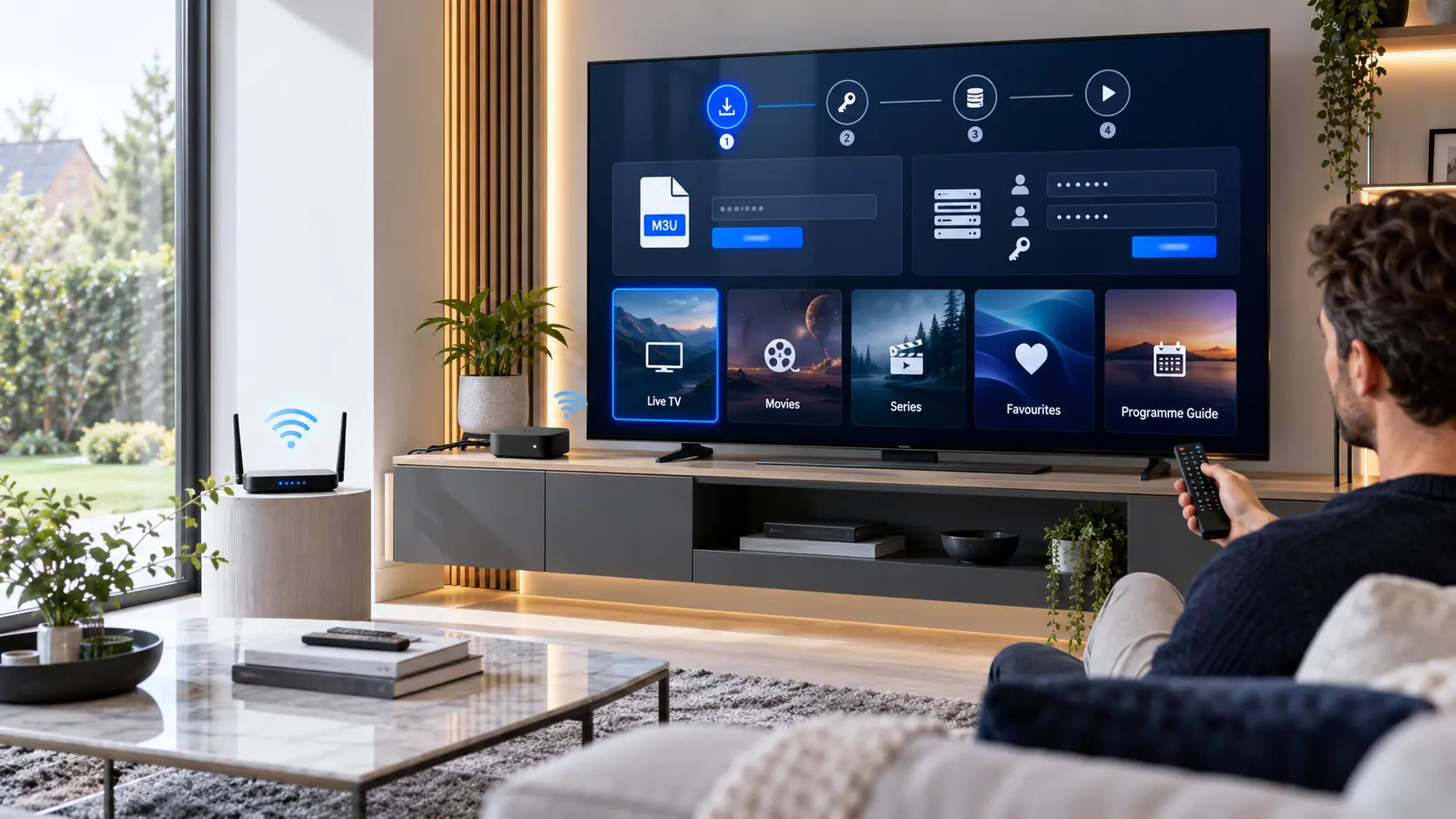
The process starts in the Google TV application interface.
First, find a compatible media player. Then install it and choose the login method supported by your content provider.
After adding your details, allow the application to load the available library. Finally, test a stream and check the picture, sound and programme guide.
The exact screens depend on the player. Some applications use an M3U link, while others support account-based login.
The installation image is an educational illustration. Your actual Google TV menus and media-player interface may look different.
How to Set Up IPTV on Google TV
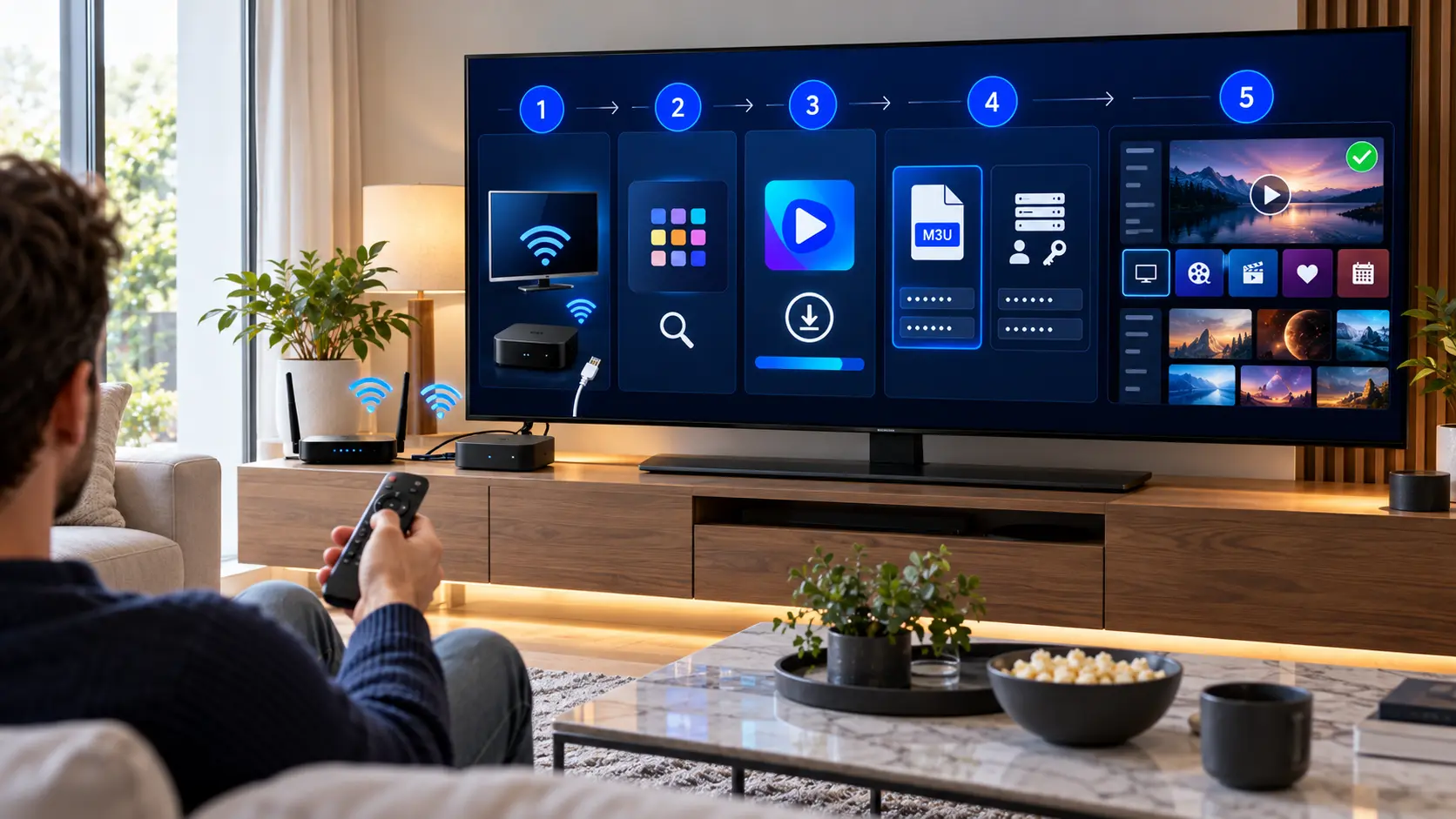
Follow these steps to install a compatible media player and configure your authorised content source.
Connect Google TV to the Internet
Turn on your television or streaming device. Make sure it is connected to your home network.
If necessary, open Settings and check Network & Internet.
Test another internet-based application before continuing.
Open the Google TV Apps Section
From the Google TV home screen, open the Apps section.
You can browse available applications or use Search to find a specific media player.
Availability depends on the device, account and region.
Find a Compatible IPTV Player
Search for a media player that supports Google TV and your required connection method.
Before installing, check the application description, supported features and developer information.
Do not assume that every IPTV application supports M3U and Xtream Codes-style login.
Install and Open the Application
Select the compatible application and choose Install.
Wait for installation to finish. Then open the media player.
Some applications display a welcome screen or request initial configuration. Follow the instructions shown.
Choose Your Login Method
Depending on the player, you may see an option to add a playlist or create a new account profile.
M3U Playlist
Enter the complete authorised playlist URL or use a supported playlist file.
Xtream Codes-Style Login
If supported, enter the server address, username and password supplied by your authorised provider.
Check every character before saving.
Load Your Playlist or Media Library
After saving your details, allow the player time to load the available content.
Depending on the source and application, you may see live television, video categories or programme-guide information.
If nothing appears, check the login information and internet connection.
Test Playback and Organise Your Player
Open a stream that you are authorised to watch.
Check picture quality, sound and remote-control navigation.
If available, organise favourites, adjust subtitles and review the electronic programme guide.
Your Google TV setup is complete once the player loads and plays your authorised content correctly.
If your device shows different menus, check the official Google TV app installation guide . Interface details may change after software updates.
M3U vs Xtream Codes on Google TV
These are two common ways to configure an authorised IPTV source. Use the method supported by your player.
M3U Playlist
An M3U playlist is a file or URL containing references to media streams.
A compatible player reads the playlist and displays the available entries.
Typical Setup
- Open the media player.
- Choose the playlist option.
- Enter your private M3U URL.
- Save and load the playlist.
Xtream Codes-Style Login
Some IPTV media players support account-based access using a server address, username and password.
This can help the player organise supported content categories.
Typical Setup
- Open a compatible media player.
- Choose the account login option.
- Enter the authorised credentials.
- Save and load the library.
Do not publish complete playlist URLs, usernames or passwords. Some playlist links contain private access tokens. Avoid sharing screenshots that reveal your account information.
Which IPTV App Should You Use on Google TV?
There is no single media player that is automatically best for every device.
The right choice depends on your television, the login method you use and the features you need.
Some applications focus on simple playlist playback. Others provide additional navigation features.
What Should You Look For?
- Google TV compatibility.
- Support for your login format.
- Easy remote-control navigation.
- Clear application updates.
- Favourites and search features.
- Programme-guide support, if needed.
- Reliable developer information.
Wi-Fi or Ethernet for Google TV?
Both connections can work well. The better option depends on your home network and device.
Wi-Fi Connection
Wi-Fi is convenient and avoids extra cables. However, walls, distance and interference can affect signal quality.
If playback buffers frequently, try moving the router or reducing competing network activity.
Ethernet Connection
A wired connection can reduce wireless interference and improve consistency.
Some Google TV devices include Ethernet, while others need compatible adapters. Check your device specifications first.
Smooth streaming also depends on network stability, device performance, video format and the reliability of the content source. A fast speed test does not guarantee uninterrupted playback.
IPTV on Google TV Not Working?
Start with the problem you are seeing. Many issues can be narrowed down without reinstalling everything.
IPTV App Is Not Available
Check whether the app supports your Google TV model and region. Search for another compatible player if the first application is unavailable.
Playlist Does Not Load
Check the complete playlist address, account status and internet connection. Make sure the selected player supports the connection method.
Video Keeps Buffering
Test your Wi-Fi connection, pause large downloads and restart your router. Compare playback with another authorised stream to narrow down the cause.
App Freezes or Crashes
Check for app updates and restart the device. You can also force-stop the affected application through Google TV settings.
No Sound or Picture
Check television volume and audio settings. Try another authorised stream and review the media player's playback options if available.
Live TV Works but VOD Does Not
Check whether the player supports the required video format. Test another item and confirm that the issue is not limited to one category.
Clearing an application's data can remove saved settings and login information. Try updating, restarting or clearing the cache first. Keep your private login details available if a reset becomes necessary.
Keep Your Google TV Setup Secure
A reliable setup should also protect your device and private account details.
Install Apps From Trusted Sources
Prefer the official application store or a verified developer source. Avoid modified installation files from unknown websites.
Protect Your Login Information
Treat playlist links, server addresses and passwords as private information. Do not post them publicly.
Use Authorised Content
IPTV is a method of delivering video over internet networks.
Whether a particular service is lawful depends on the rights and permissions associated with the content.
Use services and streams that you are authorised to access.
More IPTV Installation Resources
Explore related guides if you want to configure another device or learn more about media players.
IPTV Installation Guides
Find setup instructions for Smart TVs, streaming devices, phones, tablets and computers.
View Installation Guides →IPTV Apps
Learn how to choose a compatible media player and understand the features that matter.
Explore IPTV Apps →IPTV Troubleshooting
Find practical solutions for buffering, login errors, app crashes and playback problems.
Fix Common Problems →For general information about our UK service, visit the IPTV UK homepage .
IPTV on Google TV: Common Questions
Answers to common questions about installation, compatibility and playback.
Can I install IPTV on Google TV?
Yes. You can install a compatible IPTV media player if it is available for your Google TV device. You will also need an authorised content source or subscription.
Do I need a separate IPTV box?
Not if your television already runs Google TV and supports the media player you want to use. A separate streaming device is not required in that case.
Does Google TV support M3U playlists?
Compatible media players can support M3U playlists on Google TV. Check the application's features before installing it.
Can I use Xtream Codes on Google TV?
Some Google TV-compatible IPTV players support Xtream Codes-style account login. Availability depends on the specific application.
Why is an IPTV app missing from Google TV?
The application may not support your device, operating-system version or store region. Search for another compatible player or check the developer's official guidance.
Why does IPTV buffer on Google TV?
Buffering may result from weak Wi-Fi, network congestion, device performance or issues with the content source. Test your connection and compare playback with another authorised stream.
Is Google TV the same as Android TV?
Google TV is a television experience built on Android TV OS. However, the home-screen design and some menus differ between devices.
Is IPTV legal on Google TV in the UK?
IPTV technology itself is legal. However, accessing or distributing copyrighted content without the required permission may be unlawful. Use authorised services and streams.
Need Help Setting Up IPTV on Google TV?
Having trouble choosing a media player, adding your authorised login details or fixing playback?
Contact our support team and tell us your Google TV model, the application you installed and the problem you are experiencing.
Please do not send passwords or complete private playlist URLs.