
How to Set Up IPTV on LG Smart TV
Want to use an IPTV service on your LG Smart TV? This guide explains how to choose a compatible media player, add your authorised login details and solve common playback problems without complicated equipment.
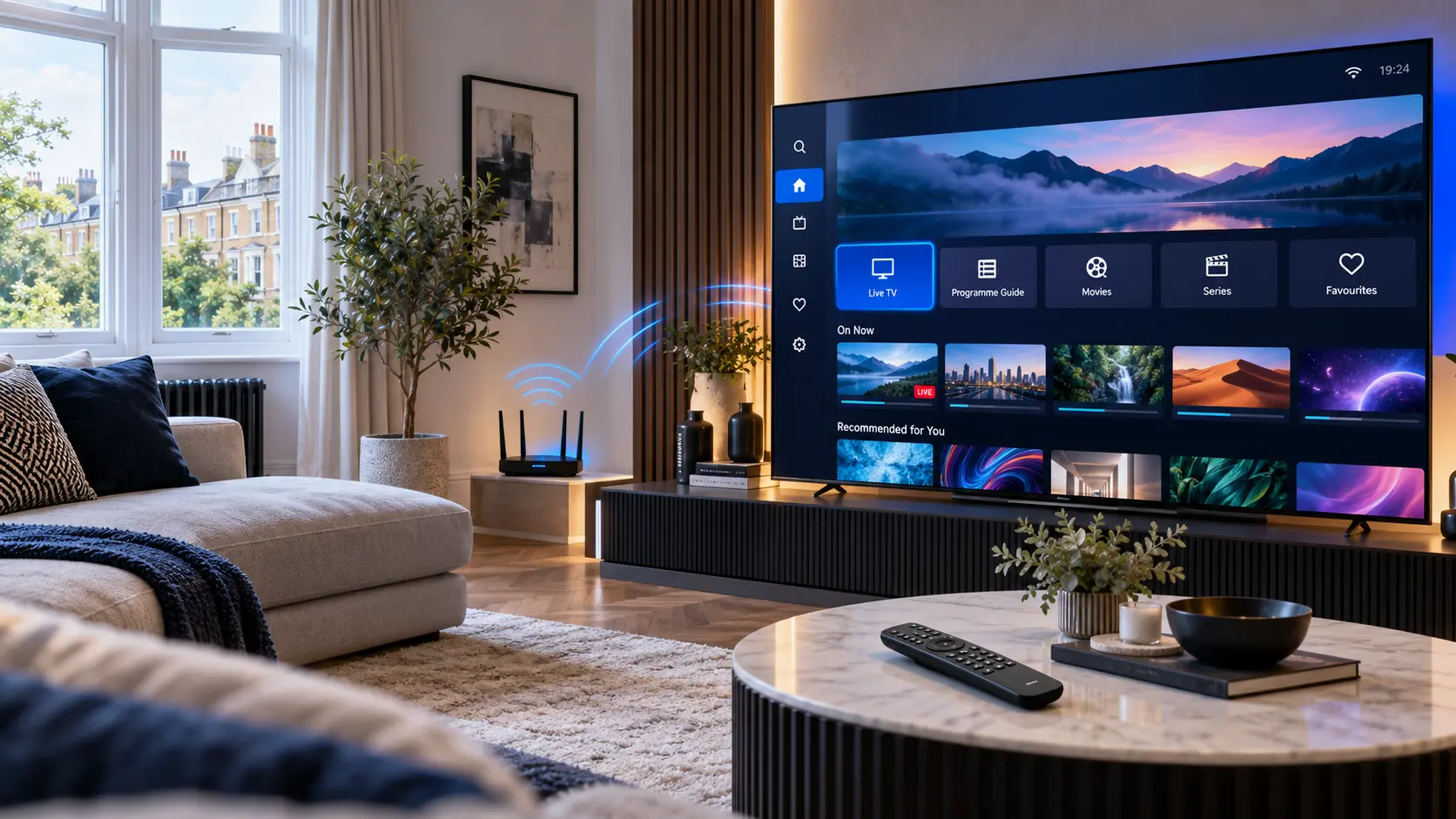
What Do You Need for IPTV on an LG Smart TV?
The setup is usually simple. Your television needs an internet connection, a compatible media-player app and valid access details from the television service you are authorised to use.
A Compatible LG Smart TV
Check that your television can install the media player you plan to use. App availability can vary by TV model, webOS version and region.
A Media Player
The player reads your authorised playlist or account details and provides the interface used to browse and play available media.
Your Access Details
Depending on your provider and player, this may be an M3U playlist or login information such as a server address, username and password.
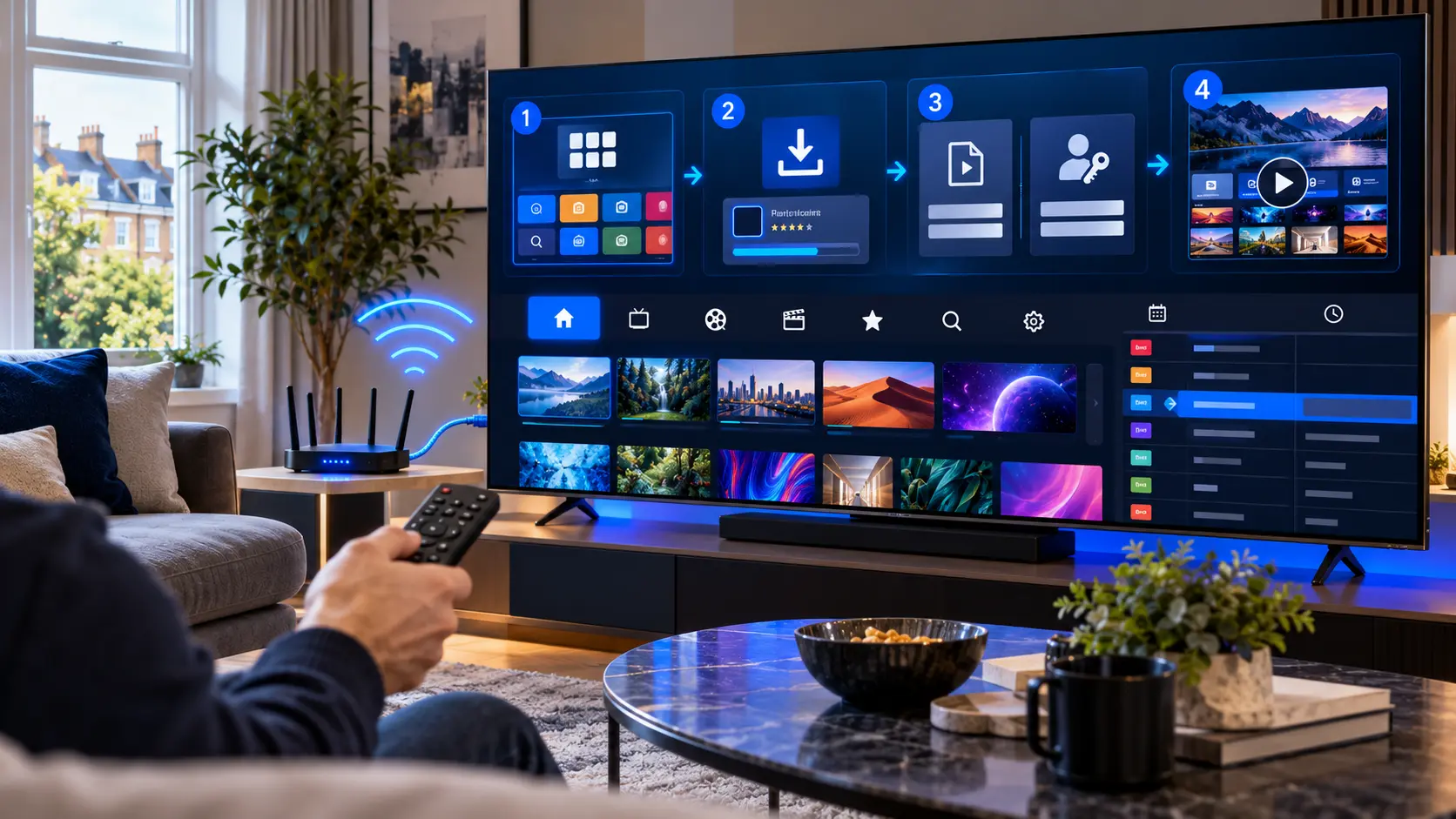
The Player and the TV Service Are Different
This distinction is important. A media-player app is software that can organise and play compatible media sources. Installing a player does not automatically give you television channels, films or a subscription.
Your access details normally come separately from the service you are authorised to use. The player simply provides a way to load those details on your television.
Before choosing an app
- Check compatibility with your LG TV model.
- Check whether it supports your login format.
- Review the app's developer and privacy information.
- Use the official app store available on your television.
How to Install IPTV on LG Smart TV
Menus can differ slightly between television models and media players. However, the basic installation process usually follows these steps.
Connect the TV to the Internet
First, make sure your LG Smart TV has a working internet connection. You can normally use Wi-Fi or Ethernet, depending on your television and home network.
Open the TV App Store
Open the official app store available on your LG television. Use the search function to look for a compatible media player.
Install a Compatible Player
Choose a player that supports the login method supplied by your provider. Check the app information before installing it rather than choosing solely by name.
Open the App
Launch the player after installation. Depending on the app, you may see an option to add a playlist, sign in with account credentials or register the television.
Add Your Authorised Access Details
Enter the information supplied by your service provider. This might be an M3U playlist or supported account credentials. Enter the information exactly as supplied.
Wait for the Library to Load
The first synchronisation may take some time, particularly when a playlist contains a large media library. Avoid closing the player while it is loading.
Test Playback
Open an authorised live stream or on-demand item and check playback. If everything works, you can organise favourites and adjust the player's settings.
M3U and Xtream Codes on LG Smart TV
The exact options depend on the player you install. Two common methods are playlist-based access and account-style credentials.
M3U Playlist
An M3U playlist is often supplied as a URL. If your media player supports this format, enter or paste the complete authorised playlist address into the relevant field.
Check carefully
Long URLs are easy to mistype with a TV remote. Make sure every character matches the information supplied by your provider.
Xtream Codes-Style Login
Some compatible players use separate fields for a server address, username and password. This can be easier to check than entering one long playlist URL.
Keep credentials private
Do not publish screenshots containing your username, password, server address or private playlist information.
Which IPTV App Should You Use on LG Smart TV?
There is no single player that is automatically best for every LG television. Compatibility can depend on your TV model, operating-system version, region and the login method you need.
Instead of choosing an app because it is popular, start with compatibility. Then consider ease of navigation, playlist management, programme-guide support and privacy information.
Features worth checking
- M3U or compatible account login support.
- Electronic programme guide support.
- Favourites and category management.
- Clear remote-control navigation.
- Regular app maintenance and updates.
Wi-Fi or Ethernet for LG Smart TV?
Both can work well. The better choice depends on your home network rather than the IPTV player itself.
Wi-Fi
Wi-Fi is convenient when your router is reasonably close to the television and the signal is stable. Walls, distance and interference can reduce performance.
Ethernet
A wired Ethernet connection can provide a more consistent connection when your television and router support it. This can be useful in homes where Wi-Fi is unreliable.
Before changing apps
- Test another stream.
- Check another internet-connected app.
- Restart the router if necessary.
- Check Wi-Fi signal strength.
- Try Ethernet when practical.
- Restart the television.
Common IPTV Problems on LG Smart TV
A playback problem does not always mean the television is at fault. These checks can help you narrow down the cause.
The App Is Not Available
Check whether the player supports your television model, software version and region. Availability can differ between LG devices.
The Playlist Does Not Load
Recheck the URL or account credentials. Look for typing errors, unwanted spaces and expired access details before changing other settings.
Video Keeps Buffering
Test another stream and check the television's internet connection. If several internet services are also slow, investigate your home network first.
Live TV Works but VOD Does Not
Refresh the playlist if the player provides that option. Restart the app and test more than one item to determine whether the issue affects the whole library.
The App Freezes
Close and reopen the player. You can also restart the television and check for available TV or application updates.
No Sound or Picture
Test another item first. If the issue only affects certain media, it may relate to that source or to a format the player cannot handle correctly.
Protect Your Login Details
Your playlist address and account credentials may contain private access information. Avoid sharing them publicly or uploading screenshots that reveal passwords and server details.
Use trusted app sources and review the information provided by the app developer before entering account credentials.
More IPTV Setup Help
Continue with our installation hub, compare media-player options or diagnose a problem using the related guides below.
IPTV on LG Smart TV: Frequently Asked Questions
Can I use IPTV on an LG Smart TV?
Yes, an LG Smart TV can use compatible media-player apps to access an authorised IPTV service. Compatibility depends on the TV model, software version, region and the player you choose.
Do I need an IPTV app on my LG TV?
In most app-based setups, you need a compatible media player that can read the access format supplied by your provider. Installing the player itself does not automatically provide television content.
Can I use an M3U playlist on LG Smart TV?
Yes, if the media player installed on your television supports M3U playlists. Enter the authorised playlist URL exactly as supplied by your service provider.
Can I use Xtream Codes on LG Smart TV?
Some compatible players support account-style login details commonly referred to as Xtream Codes. Support depends on the player, so check its available login methods first.
Why can't I find an IPTV player on my LG TV?
App availability can vary by television model, software version and region. If a specific app does not appear, check whether it officially supports your television before trying to troubleshoot the TV.
Why does IPTV buffer on my LG Smart TV?
Buffering can result from Wi-Fi conditions, network congestion, the source stream or device performance. Test another stream and another internet service on the TV to help identify where the problem starts.
Is Ethernet better than Wi-Fi for IPTV?
Ethernet can provide a more consistent connection in some homes, especially where Wi-Fi is weak or congested. However, a strong and stable Wi-Fi connection can also work well.
Does an IPTV player include TV channels?
Not necessarily. A media player is usually software for organising and playing compatible sources. Access to content is normally provided separately by the television service you are authorised to use.
Need Help Setting Up IPTV on Your LG Smart TV?
If you already have compatible access details and need help understanding the setup, contact our support team. Tell us your LG TV model and the media player you are using so we can point you towards the relevant setup steps.