
IPTV Not Working? Common Causes and How to Fix It
Is your IPTV app refusing to open? Perhaps channels will not load, or the screen stays black. The good news is that many common problems have simple checks you can try at home.
This guide explains how to find the cause. Start with your internet connection, then check the app, login details and streaming device. You do not need advanced technical knowledge.
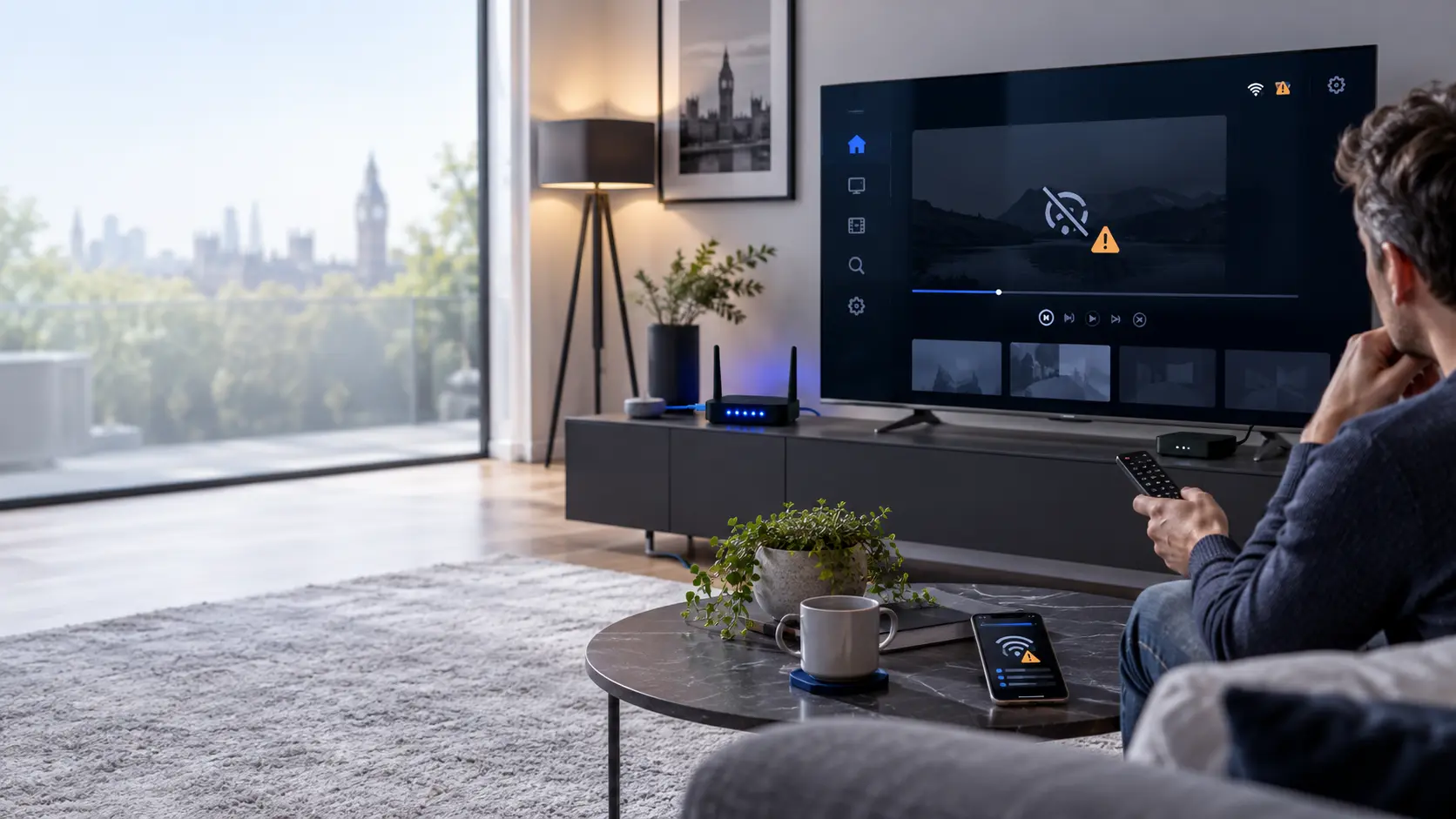
Start with the basics
Why Is IPTV Not Working?
IPTV relies on several things working together. Your internet connection, media player, device and authorised content service all play a part.
If one part stops responding, playback may fail. For example, a weak Wi-Fi connection can interrupt video. An expired account may prevent login. An outdated app can also cause loading problems.
However, the symptoms do not always reveal the exact cause. A black screen could mean a playback issue, while a loading error may point to the network or service.
Check whether other websites or streaming apps work on the same device. Next, close and reopen your IPTV player. Then restart the device and check your login details. If the problem remains, follow the steps below.
Common Reasons IPTV Stops Working
Before changing settings, look at the most likely causes. This can save time and help you avoid unnecessary app installations.
Internet Connection Problems
Weak Wi-Fi, network congestion or a temporary internet outage can stop channels from loading.
Media Player Errors
An app may freeze, crash or fail to load its playlist. Cached data can sometimes contribute.
Incorrect Login Details
A wrong server address, username or password can prevent an authorised account from connecting.
Account or Service Issues
An expired subscription, scheduled maintenance or service outage may affect access.
Device Performance
Low storage, limited memory or outdated software can make streaming apps unstable.
Playback Compatibility
Some streams use formats that a particular player or device cannot handle correctly.
Check These Six Things First
Work through this short checklist before trying more advanced fixes. Tick each item after completing the check.
If these checks do not help, continue with the detailed fixes below. Change one setting at a time. That way, you can see which action makes a difference.
How to Fix IPTV Not Working Step by Step
Use this visual guide to understand the troubleshooting process. Begin with your network, then move to the app and account settings.
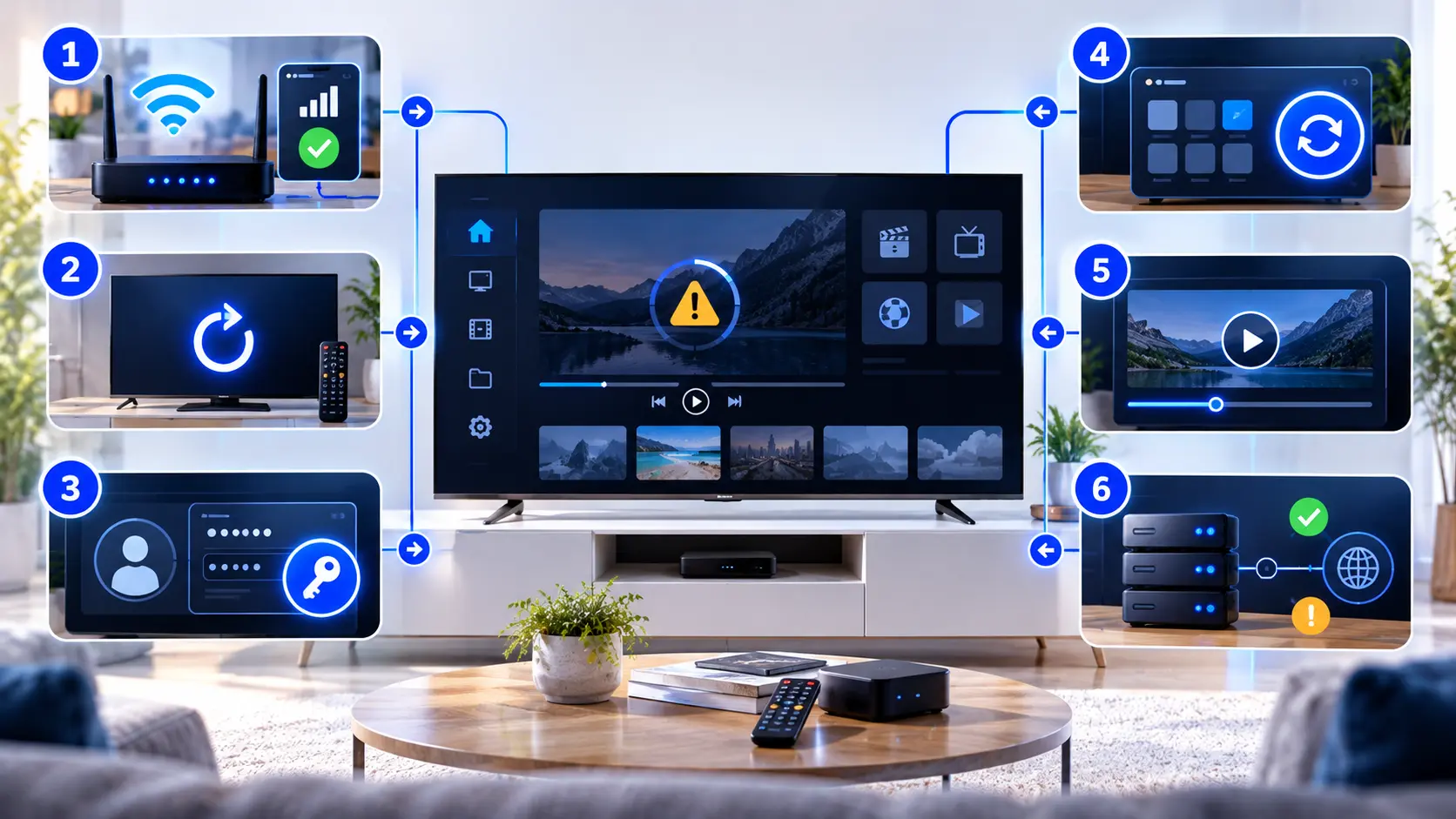
10 Ways to Fix IPTV Not Working
Follow these fixes in order. Start with the easiest checks before changing network or application settings.
Check Your Internet Connection
Open a website or another legitimate streaming app on the same device. If it also fails, your internet connection may be the problem.
What to check
- Confirm that Wi-Fi or Ethernet is connected.
- Check whether other devices can access the internet.
- Move closer to the router if your Wi-Fi signal is weak.
If other services work normally, continue to the next step.
Close and Reopen the IPTV App
A temporary application error can interrupt playback. Fully close the media player rather than simply returning to the home screen.
Open it again and try an authorised channel. If the app responds normally, the issue may have been temporary.
Restart Your Streaming Device
Restart your Smart TV, Fire TV device, Android box or computer. This can clear temporary system problems.
Use the device's normal restart option. If necessary, follow the manufacturer's instructions for a full power restart.
Once the device starts again, reopen the IPTV player and test playback.
Restart Your Router
If several devices have connection problems, restart your home router. This may help resolve a temporary network fault.
- Turn off the router using its power control.
- Wait around 30 seconds.
- Turn it back on.
- Allow the internet connection to return.
Avoid pressing the factory reset button. That can erase your network configuration.
Check Your IPTV Login Details
Incorrect account information is a common reason for login failures.
If you use Xtream Codes-style login
Check the server address, username and password supplied by your authorised service. Look for missing characters or extra spaces.
If you use an M3U playlist
Confirm that the playlist address is complete and still valid. If the link has expired, request an updated one from your provider.
Update Your Media Player
An outdated app may have bugs or compatibility problems. Open your device's official app store and check for updates.
Install any available update. Then reopen the player and test the same channel.
If you need help choosing a compatible player, visit our IPTV Apps guide .
Clear the App Cache Where Supported
Some devices allow you to clear temporary application files. This may help when a player freezes or behaves unexpectedly.
On many Android-based devices, open Settings, find the application and choose Clear Cache. Menu names vary by manufacturer.
Test Another Authorised Channel
Sometimes one channel or video fails while other content works normally.
Try a different channel from your authorised playlist. You can also test another video category if your service includes one.
If only one item fails, the issue may be limited to that stream. If everything fails, continue checking the app, network and service.
Check Device Storage and Software
A device with very little free storage may struggle to update apps or store temporary files.
Remove applications you no longer use. Then check for system software updates through the device's official settings.
Restart the device after updating if the manufacturer recommends it.
Check Your Account and Service Status
If your internet and device work normally, the problem may be linked to your account or content service.
Confirm that your subscription is active. Also check whether the provider has reported maintenance or an outage.
When contacting support, explain which device you use, what happens on screen and which checks you have already completed.
IPTV Problems and What to Check
Different symptoms call for different checks. Use this table to choose your next step.
| Problem | Possible cause | First action |
|---|---|---|
| App will not open | App crash or outdated software | Restart the app and check for updates |
| Channels will not load | Connection, account or service issue | Test internet access and login details |
| Black screen | Playback or stream compatibility problem | Test another authorised channel |
| Invalid login | Incorrect or expired credentials | Check the server URL and account status |
| Constant buffering | Wi-Fi, bandwidth or stream instability | Test your network and try Ethernet |
| No sound | Audio settings or codec compatibility | Check volume and audio output |
| Movies will not play | VOD, player or service issue | Test another title and check for updates |
These are possible causes, not confirmed diagnoses. Use the results of each test to narrow down the problem.
IPTV Not Working on Your Device?
The basic checks are similar across devices. However, app settings and restart options can differ.
Smart TVs
Check the TV's network status. Next, update the player through the official app store. Restart the TV if playback still fails.
Fire TV and Streaming Sticks
Restart the device and check its Wi-Fi signal. If supported, clear the player's cache. Keep the device software up to date.
Google TV and Android TV
Check the internet connection and app permissions. Force-stop the player if necessary. Then install available updates.
Windows Computers
Check your network connection, player version and firewall settings. Avoid changing security settings unless you understand the effect.
iPhone and iPad
Check Wi-Fi or mobile data. Close and reopen the player, then look for updates in the App Store.
Android Phones and Tablets
Check network access and app updates. If problems continue, inspect the app's storage and permissions.
How to Tell Whether the Internet Is the Problem
A working Wi-Fi symbol does not always mean your connection is stable enough for video playback.
Test your internet speed on the same device where possible. You can also compare Wi-Fi with a wired Ethernet connection.
Check Connection Stability
Watch for frequent disconnections, slow page loading or sudden drops in performance.
Compare Wi-Fi and Ethernet
Ethernet can reduce wireless interference. However, it cannot fix every service-side issue.
Test at Different Times
If playback fails mainly during busy hours, network congestion may be contributing.
Video quality affects bandwidth needs. However, speed alone does not guarantee smooth playback. Connection stability, device performance and the stream itself also matter.
What If IPTV Still Does Not Work?
If the problem continues, collect a little more information before contacting support.
Check the Pattern
Does the issue affect every channel, or only certain videos? Does it happen on one device or several devices?
These details help distinguish a local device problem from a wider service issue.
Useful information to record
- Device model and operating system
- Media-player name and version
- Exact error message
- Time the problem started
- Whether other apps work normally
Avoid Risky Quick Fixes
Some websites suggest downloading unknown APK files or changing advanced network settings. These steps can introduce security risks.
Instead, use official application sources and trusted manufacturer instructions. Keep your credentials private.
Do not factory-reset your device as a first troubleshooting step. A reset can remove apps, accounts and personal settings.
A Simple Way to Find the Real Cause
This guide follows a straightforward diagnostic approach. First, confirm that the internet works. Next, check the media player and device. Finally, review your account and service status.
Each step tests a different possible cause. As a result, you can avoid changing several settings at once.
These instructions provide general guidance. Exact menus depend on your device, operating system and application version. For model-specific instructions, consult the manufacturer's official support resources.
IPTV is a method of delivering television over internet networks. Access to channels, films and other programmes must be properly authorised. This guide covers technical troubleshooting, not ways to bypass content restrictions.
IPTV Not Working: Common Questions
Here are clear answers to problems that often appear during setup and everyday use.
Why is my IPTV not working today?
Start by checking your internet connection. Then restart the app and device. If other services work normally, check your account status or ask your provider about outages.
Why does my IPTV app open but show no channels?
The playlist may not have loaded correctly. Check your authorised login details, account status and network connection. Then refresh the playlist using your player's normal controls.
Why is IPTV not working on my Smart TV?
Possible causes include network problems, outdated apps or unsupported playback formats. Restart the TV, update the media player and test another authorised channel.
Can restarting my router fix IPTV?
It can help with some temporary network faults. However, it will not fix an expired account, invalid login details or every service outage.
Why does IPTV work on one device but not another?
The devices may use different apps, network connections or playback formats. Compare their settings and check whether your authorised account permits use on each device.
Should I reinstall my IPTV app?
Reinstallation is usually a later step. First restart the app, update it and check the connection. Save your authorised login details before uninstalling anything.
What should I do if IPTV shows a black screen?
Test another authorised channel and check whether audio still works. Restart the player and look for updates. A black screen can have several causes, including playback compatibility.
Does a VPN fix IPTV connection problems?
Not necessarily. A VPN may change the network route, but it can also add latency or reduce speed. Follow your provider's authorised configuration guidance and local rules.
More IPTV Help and Troubleshooting Guides
Need more specific instructions? These resources cover common playback problems, media players and device setup.
Still Having IPTV Problems?
If you have followed the troubleshooting steps and still need help with your IPTV UK service, contact our support team. Tell us your device, media player and the error you see.
Please do not share passwords or private playlist links in public messages.