
IPTV Installation Guides for Every Supported Device
Choose your device, install a compatible media player and enter your private login details safely. These step-by-step guides cover Smart TVs, Fire TV Stick, Android TV, Apple devices, Windows, Mac and Google TV.
- Device-specific instructions
- Secure login guidance
- Practical troubleshooting
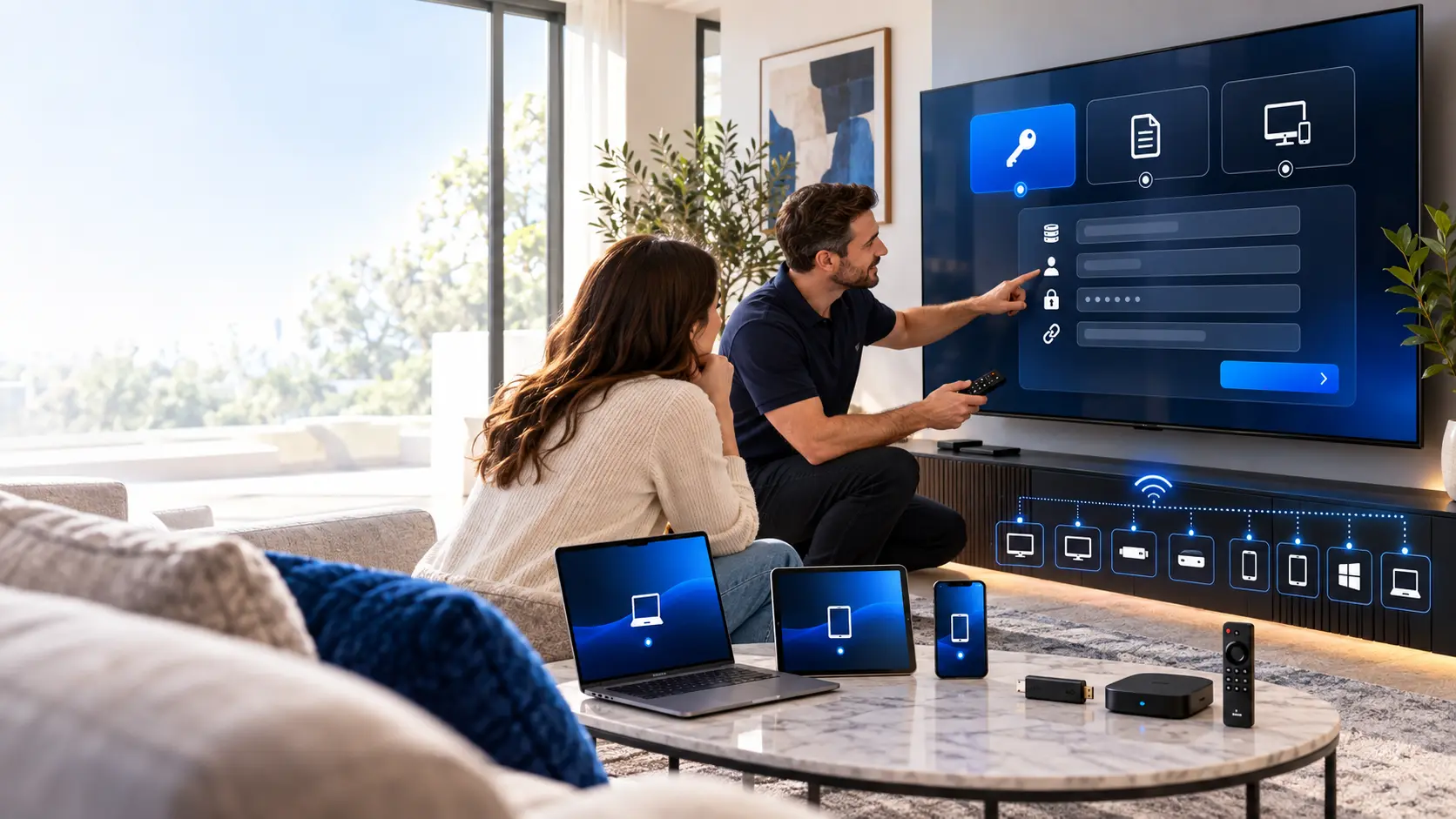
How Do You Install IPTV on a Device?
First, connect your device to a stable network. Next, install a compatible IPTV player from an official app store or trusted publisher. Then enter your authorised M3U, Xtream Codes or portal details. Finally, load the playlist and test live TV, VOD and the programme guide.
Before You Start the Installation
A few simple checks can prevent common setup problems. Complete them before installing an app or entering your subscription details.
Confirm Your Device
Check the brand, model and operating system. Similar televisions may support different apps.
Test Your Internet Connection
Use stable Wi-Fi or Ethernet. As a practical starting point, allow around 10 Mbps for HD and 25 Mbps for 4K on one device.
Keep Login Details Private
Store your server address, username, password or playlist link securely. Never publish them in screenshots or public messages.
Use Trusted App Sources
Prefer official app stores or verified developer websites. Avoid modified installation files from unknown sources.
Choose the Correct IPTV Login Method
Use the login method supplied with your authorised subscription. Enter the information exactly as provided.
Xtream Codes
Enter the server address, username and password. Compatible players may organise live TV, movies, series and EPG information.
- Server or portal address
- Username
- Password
M3U Playlist
Paste the complete private M3U link into a supported media player. Some applications require a separate EPG address.
- Private playlist URL
- Optional EPG URL
- Custom playlist name
Portal or Device ID
Certain receivers use a portal address with a registered device identifier. Confirm the required format before activation.
- Portal address
- Device or MAC identifier
- Provider-side registration
Choose Your Device Installation Guide
Open the guide that matches your device. Each page provides focused instructions, compatible players and practical solutions.

Install IPTV on Samsung TV
Find a compatible player in Smart Hub. Install the app and enter your authorised IPTV login details.
Read the Samsung TV Guide Samsung Smart Hub Support ↗
Install IPTV on LG Smart TV
Check LG Content Store availability. Install a supported media player and complete the login process.
Read the LG TV Guide LG Official Support ↗
How to Install IPTV on Fire TV Stick
Learn how to set up IPTV on Amazon Fire TV and Fire TV Stick. Install a compatible player, enter your authorised M3U playlist or Xtream Codes details, and test playback.
Read the Fire TV Stick Guide Amazon Fire TV App Support ↗
Install IPTV on Android TV
Use Google Play to find a compatible TV media player. Then configure your authorised playlist or account.
Read the Android TV Guide Google TV App Support ↗
Set Up IPTV on iPhone and iPad
Install a suitable media player from the App Store. Then add your private subscription details securely.
Read the iPhone and iPad Guide Apple App Store Support ↗
Install IPTV on Windows
Choose a trusted desktop media player. Install it safely and organise your authorised IPTV playlist.
Read the Windows Guide Microsoft Windows Support ↗Install IPTV on Mac
Download a compatible macOS player from a trusted source and add your authorised subscription details.
Read the Mac Guide Apple Mac App Store Support ↗
Set Up IPTV on Google TV
Install a compatible television app. Use your remote to complete the supported IPTV login method.
Read the Google TV Guide Official Google TV Guidance ↗General IPTV Setup Steps
Menu names vary between devices. However, the basic setup process is similar on most supported platforms.
-
1
Connect and Update
Connect your device to the internet. Install available system updates.
-
2
Install a Compatible Player
Search the official app store. Check device and login compatibility.
-
3
Open the Player
Launch the app and accept only the permissions needed for normal operation.
-
4
Add Your Private Details
Enter your authorised M3U link, Xtream Codes credentials or portal.
-
5
Allow the Playlist to Load
Keep the player open while available channels and categories finish loading.
-
6
Test Playback and EPG
Test authorised streams. Check the picture, audio and programme guide.
Common IPTV Installation Problems
Start with the simplest checks. Change one setting at a time to identify the actual cause.
The App Is Not Available
Check your device model, operating system and app store region.
Login Details Are Rejected
Check capital letters, spaces and the complete server address.
The Playlist Does Not Load
Restart the app, check your internet and confirm your account is active.
Playback Buffers Frequently
Pause downloads, restart your router and compare Wi-Fi with Ethernet.
The EPG Is Empty
Refresh the programme guide or enter the correct authorised EPG address.
The App Freezes or Closes
Update the player, restart your device and clear the cache when supported.
How to Use These Guides Reliably
Check the Review Date
Device menus and app stores change. Compare each step with your current screen.
Confirm With Official Support
Manufacturer instructions can help when your device interface changes.
Report a Different Menu
Contact support with your model and app name. Never share private credentials.
Page reviewed: October 2026. Check official manufacturer resources for updates.
IPTV Installation FAQ
Can I use the same player on every device?
No. App compatibility depends on the operating system, device model and region.
Why does my television not show the app?
The app may not support your model, system version or store region.
Is M3U better than Xtream Codes?
Neither method is always better. Use the option supported by your subscription and media player.
Can I install apps from unknown websites?
Prefer official stores or verified developers. Unknown files may present security and privacy risks.
When should I contact support?
Contact support after checking your device, internet and login details. Include your model and app name.