
IPTV Keeps Freezing? Here's How to Fix It
Does your picture stop while the sound continues? Or does the whole stream freeze every few minutes? These problems can be frustrating, but they do not always mean your internet is too slow.
This guide explains why IPTV keeps freezing. You will learn how to check your connection, restart your device, improve app performance and identify possible stream-side issues.
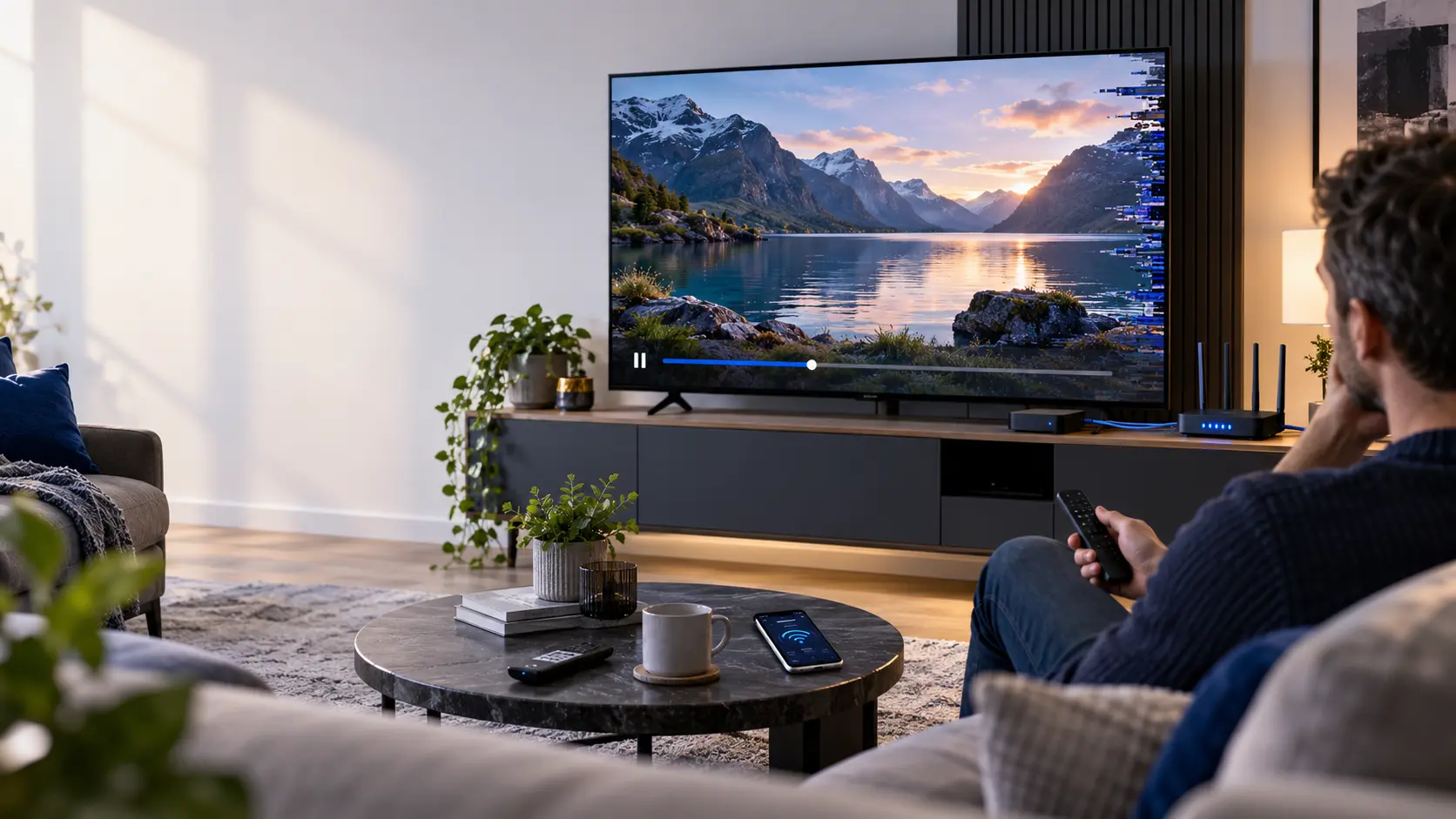
Is Your IPTV Freezing or Buffering?
The two problems can look similar. However, they do not always have the same cause. Knowing the difference helps you choose the right troubleshooting steps.
Frozen Picture
The image stops on one frame. Sometimes, the sound continues while the picture remains still.
This can point to a playback, decoding, device or stream problem.
Repeated Buffering
Playback pauses and a loading symbol appears. The player may be waiting for more video data.
Check connection stability, bandwidth and network congestion.
Read the IPTV buffering guide →Complete App Freeze
The player stops responding. Menus may become slow, and the remote may not work inside the app.
Focus on app updates, memory, storage and device performance.
What Causes IPTV to Freeze?
Several things can interrupt video playback. The following causes are worth checking before you reinstall anything or reset your device.
Unstable Wi-Fi
A weak signal or wireless interference can interrupt the steady flow of video data. This may happen even when a speed test looks good.
Network Congestion
Large downloads, cloud backups and other household devices can compete for bandwidth. Freezing may become worse during busy periods.
Device Performance
Older televisions and streaming boxes may struggle with demanding video formats or several applications running together.
Outdated Media Player
An outdated application may contain playback bugs or compatibility issues. Updates can sometimes improve stability.
Heat and Ventilation
A streaming box placed in a closed cabinet may become too warm. Some devices slow down when temperatures rise.
Stream-Side Problems
Sometimes, the problem is outside your home. A particular authorised stream or service may have a temporary playback issue.
Find the Most Likely Cause
Choose the symptom that best matches your problem. The suggestion below will help you decide what to test first.
What happens when you watch?
Your first troubleshooting step
Select a symptom above to see a suggested starting point. This is a guide, not an automatic network diagnosis.
How to Fix IPTV Freezing Step by Step
Follow these checks in order. Start with the easiest tests. Then move towards app and device settings if the problem continues.
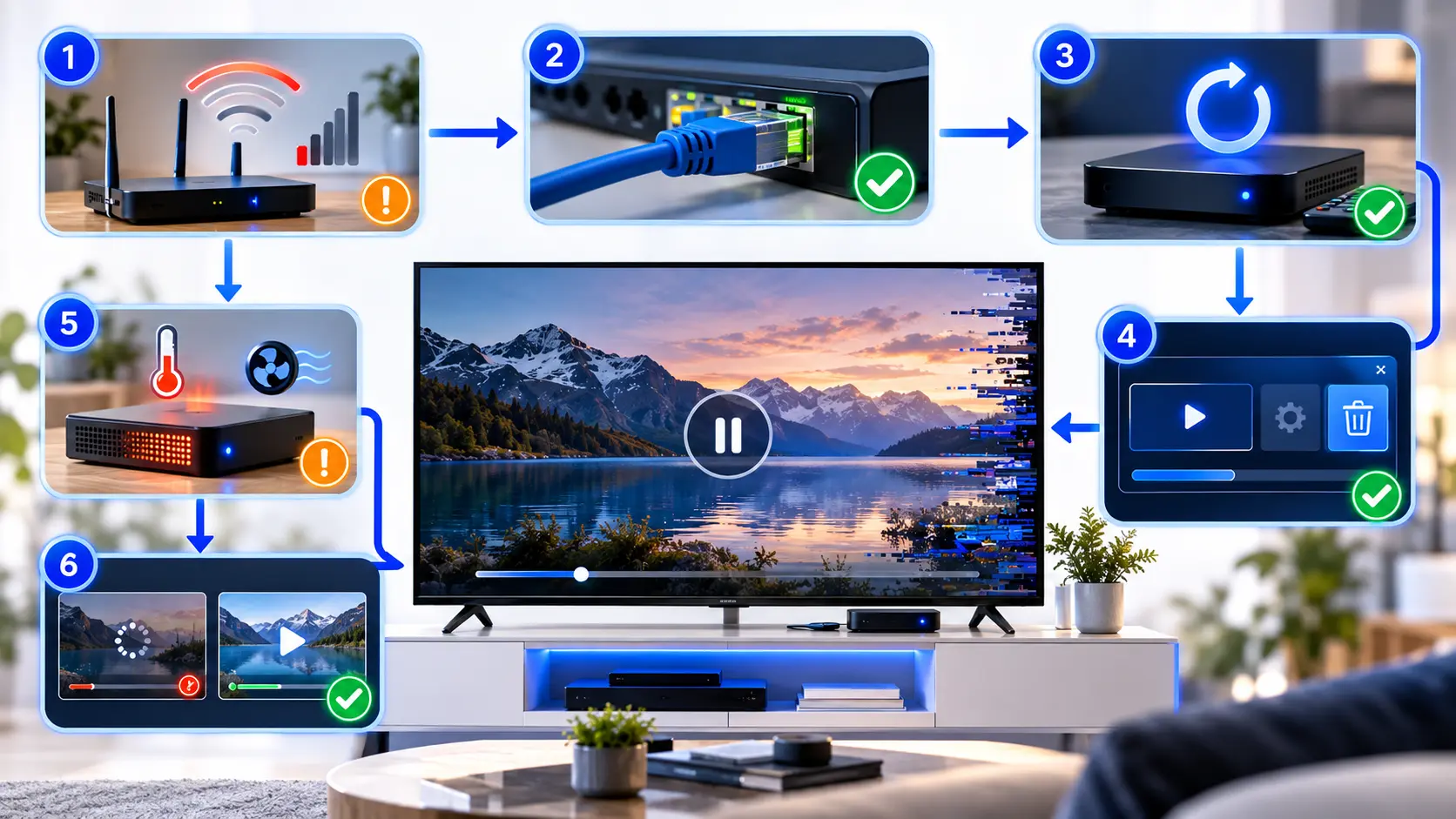
Test Another Channel or Video
First, switch to another authorised live channel or on-demand video. Leave it playing long enough to see whether the problem returns.
If only one stream freezes, the problem may be related to that source. If several streams fail, continue with the next steps.
What should you record?
Write down which stream froze, when it happened and whether the sound continued. These details can help support staff investigate later.
Check Your Internet Connection
Open another legitimate streaming application or a website on the same device. Check whether it works normally.
Next, run a speed test if your device supports one. Pay attention to repeated drops or inconsistent results, not only the highest speed.
Why does stability matter?
Video needs a steady supply of data. A fast connection with frequent interruptions may perform worse than a slower, stable one.
Restart the Media Player and Device
Close the media player completely. Open it again and test the same stream.
If the picture still freezes, restart your Smart TV or streaming device using its normal restart option.
On some devices, standby mode does not fully restart the operating system. Follow the manufacturer's instructions for a proper reboot.
What should you avoid?
Do not repeatedly unplug equipment while updates are installing. Also, avoid factory resets at this stage.
Try Ethernet Instead of Wi-Fi
If possible, connect your streaming device directly to the router using Ethernet. Some devices need a compatible adapter.
Test the same stream again. If playback improves, wireless interference or weak Wi-Fi coverage may be involved.
What if Ethernet is unavailable?
Move the router closer to the TV. Reduce obstacles and check whether a suitable 5 GHz Wi-Fi network is available.
Remember that 5 GHz usually works best over shorter distances. A reliable 2.4 GHz connection may be better through thick walls.
Update Your IPTV Media Player
Open your device's official application store. Check whether an update is available for the media player.
Install the update, reopen the app and test playback again.
Should you reinstall the app?
Reinstallation may help when an application is damaged. However, it can remove saved settings and login information.
Keep a secure copy of your authorised connection details before removing anything.
Explore compatible IPTV media players →Close Background Apps
Streaming devices have limited memory. Too many active applications may reduce the resources available for video playback.
Close applications you are not using. Then restart the media player and test the same content again.
Check available storage
If the device is almost full, remove unused applications or unnecessary files. Follow the device manufacturer's guidance.
Check Device Temperature
Make sure the television or streaming box has enough space for ventilation. Avoid covering air vents or placing hardware beside strong heat sources.
If a device feels unusually hot or displays a temperature warning, stop using it and follow the manufacturer's safety advice.
Does overheating always cause freezing?
No. Heat is only one possible cause. However, poor ventilation can affect the performance of some devices.
Check for Software Updates
Open the device settings and look for available system or firmware updates. Install official updates when appropriate.
Restart the device after installation if the manufacturer recommends it.
Software updates may improve compatibility, security and playback stability. However, they cannot fix every stream issue.
Compare Another Device or Connection
If your account permits it, test the same authorised stream on another compatible device.
You can also compare playback over a different legitimate internet connection, where available.
How do you interpret the result?
If the issue happens only on one device, inspect that device and its player. If the same problem appears everywhere, the source or service may need attention.
Contact Support With Useful Details
If freezing continues, contact the relevant application developer or your authorised streaming provider.
Explain which device you use, which media player is installed and when the freezing occurs.
Include the checks you have already tried. This helps avoid repeating the same steps.
Ask for Help on WhatsAppWhat Does the Freezing Pattern Tell You?
The timing of a freeze can provide a useful clue. Use this table to decide which check to try first.
| Symptom | Possible cause | First check |
|---|---|---|
| One channel freezes | Source-specific playback issue | Compare another authorised stream |
| All streams freeze | Network, device or service issue | Test connection and restart player |
| Sound continues, picture stops | Possible video decoding or playback issue | Update player and compare devices |
| Freezing is worse in the evening | Possible network congestion | Compare tests at different times |
| Menus and remote stop responding | Possible application or device freeze | Restart and review device resources |
| Only high-resolution video freezes | Possible bandwidth or device limitation | Test a lower-resolution authorised stream |
These are diagnostic clues, not confirmed causes. More than one issue can produce the same symptom.
Fix IPTV Freezing on Different Devices
The basic checks are similar across devices. However, menu options and hardware limits can differ.
Smart TVs
Restart the television, update the media player and check available storage. If supported, compare Wi-Fi with a wired connection.
Older Smart TVs may have limited processing power for demanding video formats.
Fire TV and Streaming Sticks
Check the power supply, restart the stick and close unused applications.
Keep the device ventilated and install official software updates.
Android TV and Google TV
Restart the device, check app updates and review network settings.
If supported, force-stop an unresponsive application before opening it again.
Android Streaming Boxes
Check storage, memory and ventilation. Avoid running several demanding apps together.
Use official firmware from the device manufacturer whenever possible.
Windows and Mac
Update the media player and operating system. Close unnecessary downloads and background tasks.
Compare playback with another compatible authorised player if needed.
iPhone and iPad
Update the app and device software. Test a reliable Wi-Fi connection and close the player before reopening it.
Check that the app supports the video format used by your authorised source.
IPTV Freezing Troubleshooting Checklist
Tick each check after you complete it. This can help you keep track of what you have already tested.
0 of 10 checks completed
When Should You Contact Support?
Contact support when basic troubleshooting does not improve playback or when several authorised streams fail across different devices.
Describe the Device
Include the device model, operating system and media-player name.
Explain the Freezing
Say whether the picture stops, the sound continues or the whole application becomes unresponsive.
Share Your Test Results
Mention which troubleshooting steps you tried and whether the issue affects one stream or several.
IPTV Keeps Freezing: Common Questions
Here are straightforward answers to questions people often ask about frozen IPTV playback.
Why does IPTV keep freezing every few minutes?
Repeated freezing may be caused by unstable Wi-Fi, network congestion, device performance or a stream-side issue. Start by testing another stream and checking your internet connection.
Why does IPTV freeze even with fast internet?
Internet speed is only one factor. Packet loss, unstable Wi-Fi, app problems and device limitations can interrupt playback even when a speed test shows a high result.
Can Ethernet help stop IPTV freezing?
Ethernet can reduce wireless interference and provide a more consistent local connection. However, it cannot fix every device, application or stream-side problem.
Why does IPTV freeze on one channel only?
A problem affecting only one channel may be linked to that particular source. Compare other authorised streams and contact the relevant provider if needed.
Does restarting a Smart TV help with freezing?
A restart can clear temporary software problems and free device resources. It is a sensible early troubleshooting step, although it does not guarantee a fix.
Can an outdated IPTV app cause freezing?
Yes. Outdated media players can have compatibility or playback bugs. Check for official updates and test the same content again.
Why does the picture freeze while sound continues?
This can indicate a video playback or decoding problem. Try restarting the player, checking for updates and comparing playback on another device.
Should I factory reset my device?
A factory reset should be a last resort. It can erase applications, preferences and saved login information. Try simpler checks first and follow the manufacturer's instructions if a reset becomes necessary.
Still Experiencing IPTV Freezing?
If you have checked your connection, restarted your device and updated your media player, you may need more specific help.
Contact our support team on WhatsApp. Tell us which device you use and what happens when playback freezes.