
IPTV Black Screen: Why It Happens and How to Fix It
An IPTV black screen can be confusing, especially when the app opens but the picture never appears. Sometimes the sound still works. Other times, playback stops completely.
This guide helps you identify the cause and test simple fixes. Start with your TV connection, then check the media player, internet connection and video settings.
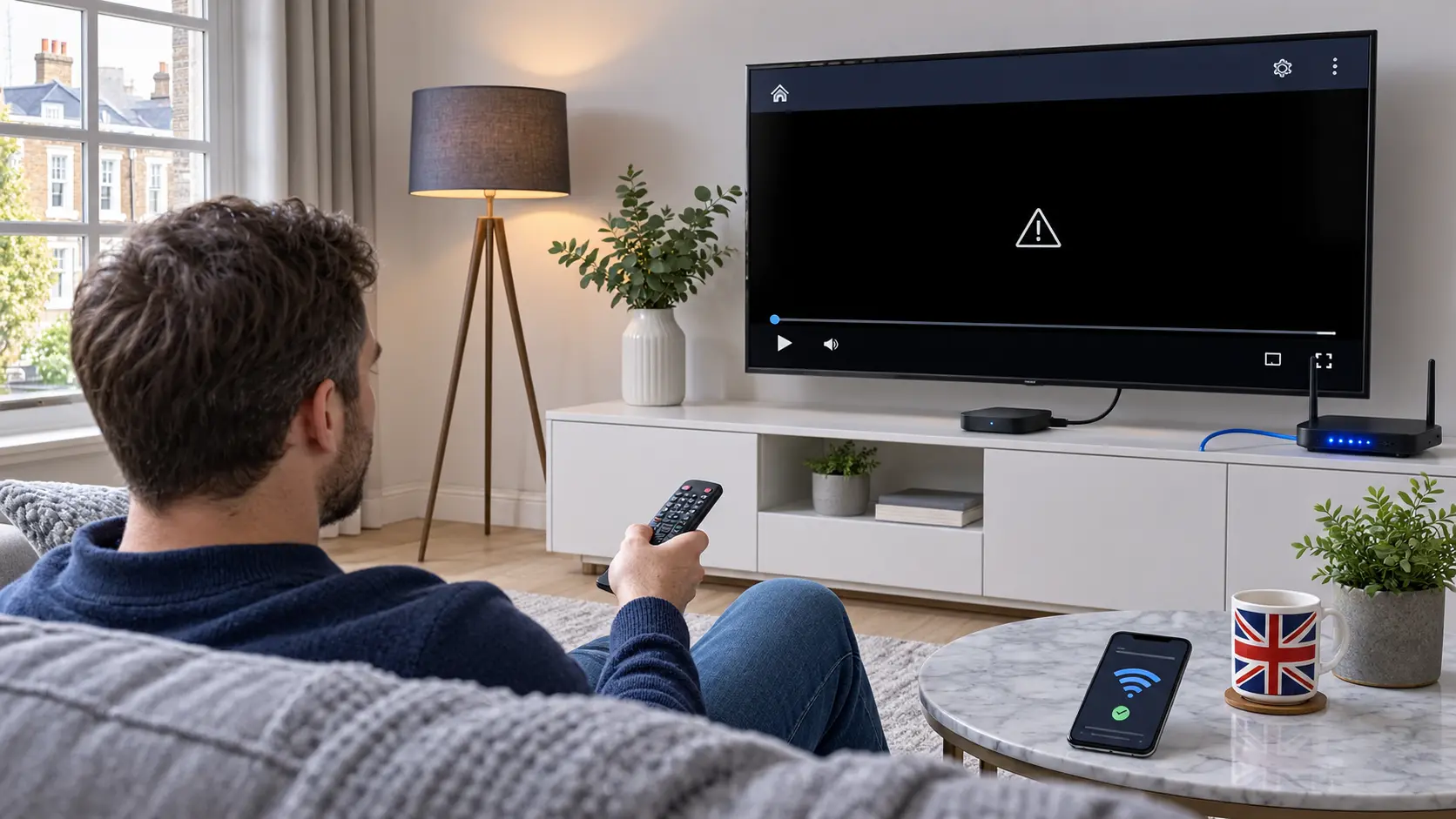
How Do You Fix an IPTV Black Screen?
First, check whether your TV menus appear normally. Next, restart the IPTV app and try another authorised stream. If the screen stays black, inspect the HDMI connection, restart your device and check your internet connection.
If you can hear sound but cannot see video, focus on the media player's video decoder and display settings. These checks help narrow down the problem without changing several settings at once.
What Causes an IPTV Black Screen?
A black screen does not always mean your internet connection has failed. The cause depends on what you can still see or hear.
Incorrect HDMI Input
Your TV may be displaying the wrong HDMI source. A loose cable can also interrupt the picture from an external streaming device.
Media Player Problems
An app may open normally but fail when playback begins. Temporary software errors or outdated versions can cause this behaviour.
Video Decoder Issues
Some devices struggle with particular video formats. As a result, audio may continue while the picture remains black.
Internet Instability
Weak Wi-Fi or interrupted connectivity can prevent playback from starting. However, network problems may also cause buffering or error messages.
Stream-Specific Failure
A single authorised channel or video may be unavailable. Testing another stream helps you separate a content issue from a device issue.
Display or TV Settings
Unsupported resolution, refresh-rate or HDR settings may affect the picture on some devices. A normal display mode can help with diagnosis.
Which Black Screen Problem Do You Have?
Choose the symptom that best matches your screen. You will see a suggested starting point.
Select Your Symptom
This tool provides general troubleshooting guidance. It does not test your device remotely.
Start with the symptom above
Select an option to see the most relevant first checks.
How to Fix IPTV Black Screen Step by Step
Follow these checks in order. After each step, try playback again. If the picture returns, you may not need to continue.
Check the TV Input and HDMI Connection
If you use a Fire TV Stick, Android box or another external device, confirm that your TV is set to the correct HDMI input.
Then inspect the HDMI connection. Disconnect and reconnect the cable while the devices are powered off. If possible, try another HDMI port.
What Should You Look For?
If the device's home screen also disappears, the problem may involve HDMI, power or display output rather than IPTV playback.
Close and Restart the IPTV App
Return to the device's home screen. Fully close the media player instead of leaving it running in the background.
Open it again and test playback. A fresh app session can resolve temporary errors.
Test Another Authorised Stream
Try a different channel or video that you are permitted to access. Choose content from another category if one is available.
If the second stream works, the problem may be limited to the original stream. If nothing works, continue checking the app and device.
Restart the Streaming Device
Use the device's restart option when available. Wait until it finishes rebooting before opening your media player.
Restarting can clear temporary memory and software issues. However, it will not repair a faulty HDMI cable or an unavailable stream.
Check Your Internet Connection
Open a trusted website or another authorised streaming app on the same device. This helps confirm whether the connection works.
If Wi-Fi is unstable, move closer to the router or test Ethernet where supported. Also check whether other devices have connection problems.
If playback repeatedly pauses rather than showing a blank picture, see our IPTV buffering guide .
Update Your Media Player
Check the official app store for updates. Developers sometimes fix playback and decoder problems in newer versions.
Also check for device system updates. Restart the device after installation if prompted.
Visit our IPTV Apps guide for information about compatible media players.
Check Video Decoder Settings
Some media players let you switch between hardware and software video decoding. This option may help when sound works but the picture does not.
Change one setting at a time, if your player offers it. Then test the same authorised stream. Restore the original setting if playback becomes worse.
Why Does This Matter?
Your device must decode the video format before it can display the picture. Compatibility varies by hardware, app and stream.
Check the Display Resolution
If the whole screen goes black when playback starts, try a standard display mode supported by your TV.
On compatible external devices, you can also review automatic frame-rate matching or HDR settings. Make changes carefully and keep track of the original values.
Check Playlist Access and Service Status
If the app loads but every authorised stream fails, confirm that your playlist or login details are still valid.
If you use Xtream Codes-style access, check the server address, username and password. Avoid sharing these details publicly.
If your settings are correct, contact your authorised provider to check for a service issue.
Reinstall the App Only as a Last Resort
Before reinstalling, save your authorised login details and check whether the app offers a backup option. Removing an app may erase its settings.
Reinstall only from an official or trusted source. Then add your details again and test playback.
IPTV Black Screen but Sound Still Works
If you can hear dialogue or music, your stream may be delivering audio while the video fails to display. This points towards a different set of checks.
Test Another Video
If another stream displays correctly, the first video may use a format that your player cannot handle or may have a stream-specific fault.
Review Decoder Options
Check whether the player offers a supported decoding mode. Hardware and software decoding can behave differently on some devices.
Check Video Output
If you use an external box or stick, confirm that the TV supports its selected resolution and display mode.
Find the Right Fix for Your Screen
Use these signs to decide where to start. They are clues, not confirmed diagnoses.
| What you notice | Possible cause | First check |
|---|---|---|
| Black screen with sound | Video decoder or format issue | Test another stream and review decoder settings |
| Black screen with no TV menus | HDMI, power or display output | Check the TV input and device connection |
| Only one stream is black | Stream-specific problem | Compare with another authorised stream |
| Every stream is black | App, network or access problem | Restart the app and test connectivity |
| Picture freezes before turning black | Playback or connection instability | Check network stability and device performance |
IPTV Black Screen on Different Devices
The basic checks are similar, but each device has its own settings and limitations.
Smart TVs
If the TV's built-in app shows a black picture, restart the app first. Then check for app and television software updates.
If other apps display video normally, the problem may be limited to the media player or stream.
Fire TV Stick
Confirm that the correct HDMI input is selected. Then restart the Fire TV device and update the affected application.
If the Fire TV home screen is missing too, inspect the power supply and HDMI connection.
Android TV and Google TV
Close the media player and restart the device. Check for app updates in the official store.
Where available, review app storage and cache settings. Clearing app data may remove your login details, so use that option carefully.
Windows and Mac
Update the media player and graphics software where applicable. Then test another supported video format.
If the problem appears only on an external monitor, inspect its display settings and connection.
What Information Helps Diagnose the Problem?
A few useful details can save time. You do not need to share your password or private playlist URL.
Your Device
Note whether you use a Smart TV, Fire TV Stick, Android box, phone or computer. Include the model when you know it.
The Exact Symptom
Explain whether the screen is black with sound, black without sound, or limited to one stream.
What You Have Tested
Mention any app restart, network test, HDMI check or update you have already tried.
IPTV Black Screen FAQs
Here are straightforward answers to common questions about missing video.
Why is my IPTV screen black but I can hear sound?
The media player may be receiving audio but failing to display the video. Test another authorised stream. Then check the app version, video decoder options and display settings.
Can a weak internet connection cause a black screen?
Yes. An unstable connection can prevent playback from starting. However, weak internet more often causes loading delays or buffering. Test another app to help narrow down the cause.
Why does only one IPTV channel show a black screen?
The problem may be specific to that stream. Try another authorised channel. If other streams work normally, contact your provider about the affected content.
Should I change my IPTV video decoder?
Only if your media player supports that option and other basic checks have failed. Change one setting at a time. Restore the previous setting if it does not improve playback.
Will restarting my Smart TV fix a black screen?
A restart can resolve temporary software errors. However, it will not fix every issue. HDMI faults, unsupported video formats and unavailable streams may need different checks.
Why does IPTV show a black screen on Fire TV Stick?
Possible causes include an HDMI connection issue, app failure or video compatibility problem. Check whether the Fire TV home screen appears, then restart the app and test another stream.
Do I need to reinstall my IPTV app?
Not immediately. First restart the app, update it and check playback. Reinstalling may remove your saved settings, so keep your authorised login details available before taking that step.
When should I contact IPTV support?
Contact your authorised provider if several streams remain unavailable after you have checked your device, connection and app. Share the device model, the symptom and the steps you have tried.
Still Seeing an IPTV Black Screen?
If you have followed the checks and still cannot see the picture, our support team can help you review your setup. Tell us your device and what happens when you press play.
Support can help with diagnosis, but a fix depends on the underlying issue.