
How to Set Up IPTV on Smart TV
Setting up IPTV on a Smart TV does not need to be complicated. This guide explains how to choose a compatible media player, connect your authorised playlist or account, test playback and fix common Smart TV streaming problems.
What Do You Need for IPTV on a Smart TV?
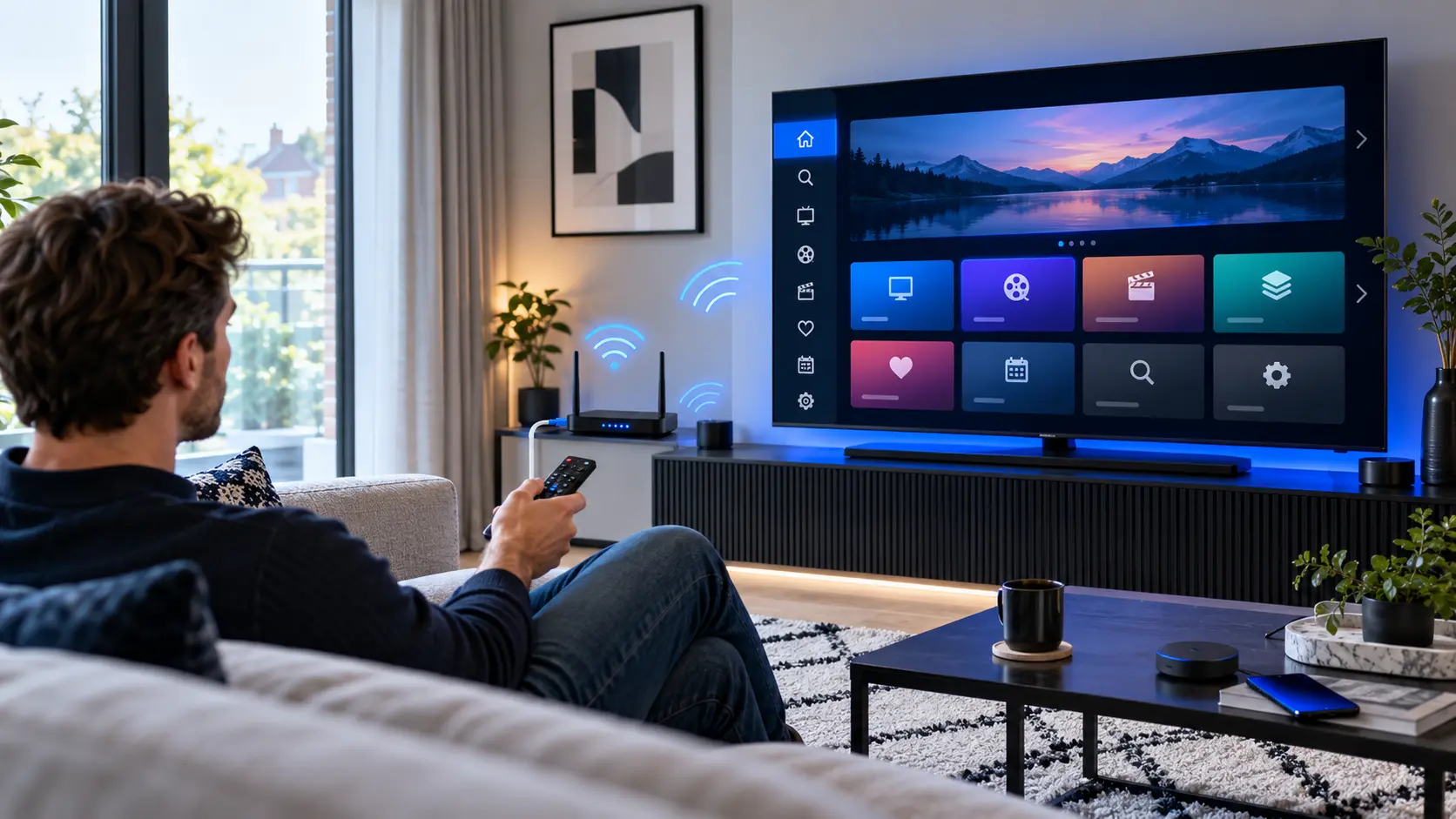
In most cases, you only need three things: a compatible television, a suitable media player and valid access details for a television service you are authorised to use.
A Compatible Smart TV
Check your television's operating system, software version and app store. App availability is not identical across every Smart TV.
A Media Player
The player provides the interface for loading and organising your own authorised playlist or compatible account details.
Valid Access Details
Depending on the player, this may be an M3U playlist or separate server, username and password fields.
A Media Player Is Not a TV Subscription
This is one of the most useful things to understand before starting. A Smart TV media player is software. Its job is to load, organise and play compatible media sources.
Installing a player does not automatically provide channels, films or television packages. Your authorised access details normally come separately from your service provider.
Check these points first
- Your Smart TV model and operating system.
- Whether the app is available for your television.
- The login format supported by the player.
- Your internet connection is working correctly.
- Your access details are active and entered correctly.
How to Set Up IPTV on Smart TV
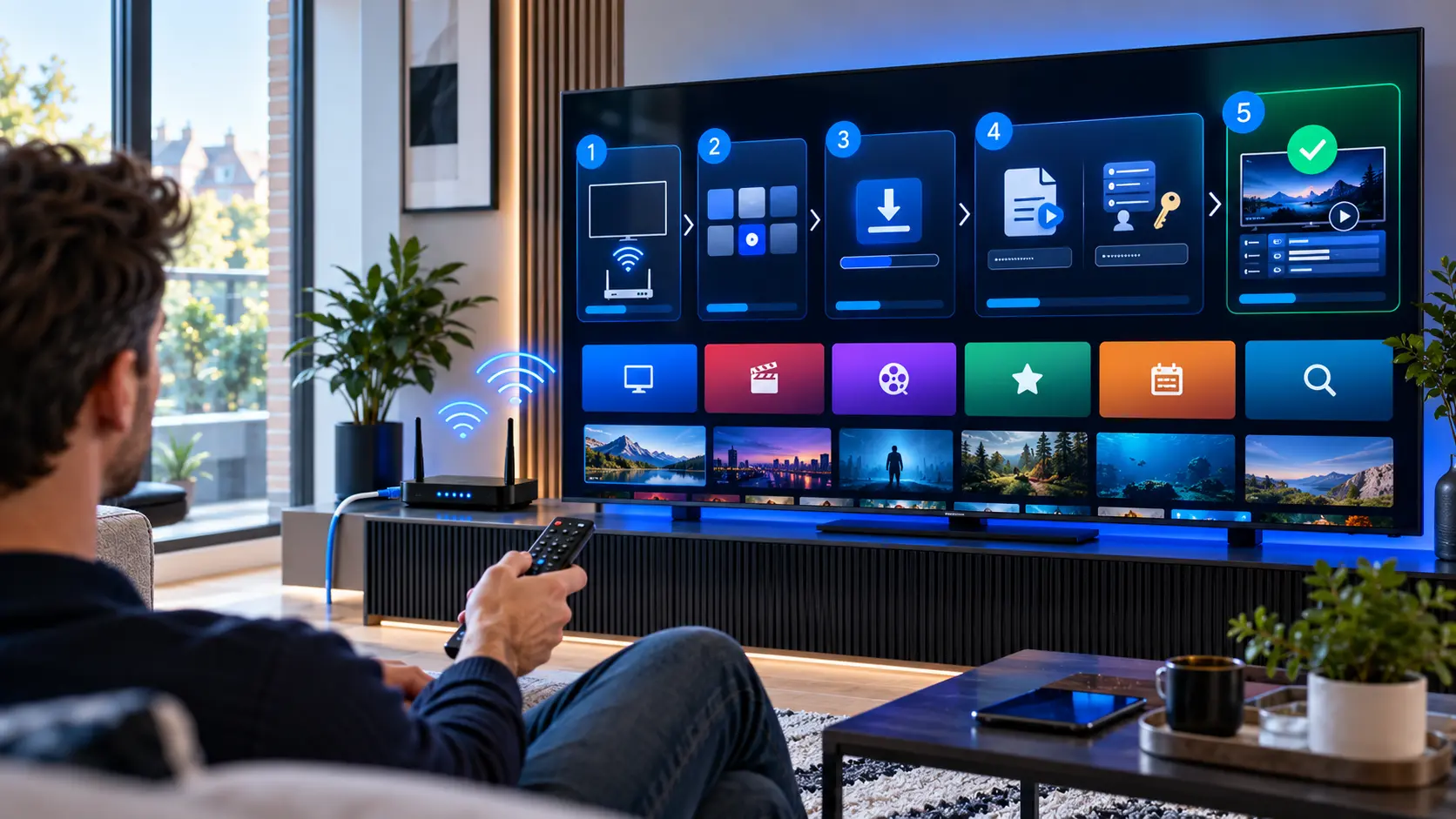
The menus and buttons vary between television brands, but the basic setup process is similar on most compatible Smart TVs.
Connect Your Smart TV to the Internet
Confirm that the television is online before installing anything. Open another internet-based app if you want to verify that the connection is working.
Open Your TV's App Store
Open the official application store built into your television and search for a compatible media player. Available apps depend on your TV platform and region.
Install a Compatible Media Player
Before installing a player, check that it supports your television and the access format you intend to use.
Open the Player
Launch the app after installation. Depending on the player, you may see options for a playlist, account login or device activation.
Add Your Authorised Access Details
Enter the information supplied by your service provider. Take extra care when typing long URLs with a television remote.
Allow the Library to Load
A large playlist may need some time to synchronise. Let the player finish loading before deciding that something has gone wrong.
Test Playback
Test a few authorised streams rather than relying on one. Then organise favourites, categories and programme-guide settings if your player supports them.
IPTV Media Players for Smart TV
Choose the player according to your television platform rather than choosing by name alone. IBO Player, Hot Player and TiviMate do not have identical device compatibility.
IBO Player
IBO Player is a general media player. It does not include playlists or television content, so users add their own compatible authorised source.
Useful for
- Compatible Smart TV installations
- M3U playlist management
- Remote-control viewing
- Organising supported media sources
Hot Player
Hot Player is another media-player option available across several television platforms. Its official information lists Smart TV platforms including Samsung and LG.
Useful for
- Samsung and LG Smart TVs
- Own-playlist playback
- M3U and supported login formats
- TV-focused remote navigation
TiviMate
TiviMate is especially relevant when the Smart TV itself runs Android TV or when you use a compatible Android TV streaming device connected to the television.
Useful for
- Android TV televisions
- Compatible Android TV boxes
- Multiple playlist management
- Favourites, search and guide features
M3U or Xtream Codes-Style Login?
The right method depends on the player and the information supplied by your authorised television service.
M3U Playlist
An M3U playlist is commonly supplied as a URL. If your Smart TV player supports this method, add the complete authorised playlist address to the appropriate field.
Be careful when typing
Playlist URLs can be long. Check every character if you are entering the address manually with a remote control.
Account-Style Login
Some players support separate fields for a server address, username and password. This is often described as an Xtream Codes-style login.
Keep the information private
Never publish screenshots that reveal your server address, username, password or private playlist URL.
Not Every Smart TV Works the Same Way
“Smart TV” describes a broad category. Different manufacturers use different operating systems and app stores, so the exact installation process can change from one television to another.
LG Smart TV
LG televisions use their own Smart TV platform. Choose an app that is actually available for your model and region.
Other Smart TV Platforms
Samsung and other television manufacturers may use different app stores and installation processes. Check the exact TV platform before choosing your player.
Android TV & Google TV
Android-based televisions offer a different app ecosystem and can support players that are not available natively on other Smart TV operating systems.
Wi-Fi or Ethernet for Smart TV Streaming?
A good media player cannot compensate for an unstable home network. If playback repeatedly buffers, test the connection before changing apps.
Wi-Fi
Wi-Fi is convenient and can work well when the television has a strong signal. Distance, walls and network congestion can reduce consistency.
Ethernet
If your television and router support Ethernet, a wired connection can be useful when Wi-Fi is weak or unreliable.
Common IPTV Problems on Smart TV
Troubleshooting is easier when you change one thing at a time. Start with the simplest checks before reinstalling apps or changing the television configuration.
The Media Player Is Missing
Check your television model, operating system and region. An app available on one Smart TV platform may not exist on another.
The Playlist Will Not Load
Check that the access information is active and entered correctly. Look for extra spaces and typing mistakes before reinstalling the player.
Playback Keeps Buffering
Test another stream and another internet-based application. This helps distinguish a source problem from a wider home network issue.
The App Freezes
Close and reopen the app. If necessary, restart the television and check whether updates are available for the TV or media player.
Live Content Works but VOD Does Not
Refresh the playlist when the player provides that option. Test several items to determine whether the issue affects one title or the entire on-demand library.
No Picture or Sound
Test another item first. If only certain media fails, the source or media format may be the cause rather than the Smart TV itself.
Keep Your Smart TV Login Details Private
Playlist URLs and account credentials may contain private access information. Avoid posting them in public forums or sharing screenshots that expose passwords and server details.
Install apps from trusted sources whenever possible and review the developer information before entering account details.
More IPTV Setup Guides
Use the main installation hub for other devices, compare compatible players or open the troubleshooting guide when something is not working as expected.
IPTV on Smart TV: Frequently Asked Questions
Can I install IPTV on a Smart TV?
A compatible Smart TV can use a suitable media-player app to load an authorised playlist or supported account. The exact installation method depends on the television's operating system and available apps.
Which IPTV player is best for Smart TV?
There is no single best player for every Smart TV. Start by checking compatibility with your television platform and your required login format. Then compare navigation, playlist management and other features you actually need.
Can I use IBO Player on Smart TV?
IBO Player supports compatible television platforms and is a media player rather than a content subscription. Check the official app information for compatibility with your specific TV before installing it.
Can I use Hot Player on Smart TV?
Hot Player lists support for several Smart TV platforms, including LG and Samsung. Availability can still depend on the model, region and television software.
Can I use TiviMate on any Smart TV?
No. TiviMate is primarily intended for Android TV devices. It is therefore most relevant to televisions running a compatible Android TV platform or to compatible Android TV streaming hardware connected to a television.
Can a Smart TV use an M3U playlist?
Yes, when the installed media player supports M3U playlists. The playlist should come from a source you are authorised to use.
Why does IPTV buffer on my Smart TV?
Buffering can have several causes, including Wi-Fi conditions, network congestion, the media source or device performance. Testing another stream and another internet app can help you identify where the problem begins.
Is Ethernet better than Wi-Fi for a Smart TV?
Ethernet can provide a more consistent connection in homes where Wi-Fi is weak or congested. A strong Wi-Fi connection can also work well, so the best option depends on your home network.
Does an IPTV media player include channels?
Not necessarily. Players such as IBO Player and TiviMate describe themselves as media players and do not provide the television content simply by installing the application. Content access is separate from the player.
Need Help Setting Up IPTV on Your Smart TV?
If you already have compatible access details and need help with the setup, send us your Smart TV brand, model and the media player you are using. This makes it easier to identify the right installation steps.