
If you’re new to streaming, you’ve probably asked yourself: does IPTV player include channels, or do you need something extra?
It’s a fair question. Most beginners assume a player works like a satellite box — switch it on and channels appear.
That’s not quite how IPTV works, and misunderstanding this point causes a lot of confusion in the UK streaming community.
In this guide, we’ll clear up exactly what an IPTV player does, what it doesn’t do, and what you actually need to watch live TV through IPTV.
What Is an IPTV Player, Exactly?
An IPTV player is simply an application. Think of it as the screen and buttons, not the TV signal itself.
Its job is to take a stream and display it on your device. That’s it.
The player doesn’t create content. It doesn’t broadcast anything. It just reads and plays what’s fed into it.
If you’re unfamiliar with how this technology works in the first place, our complete beginner’s guide to IPTV breaks it down in simple terms.
A Simple Comparison
Think about a DVD player.
- The DVD player plays discs
- It doesn’t come with movies built in
- You need a separate disc to watch anything
An IPTV player works the same way. It’s the hardware or software, not the content.
Does IPTV Player Include Channels? The Short Answer
No, an IPTV player does not include channels by default.
This is the single most misunderstood part of IPTV for beginners.
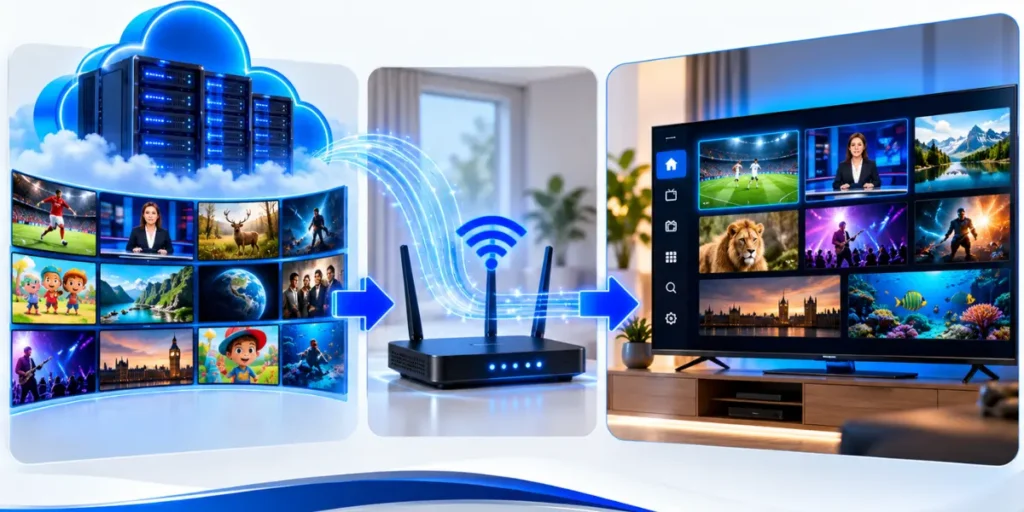
The player is just the interface. Channels come from a separate source, usually called a playlist or an M3U link.
Without that playlist, your IPTV player will simply show an empty screen or a setup menu.
Why This Confuses So Many Beginners
Most people grow up with cable or satellite boxes. Those devices come pre-loaded with channels because the provider controls both the hardware and the content.
IPTV separates these two things completely. The player and the content come from different places entirely.
This separation is actually one of IPTV’s biggest strengths, but it does require a bit more setup knowledge.
How Do Channels Actually Get Added?
Channels reach your IPTV player through a playlist file or a link. This is usually in M3U or M3U8 format.
Here’s the basic process:
- You get a playlist link from a content source
- You enter that link into your IPTV player
- The player reads the link and loads the channel list
- You select a channel, and the player streams it
The player never stores the channels permanently. It simply reads the playlist each time you open it.
What Is an M3U Playlist?
An M3U file is basically a list of web addresses. Each address points to a stream for one channel.
Your IPTV player reads this list and turns it into a clickable channel guide.
Without an active, working M3U link, the player has nothing to show you.
IPTV Player vs IPTV Service: Know the Difference
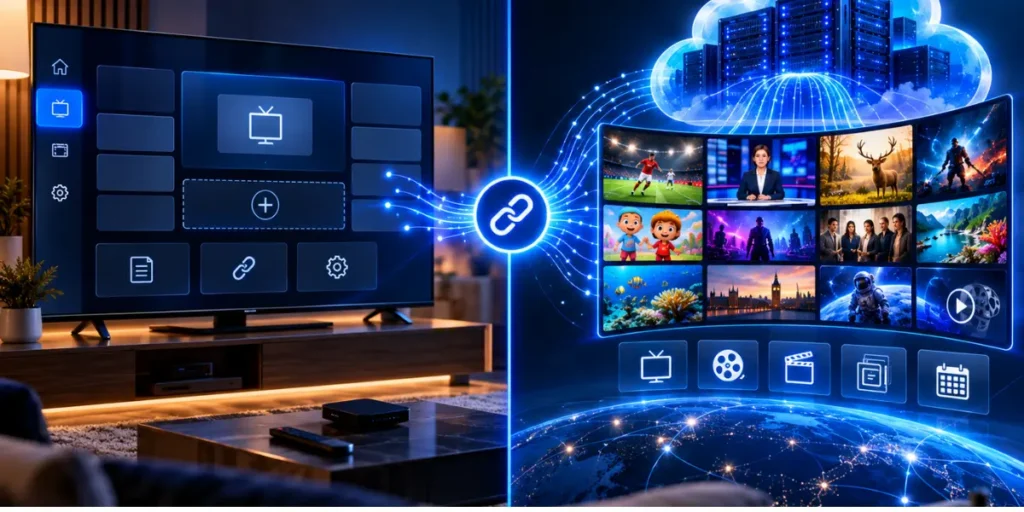
This distinction matters a lot, so let’s break it down clearly.
| Component | What It Does |
|---|---|
| IPTV Player | Displays streams on your screen |
| IPTV Service/Playlist | Provides the actual channel content |
Think of the player as your TV screen and remote. The service is like the TV signal coming through the aerial.
You genuinely need both parts working together. One without the other gives you nothing to watch.
Popular Types of IPTV Players in the UK
There are several kinds of IPTV players, and each one handles playlists slightly differently.
App-Based Players
These run on smart TVs, Fire Sticks, Android boxes, or phones. You typically paste your M3U link into the app settings.
Web-Based Players
Some services let you watch streams directly through a browser. No app installation required.
Standalone Devices
Certain set-top boxes come with player software pre-installed, though channels still need to be added manually afterwards.
Regardless of the type, the same rule applies everywhere — the player is empty until you load a playlist into it.
If you’re setting one up for the first time, our step-by-step IPTV installation guide walks through the process properly.
What You Actually Need to Watch IPTV Channels
Let’s be practical. Here’s the full list of things required beyond just a player:
- A working IPTV player app
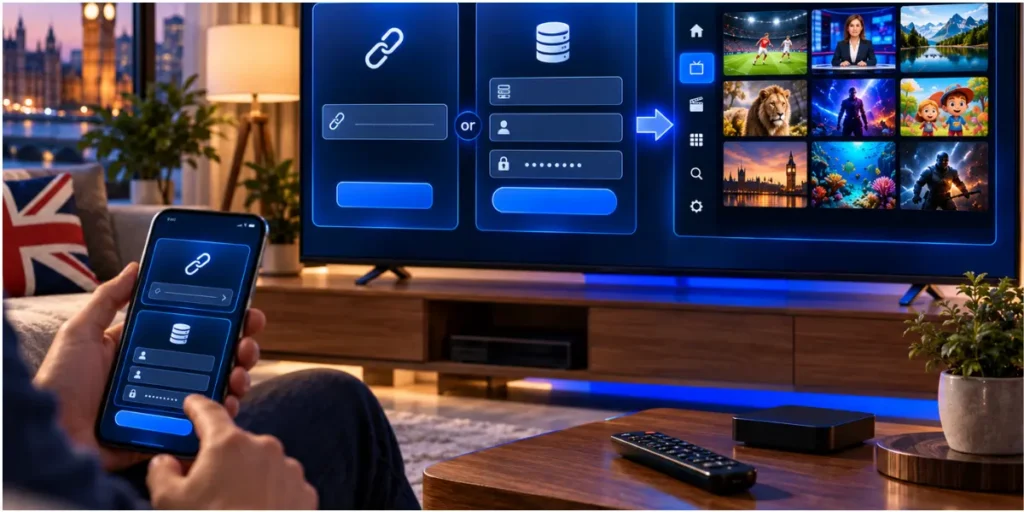
- A valid playlist (M3U link or Xtream login)
- A stable internet connection
- A compatible device (smart TV, phone, firestick, etc.)
Miss any one of these, and your setup simply won’t work.
How Much Internet Speed Do You Need?
IPTV relies heavily on your connection quality. Buffering is almost always a bandwidth issue, not a player fault.
For standard definition streams, around 5-10 Mbps usually works fine. HD content typically needs closer to 15-25 Mbps for smooth playback.
If you’re unsure about your current speeds, Ofcom provides useful broadband guidance for UK households on their official broadband research page.
Slow or unstable broadband is one of the most common reasons IPTV playback fails, even when the player itself is working perfectly.
Common Beginner Mistakes With IPTV Players
Let’s go through mistakes we see constantly among new IPTV users.
Mistake 1: Expecting Pre-Loaded Channels
Many people download a player, open it, and get confused when nothing appears. Remember, the player needs a playlist added manually first.
Mistake 2: Using an Expired Playlist Link
M3U links can expire or stop working. If channels suddenly disappear, the playlist itself is usually the problem, not your player app.
Mistake 3: Ignoring Device Compatibility
Not every player works on every device. Always check whether your chosen app supports your smart TV, box, or phone before installing.
Mistake 4: Blaming the Player for Buffering
As mentioned earlier, buffering is often caused by weak Wi-Fi or slow broadband rather than a faulty player.
Is It Legal to Use IPTV Players in the UK?
This question matters, and it deserves an honest answer.
Using an IPTV player itself is completely legal. It’s just software, like a media player on your phone.
However, the legality depends entirely on where the content comes from. Streaming content without proper rights or licensing can breach UK copyright law.
The UK government and Ofcom have both published clear information about copyright protections for broadcast content. You can read more on the UK Intellectual Property Office website.
Always make sure any playlist or service you use has proper licensing for the content it provides. This protects you legally and supports the broadcasters creating that content.
How IPTV Streaming Technology Actually Works
Understanding the technical side helps explain why players and channels stay separate.
IPTV uses internet protocols to deliver video, rather than traditional satellite or cable signals. This is fundamentally different from how Freeview or Sky operates.
Streams are broken into small data packets and sent over the internet. Your player receives these packets and reassembles them into watchable video.
This process is similar to how services like YouTube or Netflix deliver content, just structured differently for live channels. For a deeper technical explanation of streaming protocols, the Internet Engineering Task Force publishes detailed documentation on how internet video transmission works.
This technology is exactly why playlists need to be loaded separately. The player is built to handle generic internet streams, not any one specific content provider.
Troubleshooting: Player Shows No Channels
If you’ve installed a player and see nothing, here’s a quick checklist:
- Check that your playlist link is entered correctly
- Confirm the M3U link hasn’t expired
- Test your internet connection speed
- Restart the IPTV player app completely
- Verify your subscription or playlist source is still active
Most “no channels” problems come down to a playlist issue rather than the player itself.
Many players, including IBO Player, offer dedicated support pages explaining exact setup steps. You can check their official FAQ page for additional troubleshooting guidance.
Frequently Asked Questions
Can I use one IPTV player with multiple playlists?
Yes, most modern players support multiple playlists. You can switch between different M3U sources within the same app.
Why did my channels disappear overnight?
This usually means your playlist link expired or the source stopped the service. The player itself rarely causes this issue.
Do all IPTV players work the same way?
No. Interface design varies, but the core function stays identical — they all read playlists and display streams.
Is a VPN required for IPTV players?
Not necessarily. It depends on your specific setup and location restrictions, though many users choose one for added privacy.
Final Thoughts
So, does IPTV player include channels? No — and now you understand exactly why.
The player is simply the tool that displays content. Channels always come from a separate playlist or service.
Understanding this difference saves beginners hours of confusion and frustration. It also helps you troubleshoot problems faster when something goes wrong.
Once you grasp how players and playlists work together, IPTV becomes far less mysterious. It’s simply a different delivery method compared to traditional TV, built on internet technology rather than satellite signals.
Take time to understand both parts of the system. Your player, your playlist, and your internet connection all need to work together for a smooth viewing experience.