
IPTV No Sound: Why It Happens and How to Fix It
Is your IPTV picture working but the sound has disappeared? Before reinstalling anything, check your volume, audio output and playback settings. A few simple tests can help you find the cause.
This guide explains how to restore missing audio on Smart TVs, Fire TV devices, Android TV boxes and other compatible media players.
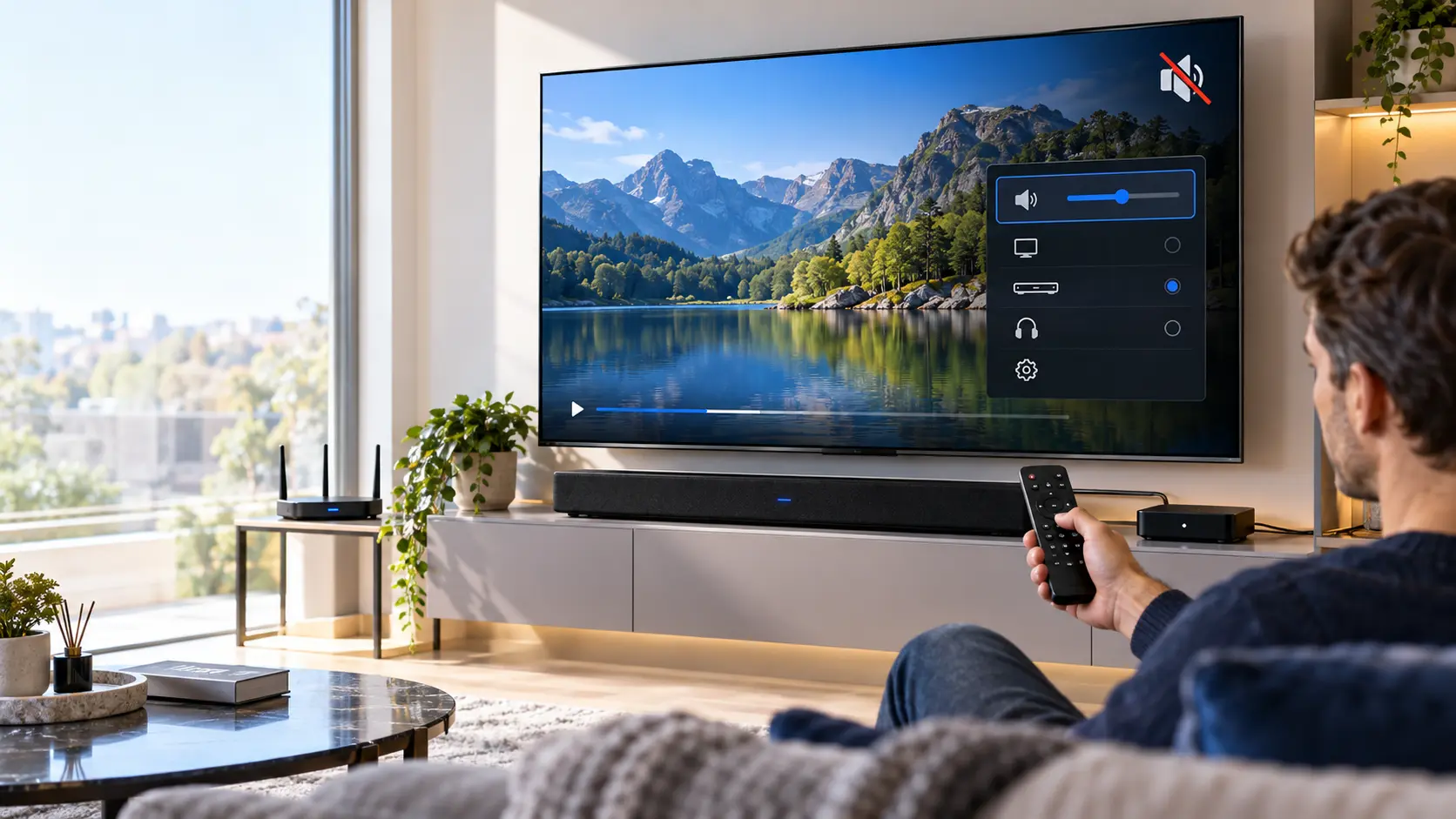
Why Does IPTV Have Picture but No Sound?
IPTV video and audio are separate parts of a stream. Sometimes, the video plays normally while the audio fails to reach your speakers.
For example, your television may be muted. Your streaming device may also send sound to a Bluetooth headset instead of the TV. In other cases, the media player cannot handle the audio format used by a particular stream.
The good news is that you can often identify the problem without changing your subscription or resetting your device. Start with the quick checks below.
Useful distinction: If every app is silent, check your television and audio equipment first. If only one IPTV channel has no sound, investigate that stream or its audio track before changing system settings.
Find the Right Fix for Your Sound Problem
Choose the situation that best describes what you see. The guide will suggest where to start.
What happens when you play a video?
Select one option. No information leaves your browser.
You will see a suggested starting point and a link to the relevant instructions.
What Causes IPTV Sound Problems?
Several settings and devices can affect audio playback. These are the most useful things to investigate.
Muted Volume
Your television, media player or streaming device may have a separate volume control.
Wrong Audio Output
Sound may be routed to a soundbar, receiver or Bluetooth device that is not ready.
HDMI Connection
An HDMI connection or device handshake can sometimes cause missing or interrupted audio.
Unsupported Audio Format
Your TV or sound system may not support the surround sound format being sent to it.
Media Player Issue
An outdated app, incorrect audio track or temporary playback error may affect sound.
Stream-Specific Fault
One programme or channel may have an audio issue even when other streams work normally.
How to Fix IPTV No Sound Step by Step
Follow these checks in order. After each step, play a familiar video again. If the sound returns, you can stop.
Check the TV and Player Volume
Press the volume-up button on your TV remote. Then check whether the mute icon appears on screen.
Next, open the media player's playback controls. Some players have their own volume slider. Make sure it is not set to zero.
Test: Play a video in another app. If that app is also silent, focus on the TV's sound settings.Choose the Correct Audio Output
Open your television's Sound or Audio settings. Look for an option such as Sound Output, Speakers or Audio Device.
If you use the built-in TV speakers, select them. If you use a soundbar, choose the correct HDMI ARC, optical or Bluetooth output.
Settings names vary by manufacturer. Therefore, follow the options shown on your own device.
Check the HDMI Connection
If you use a Fire TV Stick, Android TV box or another HDMI streaming device, check its connection.
- Turn off the connected equipment.
- Check that the HDMI cable or stick is firmly seated.
- Try another available HDMI port.
- Restart the equipment and test audio again.
If you use an HDMI cable, try another known-working cable when possible. Avoid forcing connectors.
Try a Compatible Audio Format
Some streaming devices offer Automatic, PCM, Stereo or surround sound output.
Start with Automatic. If audio is still missing, try PCM or Stereo as a temporary test, provided your device offers that option.
PCM stereo can help identify a format compatibility problem. However, it may reduce surround sound to two-channel audio.
Important: Record your original setting so you can restore it if the change does not help.Check the Audio Track
Some media players let you choose between multiple audio tracks. Open the playback menu and look for Audio, Language or Tracks.
Select an available track and test it. If there is only one track, move to the next step.
Do not assume that every stream includes several audio languages or formats.
Restart the Media Player and Device
Close the IPTV application completely. Then open it again and test the same programme.
If the problem remains, restart your Smart TV or streaming device through its system menu.
A restart can clear a temporary playback fault. It does not delete your subscription details.
Update Your IPTV Media Player
Open your device's official app store. Check whether an update is available for the media player you use.
Also check for a system update. Updates may resolve known compatibility or playback problems.
For help choosing a compatible player, visit our IPTV Apps guide .
Test Another Authorised Stream
Open a different channel or on-demand video that you are authorised to watch.
If the second stream has sound, the first stream may have an audio-track or source issue.
If every stream is silent but other apps work, focus on your IPTV player's audio settings.
Contact Support With Useful Details
If none of the checks helps, collect a few details before contacting support.
- Your device model and media-player name.
- Whether the problem affects every stream.
- Whether sound works in other applications.
- Which audio output you use.
- What you have already tested.
Avoid sharing passwords or private account details in public messages.
Ask for Help on WhatsApp →Fix Missing IPTV Audio on Different Devices
The exact menu depends on your device. Use these checks as a starting point.
Samsung and LG Smart TVs
Open the TV's sound settings. Confirm that the selected output matches your speakers or soundbar.
What to check
- TV speaker or external audio output.
- Mute and volume controls.
- Digital audio output format.
- Audio in another TV application.
If PCM is available, you can test it temporarily to investigate format compatibility.
Fire TV Stick
First, check the TV's volume and audio output. Then review the Fire TV sound settings.
What to check
- Audio output and surround sound options.
- HDMI connection.
- Connected Bluetooth headphones.
- Media-player updates.
Test another application before changing several settings at once.
Android TV and Google TV
Open Display & Sound or the equivalent audio settings menu on your device.
What to check
- Automatic versus manual audio format.
- Connected Bluetooth accessories.
- TV or external speaker output.
- Device and app updates.
Google also provides official guidance on supported sound formats .
Windows, Mac and Mobile Devices
Check both the system volume and the volume inside your media player.
What to check
- Correct speaker or headphone output.
- App-specific volume controls.
- Bluetooth audio routing.
- Available audio tracks.
On computers, also check whether the media player is muted in the operating system's audio mixer.
IPTV No Sound With a Soundbar or Bluetooth Speaker
External audio equipment adds another connection to your setup. As a result, the problem may come from the soundbar rather than the IPTV app.
Check Your Soundbar
Confirm that the soundbar is powered on and using the correct input.
If you use HDMI ARC or eARC, check that the connection and TV settings match.
Next, temporarily switch to the built-in TV speakers. If sound returns, investigate the external audio connection.
Check Bluetooth Audio
Your streaming device may still be connected to headphones or a wireless speaker.
Open Bluetooth settings and review the active connection. Disconnect the accessory temporarily.
Then test the television speakers again. Reconnect your accessory once you identify the cause.
Useful test: If your streaming device passes through a soundbar or receiver, try connecting it directly to the TV where appropriate. This can help isolate HDMI-related problems.
IPTV Audio Problems: What to Check First
| Symptom | Possible Cause | First Check |
|---|---|---|
| No sound in any app | TV volume or audio output | Test TV speakers and mute controls |
| Only IPTV is silent | Player or audio format | Check app settings and audio tracks |
| One channel has no sound | Stream-specific audio issue | Test another authorised channel |
| Soundbar is silent | Output or HDMI ARC settings | Switch temporarily to TV speakers |
| Sound disappears after connecting headphones | Bluetooth audio routing | Disconnect the Bluetooth device |
| Picture works, but surround sound does not | Unsupported audio format | Test Automatic or PCM stereo |
How to Reduce Future IPTV Sound Problems
Keep Software Updated
Install updates from official sources. They may improve playback compatibility and resolve known bugs.
Use Supported Audio Settings
Choose formats supported by your TV, soundbar and streaming device. Avoid forcing unsupported surround modes.
Keep Your Setup Simple
Use reliable cables and check external audio connections after changing equipment. Record settings that work well.
Related IPTV Troubleshooting Guides
Missing sound is only one possible playback problem. These guides cover other common symptoms.
IPTV Troubleshooting
Start with the main troubleshooting hub to explore common streaming problems.
Explore the Pillar Guide →IPTV Black Screen
Learn what to check when your player opens but the video does not appear.
Read the Black Screen Guide →IPTV Buffering
Understand why playback pauses to load and how to check network performance.
Read the Buffering Guide →IPTV Keeps Freezing
Follow practical checks when the picture stops unexpectedly during playback.
Read the Freezing Guide →IPTV Not Working
Diagnose broader connection, login, device and media-player problems.
Read the Troubleshooting Guide →IPTV Apps
Learn about compatible media players and their general features.
Explore IPTV Apps →IPTV No Sound: Frequently Asked Questions
Here are short answers to common questions about missing IPTV audio.
Why is my IPTV showing a picture but no sound?
The TV may be muted, the wrong speaker output may be selected, or the media player may have an audio compatibility issue. First, test sound in another application. Then check the TV and player volume.
How do I fix IPTV sound on my Smart TV?
Check mute and volume settings. Next, select the correct audio output. If the issue remains, restart the app and test another authorised stream.
Why does only one IPTV channel have no audio?
The channel may have a missing, unsupported or faulty audio track. Check whether another audio track is available. If other channels work, report the affected stream to your provider.
Can HDMI cause IPTV sound problems?
Yes. An HDMI connection or incompatible audio setting can affect sound. Try another port or cable, and check the connected device's audio output settings.
Should I change the audio output to PCM?
PCM stereo can be a useful compatibility test. However, it may disable surround sound. If it does not help, restore your previous setting.
Why does IPTV sound work without my soundbar?
The issue may involve the soundbar input, HDMI ARC or eARC settings, or an unsupported audio format. Check the soundbar connection and test a compatible output mode.
Will reinstalling my IPTV app restore sound?
It might help with an app-specific fault, but it should not be your first step. Check audio settings and updates first. Save your authorised login details before reinstalling an application.
Does slow internet cause IPTV to have no sound?
Network problems can interrupt audio and video. However, a clear picture with consistently missing sound often points towards an audio setting, format or stream-specific issue.
A Sensible Approach to Audio Troubleshooting
Not every IPTV audio problem has the same cause. Therefore, test one change at a time. Start with volume and speaker output before changing advanced settings.
Menu names vary across TV models, streaming devices and software versions. If a setting is unavailable, consult your device manufacturer's instructions.
This guide covers media-player troubleshooting for authorised streaming services. It does not require unofficial applications or modified software.
For further technical guidance, see Google's official sound format documentation and the Google TV troubleshooting guide .
Still Have No Sound on IPTV?
Tell our support team which device and media player you use. Explain whether the problem affects one stream or every stream. That information can help narrow down the cause.