
Xtream Codes Not Working? Causes and How to Fix It
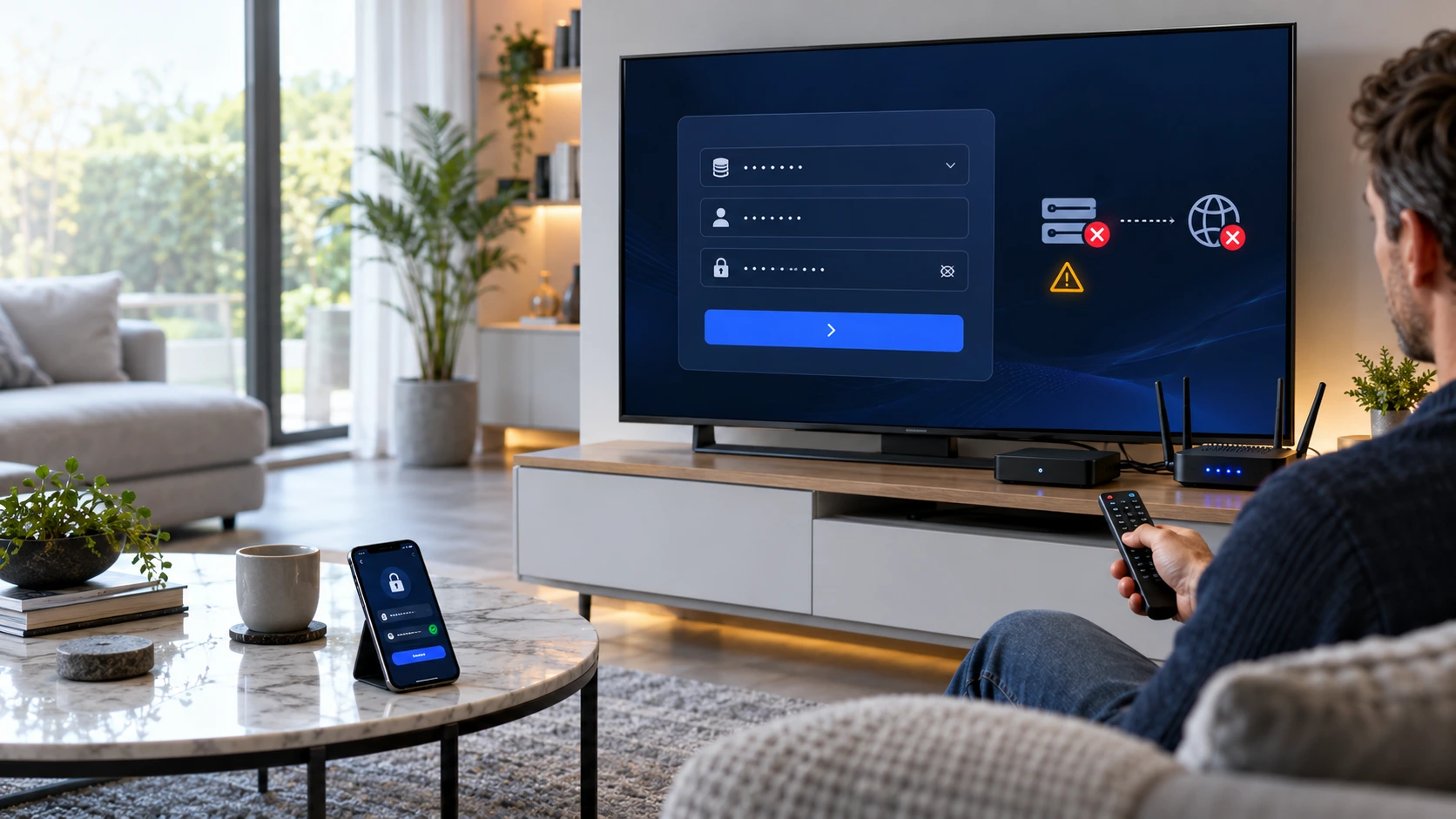
Is your IPTV player rejecting your login details? Or does it fail to connect to the server? This guide will help you find the cause.
Start with the server address and account details. Then check your internet connection and media player. You can often identify the problem without changing every setting.
Quick Answer: What Should You Check First?
If Xtream Codes is not working, first confirm the server URL, username and password. Check that the account is active. Next, test your internet connection. Finally, restart or update the media player.
If the same login fails on different devices and networks, ask your authorised service provider to check the account and server status.
Why Is Xtream Codes Not Working?
Several different faults can produce a similar error message. These are the main areas worth checking.
Incorrect Server URL
The address may contain a typo, missing protocol or incorrect port. An outdated server address can also prevent a connection.
Wrong Login Details
Usernames and passwords may be case-sensitive. Even one extra space can cause a login failure.
Inactive Account
An expired, disabled or not-yet-activated account may be rejected, even when the details are correct.
Internet Problems
A disconnected device, unstable Wi-Fi or a network restriction may stop the app from reaching the server.
Media Player Issues
An outdated app, damaged cache or incorrect login method can interrupt the setup process.
Provider-Side Fault
The server may be unavailable or undergoing maintenance. In that case, changing your TV settings may not help.
How to Fix Xtream Codes Not Working Step by Step
Follow these checks in order. After each step, try signing in again before moving to the next one.
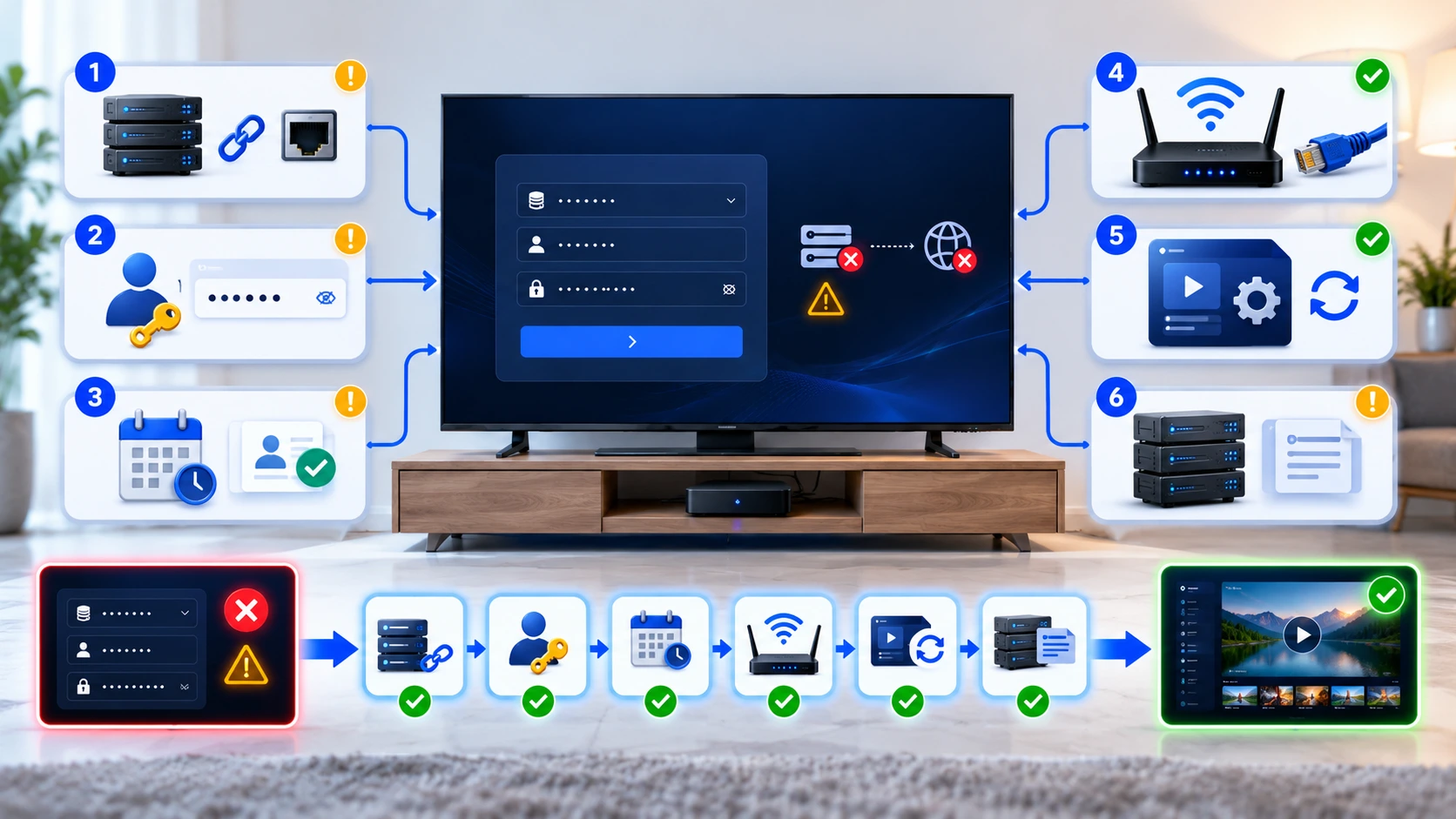
Check the Server URL and Port
Open the login settings in your media player. Compare the server address with the one supplied by your authorised provider.
Check the spelling, protocol and port number. Some servers use HTTPS, while others use HTTP. Use the exact format provided for your account.
Example of a server address
https://portal.example.com:8080
If your app has separate server, username and password fields, do not paste a complete M3U playlist link into the server field.
Verify Your Username and Password
Next, check the account details carefully. A capital letter, number or special character may have been entered incorrectly.
Remove any accidental spaces at the beginning or end. If possible, copy the details from your original account message.
Privacy tip: Never post your full login details in a public forum or troubleshooting screenshot.
Confirm That Your Account Is Active
Correct credentials will not help if the account is inactive. Check the expiry date and activation status in your provider's official account area.
If you cannot access that information, contact the provider directly. Ask them to confirm whether the account can connect.
Check the Device Limit Too
Some services limit simultaneous connections. Close any unused sessions before testing again. Do not assume this is the cause unless the provider or app confirms it.
Test Your Internet Connection
Open a website or another legitimate online app on the same device. If that also fails, the problem may be your network.
Restart your router if necessary. Then reconnect your TV or streaming device. Where possible, test an Ethernet connection.
You can also try another trusted network. For example, a temporary mobile hotspot can help you compare the results.
Restart and Update the Media Player
Close the app completely and open it again. Next, check whether an official update is available.
If the problem continues, look for an option to clear the app cache. Avoid clearing app data or uninstalling it until you have saved your authorised login information.
Check the Login Method
Choose the Xtream Codes-style option if your provider supplied three separate fields. An M3U playlist uses a different setup method.
Need help choosing a player? Visit our IPTV Apps guide .
Ask Your Provider to Check the Server
If the login still fails, write down the exact error message. Note your device, app version and the time of the failure.
Share those details with your authorised provider. They can check whether the server address has changed or whether the account has a restriction.
Do not send your password unless you are using a verified, secure support channel and it is genuinely required.
How to Enter Xtream Codes Details Correctly
Most compatible players ask for three main fields. Each field has a different purpose.
| Field | What to enter | What to check |
|---|---|---|
| Server URL | The authorised server or portal address. | Protocol, spelling and port, if provided. |
| Username | The username assigned to your account. | Capital letters, numbers and spaces. |
| Password | The password assigned to your account. | Exact characters and special symbols. |
Important: Use access details only for services and content you are authorised to use. Do not download unknown login tools or enter your password into untrusted websites.
Common Xtream Codes Errors and What They Mean
Error messages vary between apps. However, the wording can help you choose your next check.
| What you see | Possible reason | What to try |
|---|---|---|
| Invalid username or password | Incorrect details or inactive account. | Check credentials and account status. |
| Cannot connect to server | Incorrect URL, network issue or server outage. | Check the address and test connectivity. |
| Authentication failed | Rejected login or incompatible configuration. | Confirm the login method and account access. |
| Connection limit reached | Too many active sessions. | Close unused sessions and ask the provider. |
| Login works, but channels are empty | Playlist sync, app cache or account permissions. | Refresh the library and check available content. |
| Login works, but playback fails | Stream, decoder, network or service problem. | Test another authorised stream and player settings. |
These are diagnostic clues, not confirmed diagnoses. Your app may use different wording.
Login Problems vs Playback Problems
Before changing your settings, identify when the failure occurs.
The App Cannot Sign In
If the login screen rejects your details, focus on the server URL, credentials, account status and connection.
Do not start by changing video resolution or audio settings. Those settings usually matter after login succeeds.
Login Works, but Content Does Not Play
If channels appear but playback fails, the account may already be authenticated. Test another authorised stream.
Next, inspect the player, network and content availability. Our IPTV Troubleshooting hub covers these related problems.
Xtream Codes Not Working on Different Devices
The main checks are similar across devices. However, the app menus and available settings can differ.
Smart TVs
Restart the television and confirm its internet connection. Then check the media player's login screen.
Older TVs may have limited support for newer app versions.
Fire TV and Android TV
Force-close the player and reopen it. Check for updates from the official app source.
If necessary, clear the cache before considering a fresh setup.
Phones and Computers
Compare the same authorised account on another compatible player or network.
A successful test can help narrow down a device-specific issue.
For device setup help, visit our Installation Guides .
Final Xtream Codes Troubleshooting Checklist
Use this checklist to keep track of your progress. It can also help you explain the problem clearly when you contact support.
If several checks fail, avoid repeatedly changing your password or deleting your setup. Instead, record what you have already tested.
Back to Troubleshooting Hub →My Connection Checks
This checklist is for your convenience. It does not collect or send any account details.
Related IPTV Help Guides
If your login now works, these guides can help with other streaming problems.
Xtream Codes Not Working: FAQs
Here are clear answers to common login and connection questions.
Why does Xtream Codes say invalid login?
The player may have received incorrect credentials, or the account may be inactive. Check the server address, username and password first. Then ask your provider to confirm the account status.
Can a wrong server URL cause a login error?
Yes. A missing port, spelling mistake or outdated address can prevent a connection. Use the exact server details supplied by your authorised provider.
Why does Xtream Codes work on one device but not another?
The devices may use different apps, settings or networks. Compare the login method and app versions. Also check whether your account has a device or simultaneous-connection limit.
Should I reinstall my IPTV player?
Not immediately. Restart the app and check for updates first. If needed, clear its cache. Reinstall only after saving your login details and checking whether the app stores other settings.
Why does login work but no channels appear?
The app may still be downloading the library. Alternatively, there may be a playlist sync issue or an account permission problem. Refresh the content list and ask your provider if it remains empty.
Can internet problems stop Xtream Codes from connecting?
Yes. An unstable or restricted connection may stop the app from reaching the server. Test another website on the same device. You can also compare Wi-Fi with Ethernet or another trusted network.
Is Xtream Codes the same as an M3U playlist?
No. An Xtream Codes-style login normally uses a server URL, username and password. An M3U setup usually uses a playlist link or file. Choose the method supported by your player and provider.
When should I contact my IPTV provider?
Contact the provider when your details are correct, your account should be active and the connection still fails. Include the error message, device model and app version. Avoid sharing passwords in public messages.
Still Having Trouble Connecting?
If you are an IPTV UK customer, contact our team on WhatsApp. Explain the error and tell us which device and app you are using. We can help you identify the next troubleshooting step.
This guide is for troubleshooting authorised IPTV services. The exact settings and error messages depend on your player, device and provider.