
IPTV Playlist Not Loading: Causes and How to Fix It
Is your IPTV playlist not loading? Perhaps your channels have disappeared, or your player keeps showing an error after you add an M3U link.
The good news is that you can check several common causes yourself. This guide explains what to try, what each result means and when to contact support.
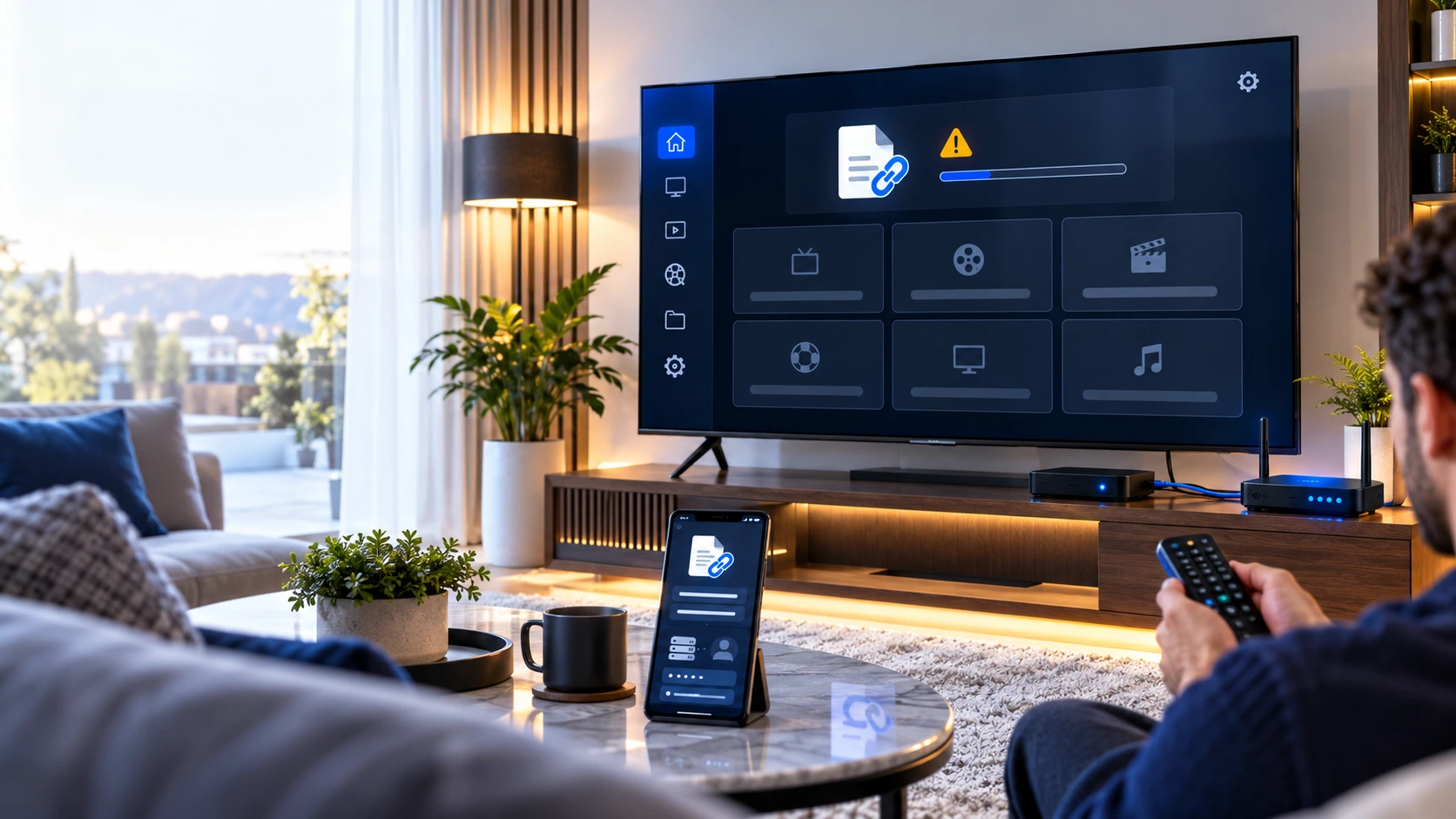
Why Is My IPTV Playlist Not Loading?
An IPTV playlist may fail to load when the player cannot retrieve or read the channel list. Common causes include an incorrect M3U URL, invalid login details, an expired account, a network problem or a temporary server issue.
Start here: Check your internet connection. Then confirm your playlist details and restart the app. If the problem continues, test the same authorised playlist in another compatible player.
Common Causes of IPTV Playlist Loading Errors
Different errors can look similar. However, each cause needs a slightly different check.
Incorrect M3U Link
A missing character, extra space or outdated playlist address can stop the import.
Check your link →Wrong Login Details
Xtream Codes-style logins need the correct server address, username and password.
Review login details →Internet Problems
A disconnected TV, unstable Wi-Fi or DNS problem can prevent the player from reaching the server.
Test the connection →Account Access
An expired subscription or changed account details may prevent the playlist from updating.
Check access →Player App Issues
An outdated app, damaged local data or unsupported playlist format can cause loading errors.
Check the player →Server-Side Problems
The source server may be unavailable or temporarily unable to respond to requests.
Check service status →How to Fix IPTV Playlist Not Loading Step by Step
Follow these checks in order. Begin with the simple steps before changing app settings or removing a saved playlist.
Check Your Internet Connection
First, open a trusted website or another app on the same device. If it cannot connect, the problem may be your network rather than the playlist.
What to try
- Confirm that your TV or streaming box is online.
- Restart the router if other devices also lose access.
- Move closer to the router or test Ethernet if available.
- Try the playlist again after the connection returns.
If other apps work, continue to the next step. A working internet connection does not always mean the playlist server is reachable.
Check Your M3U Playlist URL
Next, review the private M3U link supplied by your authorised provider. A single incorrect character can prevent the player from importing it.
What to check
- Copy the original link instead of typing it manually.
- Remove accidental spaces before or after the URL.
- Check that the link has not been replaced or expired.
- Confirm that your player supports remote M3U playlists.
Verify Xtream Codes Login Details
If you use an Xtream Codes-compatible player, check the three fields separately. These usually include a server address, username and password.
Review each field
- Use the exact server address supplied to you.
- Include the port if your provider requires one.
- Check capital letters and special characters.
- Make sure no spaces were added when copying.
Also, select the correct login method in the player. An M3U URL is not always entered in the same place as Xtream Codes credentials.
Confirm That Your Account Is Active
Sometimes, the player works normally but the account no longer allows playlist access. Check your subscription information through the provider's official support channel.
Look for these clues
- The playlist worked before but stopped suddenly.
- The app reports invalid credentials or access denied.
- Several compatible players show the same error.
- Your subscription may have reached its end date.
Do not assume that every failed playlist means the subscription has expired. A server outage or app problem can produce similar symptoms.
Restart and Update Your IPTV Player
If the connection and login details appear correct, close the player completely. Then reopen it and refresh the playlist.
Safe app checks
- Install available updates from a trusted source.
- Restart your Smart TV or streaming device.
- Use the player's built-in playlist refresh option.
- Check that the app supports your playlist format.
On supported devices, clearing the app cache may help. However, avoid clearing app data or uninstalling the player until you have saved your login details and checked the consequences.
For compatible player options, visit our IPTV Apps guide .
Check for a Server or Provider Issue
Finally, consider the playlist source. If the same authorised playlist fails across different devices and compatible apps, the server may be unavailable or your account may need attention.
Before contacting support
- Write down the exact error message.
- Record your device model and player name.
- Explain whether the playlist worked previously.
- Say which troubleshooting steps you completed.
Contact your authorised provider through its official support channel. Ask whether there is a known outage or an account-specific issue.
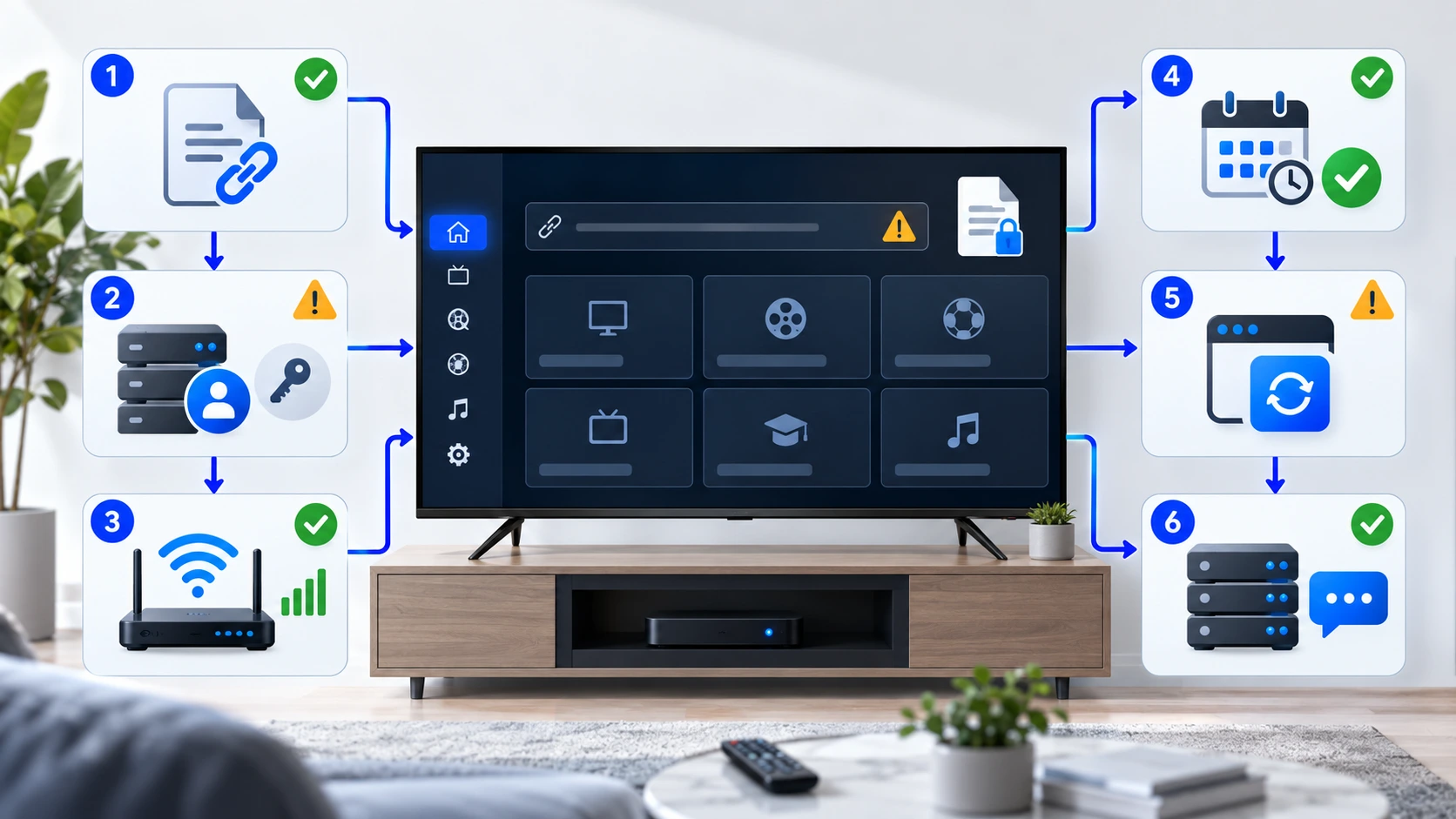
M3U Playlist vs Xtream Codes: What Should You Check?
Both methods can load authorised IPTV content. However, they use different setup fields.
| Check | M3U Playlist | Xtream Codes |
|---|---|---|
| Information needed | Private playlist URL | Server, username and password |
| Common mistake | Incomplete or outdated URL | Incorrect field or missing port |
| First check | Copy the original link again | Verify all three login fields |
| Possible app issue | Unsupported playlist format | Unsupported login method |
| When to seek help | Link remains inaccessible | Login remains rejected |
Some media players support both methods. Others support only one. Always check the features of your installed app.
What Common IPTV Playlist Errors Mean
Error messages are useful clues, but their wording varies between applications.
| Message or symptom | Possible explanation | What to try |
|---|---|---|
| Invalid URL | The link may be incomplete or incorrectly entered. | Copy the original private URL again. |
| Authentication failed | Login details or account access may be incorrect. | Verify the credentials and account status. |
| Connection timed out | The server did not respond within the allowed time. | Check connectivity and retry later. |
| Playlist is empty | No readable entries were imported. | Refresh the list and check the source format. |
| Unable to parse playlist | The response may be malformed or unsupported. | Check compatibility and ask the provider. |
| Channels disappeared | The list may have failed to refresh or changed at source. | Reload the playlist and check service status. |
Fix Playlist Loading on Different Devices
The main checks are similar across devices. Still, the available app settings may differ.
Samsung and LG Smart TVs
Restart the television and open the player again. Check that the TV is online and that the installed app supports your playlist method.
If the app uses a device ID or remote playlist management portal, follow the developer's official instructions. Do not publish the device ID publicly.
Fire TV Stick
Restart the Fire TV Stick and check its network settings. Then update your player through a trusted source and refresh the saved playlist.
If the problem started after an app update, check the developer's support information before removing stored data.
Android TV and Google TV
Confirm that the device has internet access. Next, force-close the player and reopen it. Check for updates and review the playlist fields.
You may clear the app cache if supported. However, clearing storage can remove saved profiles.
iPhone, iPad, Windows and Mac
Test the connection using another trusted app. Then reopen your IPTV player and review its playlist import settings.
If possible, compare the same authorised source in another compatible player. This can help identify an app-specific issue.
How to Reduce Future Playlist Loading Problems
No setup can prevent every server or network issue. However, a few habits can make troubleshooting easier next time.
- Keep your player updated from official sources.
- Store subscription details in a secure location.
- Use a stable connection where possible.
- Avoid repeatedly importing duplicate playlists.
- Check the provider's official service notices.
- Keep a record of the app and device you use.
When Should You Contact IPTV Support?
Contact your authorised provider if the playlist still fails after you have checked your connection, login details and player settings.
Support can investigate account access and possible service-side problems. However, they may need more details about your device and error.
Information to Prepare
- Device brand and model
- Media-player name and version
- Exact error message
- When the problem started
- Checks you have already tried
Avoid sending passwords or full private playlist links unless the provider has confirmed a secure, official method for handling them.
Related IPTV Troubleshooting Guides
If your playlist loads but playback still fails, the problem may need a different solution.
IPTV Playlist Not Loading: FAQs
These answers cover the questions viewers commonly face during playlist setup.
Why is my IPTV playlist not loading?
The cause may be an incorrect M3U URL, invalid login details, an internet problem, an unsupported format or a temporary server issue. Start by checking the connection and playlist information.
Why does my M3U playlist show no channels?
The player may have imported an empty or unreadable list. It may also have failed to retrieve the latest data. Refresh the playlist, check the original link and confirm the source is available.
Can an expired subscription stop a playlist loading?
Yes. Some providers restrict playlist access when an account expires. However, an expired subscription is not the only possible cause. Check your account through the provider's official support channel.
Why does Xtream Codes login fail?
The server address, username or password may be incorrect. Your account may also be inactive, or the server may be unavailable. Verify the supplied details before changing other settings.
Should I reinstall my IPTV player?
Not immediately. First, restart the app and device, check for updates and refresh the playlist. Reinstalling may remove saved profiles or require you to enter login details again.
Why does the playlist work on one device but not another?
The second device may have a connection problem, an incompatible app or incorrect settings. Compare the player versions and login methods. Also, check whether your account has device or simultaneous-connection limits.
Does a VPN fix IPTV playlist loading errors?
Not necessarily. A VPN cannot repair an incorrect URL, expired account or unsupported playlist. It may also affect connection speed. Check the actual error first and follow applicable laws and provider terms.
What if the playlist loads but channels do not play?
This is a different symptom. The channel list may be available while individual streams fail. Check playback, network stability and player compatibility. Our IPTV Not Working guide explains the next steps.
Still Having Trouble Loading Your Playlist?
Tell us which device and media player you use, along with the error you see. Our support team can help you review the next steps.
This guide provides general troubleshooting information. Settings and error messages vary by app and device. Only access content you are legally authorised to use.