
IPTV VOD Not Working? Causes and How to Fix It
Your live channels may work perfectly, yet a film or series refuses to play. Sometimes the VOD library will not load at all.
This guide explains what to check first, how to identify the likely cause, and when to contact your authorised service provider.
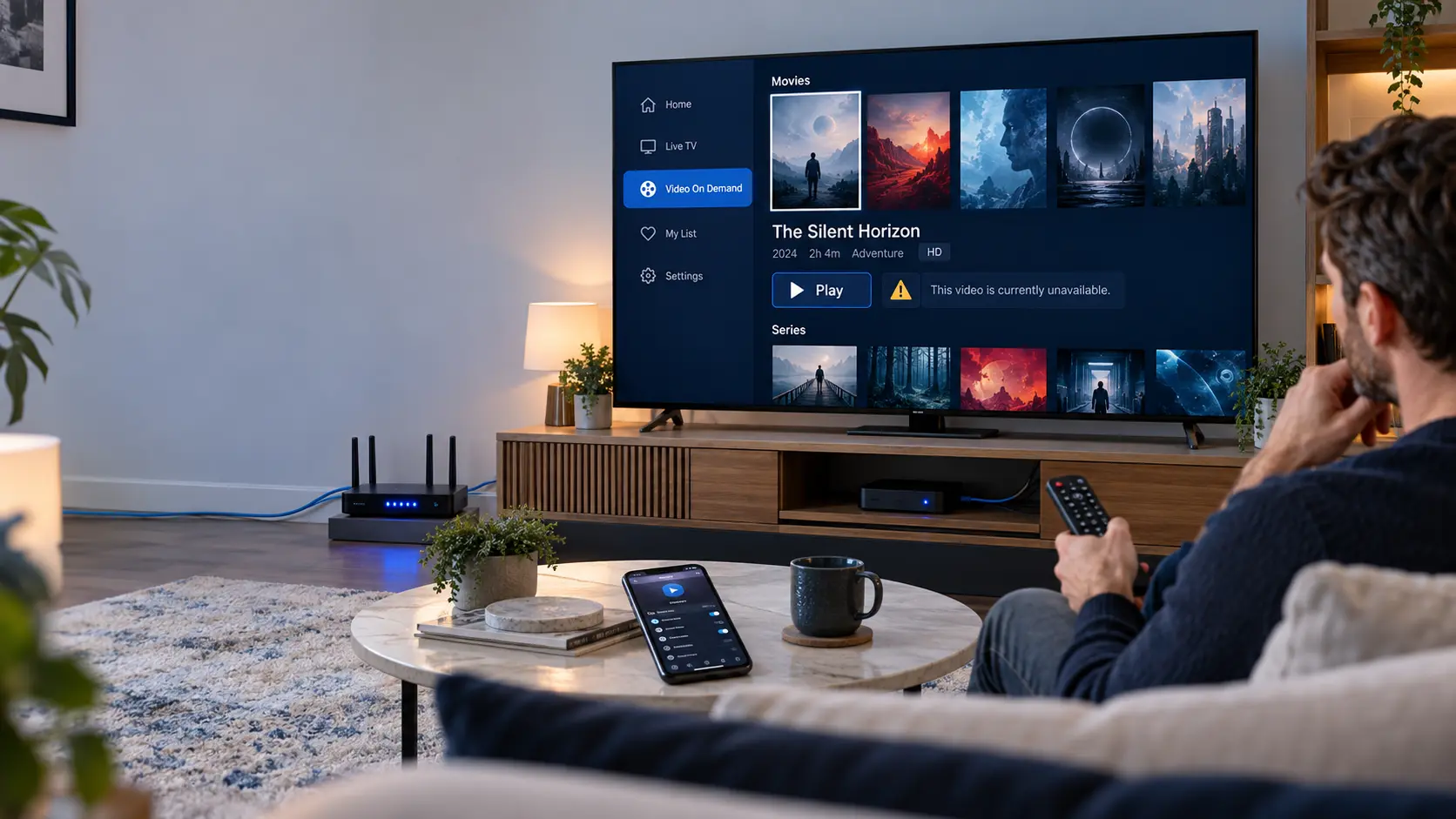
What Does IPTV VOD Not Working Mean?
VOD stands for Video on Demand. It lets you choose a film or episode and watch it when you want, provided the content is available through your authorised service.
Unlike live television, on-demand playback starts from a selected media file. The player must load that file and decode its video and audio.
As a result, VOD problems do not always affect live channels. You might see a complete movie library but receive an error when you press Play.
In other cases, the Movies or Series section may appear empty. That points towards a different problem, such as missing catalogue data, account permissions, or a loading failure.
First, check what actually fails
A missing VOD library is not the same as a film that fails during playback. Identifying the symptom will save time and help you choose the right fix.
Identify Your IPTV VOD Problem
Start with the symptom you can see. The table below shows a sensible first check for each situation.
| What happens? | Possible cause | What to try first |
|---|---|---|
| One film will not play | A title-specific file or availability issue | Play another film from the same library |
| Every film fails | Player, account, network or provider issue | Restart the app and test another device |
| Movies section is empty | Catalogue loading or access problem | Refresh the library and check account access |
| Video plays without sound | Audio format or output setting | Check audio tracks and device sound settings |
| Video starts, then stops | Network instability, device limits or source issue | Test another title and your connection |
| Live TV works, VOD fails | Separate VOD access, file or player issue | Compare multiple VOD titles |
These are diagnostic clues, not confirmed causes. The same error can have several explanations.
Why IPTV Movies and Series Stop Working
There is no single cause behind every VOD error. However, these six issues are worth checking.
Unavailable Media File
A particular film or episode may be missing, damaged, or temporarily unavailable from the content source.
Internet Instability
Weak Wi-Fi, packet loss, or an unstable connection can interrupt on-demand playback.
Media Player Problems
An outdated app, corrupted temporary data, or an incorrect player setting may cause errors.
Unsupported Video Format
Some devices cannot decode certain video or audio formats used by a media file.
Device Limitations
Low available memory, limited processing power, or old device software can affect playback.
Provider-Side Issues
The authorised provider may be experiencing a temporary VOD service or catalogue problem.
How to Fix IPTV VOD Not Working Step by Step
Follow these checks in order. Start with the easiest tests before changing advanced settings.
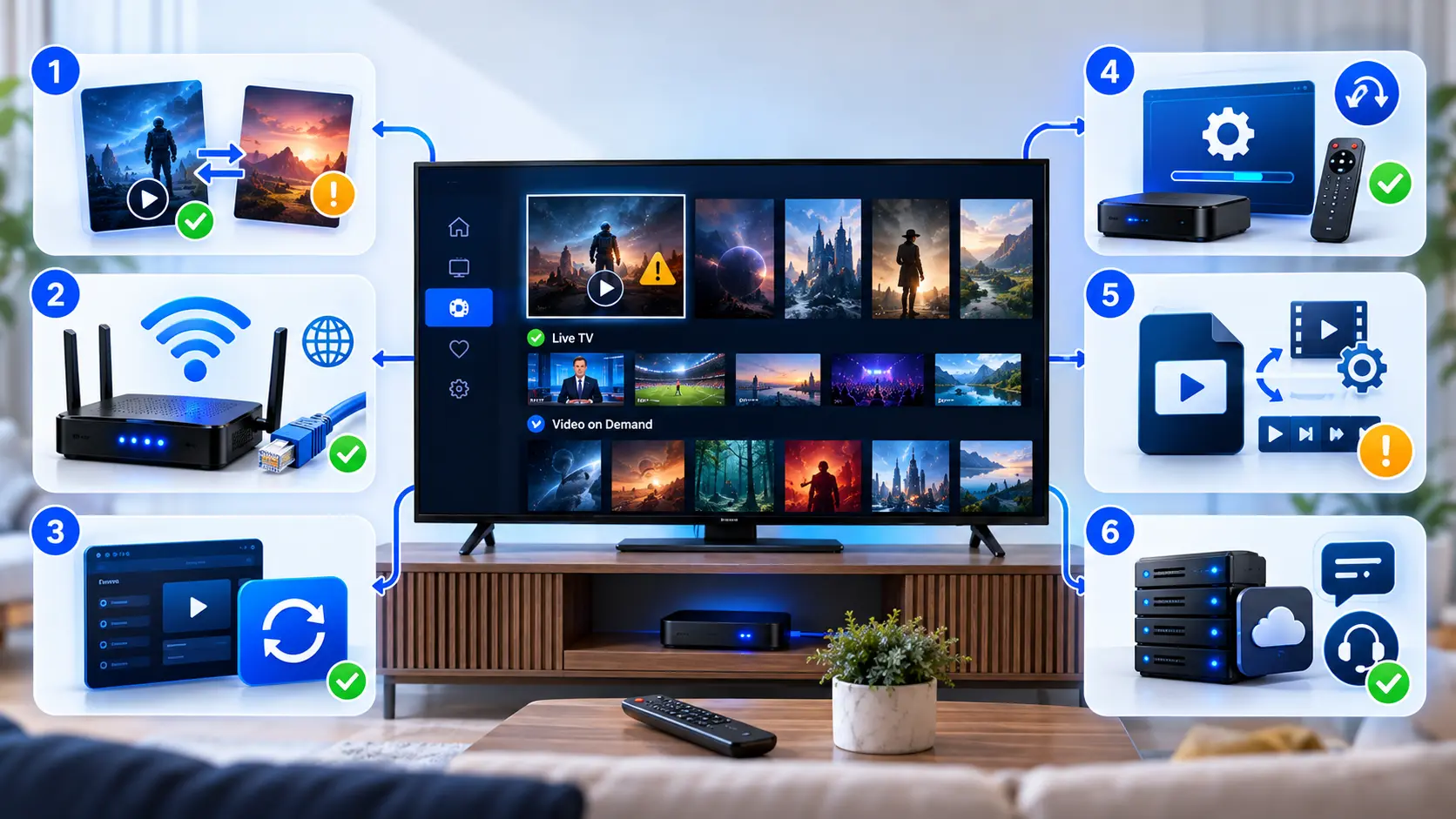
Try Another Film or Episode
First, open your VOD library and choose another title. If possible, test both a movie and a series episode.
- Open the Movies or Series section.
- Select a different title.
- Press Play and wait for the result.
- Compare it with the original title.
What the result tells you
If other titles work, the original file may be unavailable or incompatible. If every title fails, continue with the next check.
Check Your Internet Connection
Next, check whether your streaming device has a stable connection. A strong Wi-Fi icon does not always mean the connection is reliable.
- Open a trusted website or another authorised streaming app.
- Check whether videos play normally.
- Restart your router if other services also have connection problems.
- Test Ethernet if your device supports it.
When Ethernet may help
A wired connection can reduce Wi-Fi interference. However, it cannot repair a missing film or an unsupported codec.
Restart Your IPTV Media Player
Sometimes an app develops a temporary playback problem. Closing it fully can clear that state.
- Exit the media player.
- Close it completely if your device allows this.
- Reopen the app.
- Return to the same VOD title.
Should you clear the cache?
You can consider clearing temporary app data if the problem continues. Use the device's normal app settings.
Be careful with options such as Clear Data or Reset App. They may remove saved profiles and require you to sign in again.
Update the App and Streaming Device
An older media player may struggle with newer files or playback methods. Therefore, check for supported updates.
- Open your device's official app store.
- Look for an update to your media player.
- Check for device system updates.
- Restart the device after updating.
Why updates matter
Updates may fix known bugs or improve compatibility. Still, they cannot guarantee that every VOD file will work.
Check Video Format and Player Compatibility
If the film opens but shows no picture, freezes, or plays without sound, the device may not support its format.
- Check whether another title plays.
- Review the player's available playback settings.
- If supported, compare the built-in player with another trusted player.
- Avoid installing unknown applications from untrusted websites.
What is a codec?
A codec is technology used to encode and decode video or audio. Some devices support more formats than others.
For example, a device may play one video format but struggle with another. Audio compatibility can also differ.
Check Your Account and Provider Status
Finally, confirm that your authorised subscription includes access to the VOD library. Some services have different content permissions or temporary outages.
- Confirm that your account is active.
- Check whether VOD access is included.
- Ask whether the affected title is available.
- Report the exact error if the issue remains.
What should you send to support?
Include the device model, app name, affected title, approximate time, and error message. Do not send your password unless a trusted support process specifically requires secure authentication.
Why Does Live TV Work but VOD Does Not?
Live TV and Video on Demand can use different media sources and playback workflows. As a result, one can work while the other fails.
Live TV Playback
Live channels deliver an ongoing stream. Your player connects to the available channel source and displays the broadcast.
What a working channel confirms
It suggests that your app, device, and connection can play at least that stream. It does not prove that every media source is available.
Video on Demand Playback
VOD starts when you select a particular film or episode. The player must access the requested file and support its format.
What a VOD failure may mean
The selected file may be unavailable. Alternatively, the device or media player may not support its playback format.
Do not reset everything immediately
If live channels work and only one film fails, a full device reset is unlikely to be the best first step. Test more titles before changing your configuration.
IPTV VOD Problems on Different Devices
The same VOD error can behave differently across devices. Use these checks alongside the six steps above.
Samsung and LG Smart TVs
Check the media-player update, TV software, and available memory. Some television models have limited format support.
Fire TV and Fire Stick
Restart the device, check app updates, and review storage space. Test another trusted playback option if supported.
Android TV and TV Boxes
Check app permissions, system updates, and playback settings. Compare results with another authorised media file.
Windows and Mac
Update your trusted media player and check whether the system supports the affected video and audio formats.
iPhone and iPad
Update the player, check available storage, and test Wi-Fi. Mobile app compatibility varies by device and file format.
Home Network
Compare Wi-Fi and Ethernet where possible. If multiple devices fail on the same title, investigate the content source as well.
For help choosing and configuring a player, explore our IPTV media-player guide .
Common Mistakes When Fixing IPTV VOD
A few rushed changes can make troubleshooting harder. Avoid these mistakes while testing your media player.
Resetting the App Too Soon
A full reset may remove saved settings and account information. First, try restarting the app and testing another title.
Better approach
Change one setting at a time. Then test playback before making another change.
Assuming Internet Speed Is the Cause
Faster internet does not solve every playback problem. An unavailable file or unsupported codec needs a different solution.
Better approach
Compare several titles and devices. Look for a consistent pattern before changing your network.
Installing Untrusted Players
Unknown downloads may introduce security risks. They can also create new compatibility problems.
Better approach
Use trusted software sources and check whether the app supports your device.
Sharing Account Details Publicly
Screenshots may expose server addresses, usernames, or passwords. That information should remain private.
Better approach
Hide sensitive details before sharing an error screenshot. Use a trusted support channel.
When Should You Contact IPTV Support?
Contact your authorised provider when the basic checks do not resolve the issue, especially if several titles fail across different devices.
Before contacting support, collect a few useful details. This helps the team understand the problem without repeating the same questions.
- Your device model and operating system.
- The media-player name and version, if known.
- Whether live channels still work.
- Whether one title or the whole VOD library fails.
- The exact error message, if one appears.
- Whether you tested another network or device.
Respect content access and licensing
Use IPTV services and media libraries only where the provider has the necessary rights and your account permits access. If a title is not licensed or available, changing player settings will not create legitimate access.
IPTV VOD Not Working: FAQs
These answers cover common questions about on-demand playback.
Why is IPTV VOD not working while live TV works?
Live TV and VOD may use different media sources and playback formats. Therefore, a working live channel does not guarantee that every film will play. Test several VOD titles to narrow down the issue.
Why do IPTV movies keep loading without playing?
Possible causes include an unstable network, an unavailable media file, or a player compatibility issue. Try another title, restart the app, and check your connection.
Can clearing the cache fix IPTV VOD?
It may help if temporary app data is causing the problem. However, it cannot repair a missing file or an issue on the provider's server. Avoid clearing all app data unless you understand what will be removed.
Why does only one movie fail to play?
The particular title may be unavailable, damaged, or encoded in a format your device cannot play. If other films work, report the affected title to your authorised provider.
Why does IPTV VOD have sound but no picture?
The device may support the audio format but not the video format. Check updates and supported playback settings. You can also compare the file on another compatible device.
Why is the IPTV Movies or Series section empty?
The catalogue may not have loaded, or your account may not include VOD access. Refresh the library, check the account status, and ask your provider whether the content is available.
Does IPTV VOD need faster internet than live TV?
It depends on the video quality, encoding, and stream. Higher-resolution files may need more bandwidth. However, a stable connection matters as much as the headline download speed.
Should I reinstall my IPTV app?
Reinstallation is usually a later step. First, test another title, restart the player, and check for updates. If you reinstall, make sure your settings and authorised account details are backed up.
Still Having Problems With IPTV VOD?
If you have tried the checks above, our support team can help review your service setup. Share the device, app, and error details so we can understand the issue.