
IPTV Troubleshooting: Fix Common Streaming Problems
Is your IPTV buffering, freezing or failing to load? Start here. This guide helps you identify common streaming problems and choose the right fix.
Follow practical checks for Smart TVs, streaming sticks, Android devices and computers. You can also explore our detailed troubleshooting guides.
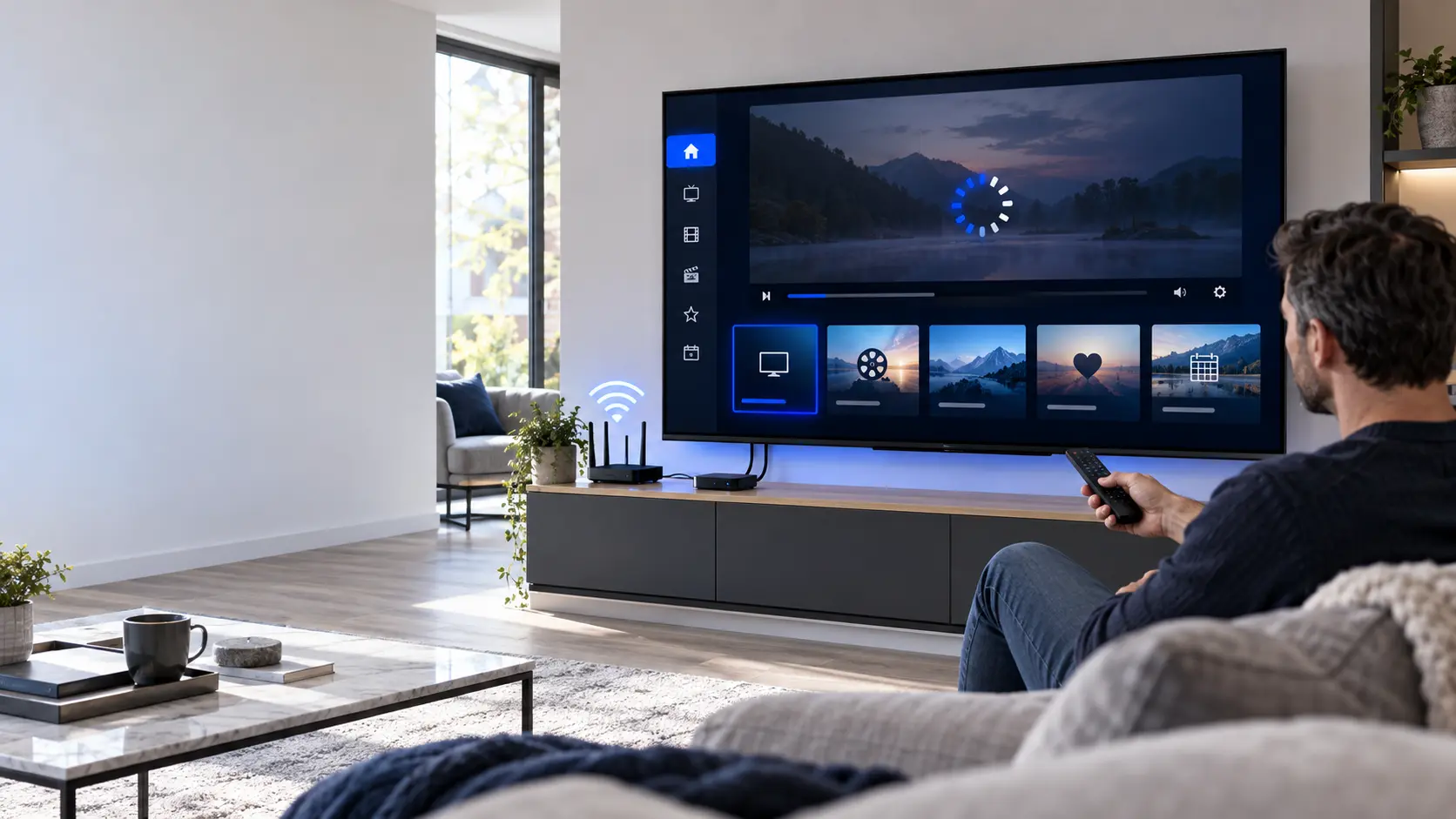
Why Does IPTV Stop Working?
IPTV depends on several parts working together. Your internet connection, media player, device and content source all affect playback.
Weak Wi-Fi can cause buffering. Incorrect login details may prevent a playlist from loading. An outdated app can also lead to crashes.
The best approach is to test one thing at a time. This makes it easier to find the cause without changing settings that already work.
What Should You Check First?
- Does another internet app work?
- Is the issue affecting one stream or all streams?
- Does the media player open normally?
- Are your account details still valid?
- Did the problem begin after an update?
Find the Right IPTV Troubleshooting Fix
Choose the problem you are experiencing. We will suggest a few checks to help narrow down the cause.
What Is Happening?
Select the closest description. These are general checks, not an automatic diagnosis.
This tool runs in your browser. It does not request your password or access your IPTV account.
Your Suggested Checks
Choose a problem from the menu to see relevant troubleshooting steps.
Six Steps to Fix Common IPTV Problems
Try these checks in order. Start with simple changes before reinstalling apps or resetting devices.
Check Your Internet Connection
Open another app or website on the same device. If it also fails, your network may be the cause.
Check Wi-Fi signal strength and make sure the router is connected. If possible, test another network.
What if your speed test looks normal?
Speed alone does not prove a connection is stable. Wireless interference and packet loss can still interrupt video playback.
Restart the Media Player
Close the IPTV application completely. Open it again and test the same stream.
If the problem continues, restart the television or streaming device. This may resolve a temporary issue.
Test Another Authorised Stream
Try a different channel or video from the same authorised source.
If only one item fails, the issue may be specific to that stream. If everything fails, check the connection, app and account.
Review Playlist or Login Details
If your library will not load, confirm the server address, username and password.
For M3U playlists, check that the full private URL is correct. Avoid extra spaces when entering information.
Before changing your credentials
Confirm that the account is active and that the player supports the login method you are using.
Update the App and Device
Check for a newer version of your media player through its trusted distribution source.
Also review available operating-system updates. Restart the device after updating when necessary.
Compare Wi-Fi With Ethernet
If buffering happens regularly, test a wired connection where your device supports one.
Ethernet can reduce wireless interference. However, it will not fix an invalid playlist, expired account or unavailable stream.
A factory reset can remove applications, accounts and personal settings. Try simpler checks first.
How to Diagnose IPTV Problems Step by Step
A clear diagnosis can save time. First, identify the symptom. Then test the most likely cause.
If a video buffers, check whether other streaming apps behave the same way. If they do, investigate your network.
If another app works normally, review the media player and the affected content source.
A Useful Testing Order
- Identify the exact symptom.
- Check another internet app.
- Restart the affected media player.
- Test another authorised stream.
- Review the account and app settings.
- Record what changed after each test.
Note the device model, app version, time of the problem and any error message. These details help technical support.
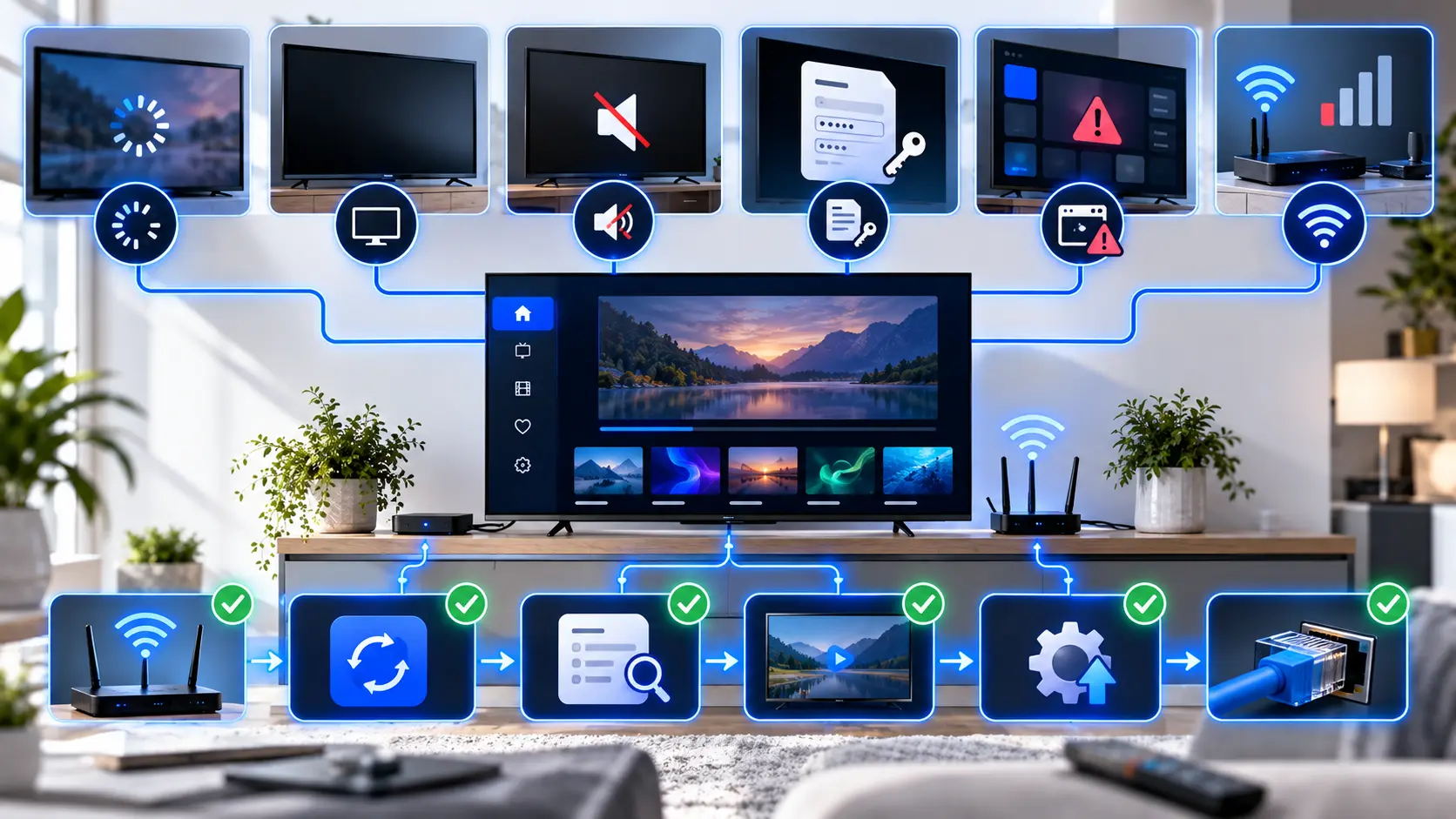
IPTV Troubleshooting Guides by Problem
Select your streaming issue to find a dedicated guide with practical troubleshooting solutions.
IPTV Buffering
Find out why streams buffer and how to improve playback stability.
Fix IPTV Buffering →IPTV Not Working
Diagnose connection, account and playback failures.
Fix IPTV Not Working →IPTV Keeps Freezing
Investigate repeated picture freezes and interrupted playback.
Fix IPTV Freezing →IPTV Black Screen
Check video decoding, unavailable streams and display settings.
Fix IPTV Black Screen →IPTV No Sound
Resolve missing audio and incorrect playback output settings.
Fix IPTV Sound →IPTV App Not Working
Fix app crashes, loading failures and common software errors.
Fix IPTV App Problems →IPTV Playlist Not Loading
Check M3U links, playlist formats and connection errors.
Fix Playlist Errors →Xtream Codes Not Working
Review server details, login credentials and player compatibility.
Fix Xtream Codes Login →IPTV EPG Not Working
Fix missing, outdated or incorrect programme guide information.
Fix IPTV EPG →IPTV VOD Not Working
Investigate films and series that fail to load or play.
Fix IPTV VOD →IPTV Wi-Fi vs Ethernet
Compare wired and wireless connections for reliable streaming.
Compare Connections →Internet Speed for IPTV
Understand bandwidth, network stability and streaming requirements.
Check Internet Requirements →IPTV Troubleshooting on Different Devices
The first checks are similar on most devices, but available settings can be different.
Smart TV
Restart the television, check network settings and update the media player. App availability depends on the TV operating system.
Fire TV & Streaming Sticks
Check storage, app updates, network quality and device temperature. Restart the stick if playback becomes unstable.
Google TV & Android TV
Check the installed app, restart the device and review network settings. Clear the app cache if appropriate.
Windows & Mac
Review player updates, network access, audio output and supported video formats. Compare playback with another application.
iPhone & iPad
Check Wi-Fi or mobile connectivity, app permissions and updates. Restart the app before reinstalling it.
Media Player Settings
Some players offer decoder, audio-track and playlist refresh options. Change only settings you understand.
How to Reduce Future IPTV Problems
Not every streaming issue can be prevented. However, a few good habits can reduce avoidable problems.
Keep Your Setup Simple
Use a compatible media player and keep its settings organised. Avoid unnecessary modified applications.
Maintain Your Home Network
Place the router where it provides a reliable signal. Use a supported wired connection when practical.
Review Updates Carefully
Keep applications and devices updated. If a problem begins after an update, record the version and check developer guidance.
More IPTV Help and Setup Guides
Learn about media players, configure your devices and find general service information.
IPTV UK Homepage
Visit the main website for general service information and support options.
Visit Homepage →Installation Guides
Follow device setup instructions for televisions, streaming sticks, phones and computers.
View Installation Guides →IPTV Apps
Learn about compatible media players, supported login formats and useful features.
Explore IPTV Apps →IPTV Troubleshooting FAQs
Quick answers to common questions about IPTV streaming and playback.
Why is my IPTV buffering with fast internet?
A fast speed test does not guarantee stable playback. Wi-Fi interference, congestion, device performance and source reliability can also affect streaming.
Why does IPTV keep freezing?
Freezing can result from an unstable connection, app problems, device limitations or source issues. Test another stream and restart the player first.
Why is IPTV showing a black screen?
A black screen may indicate an unavailable stream, unsupported video format or playback problem. Try another authorised stream and review player settings.
How do I fix IPTV with no sound?
Check mute and volume settings, the selected audio output and any available audio tracks. Compare playback with another stream.
Why is my IPTV playlist not loading?
Check the playlist address, internet connection and account status. Confirm that your player supports the playlist format.
Why does live TV work but VOD does not?
Movies and series may use different video formats or delivery methods. Check player compatibility and test another item.
Is Ethernet better than Wi-Fi for IPTV?
Ethernet can provide a more consistent connection by avoiding wireless interference. Good Wi-Fi can also work well.
Should I reinstall my IPTV app?
Try restarting and updating the app first. Reinstallation may remove saved settings, so keep your authorised login details available.
Does a VPN always fix IPTV problems?
No. A VPN cannot repair an invalid account, incompatible app or unavailable stream. It can also introduce additional latency.
Still Having IPTV Problems?
If the troubleshooting steps have not solved your issue, contact our support team on WhatsApp.
Tell us your device model, media player, error message and what you have already tested. Please do not send passwords or complete private playlist URLs.